Switch Secondary Command Center to Active Mode
In the event when the Primary eyeInspect Command Center fails or becomes unresponsive, for example due to network or hardware failure, the Secondary Command Center can be set to Active. Changing the Secondary Command Center node to Active implies that the Command Center is now in standalone mode without High Availability enabled.
A failure condition can be simulated by powering off the Primary Command Center, leaving only the Secondary eyeInspect Command Center reachable via SSH.
The following steps describe the procedure to set the Secondary Command Center to Active mode and verify that the procedure works correctly.
- Login to the Secondary Command Center via SSH.
- Execute the following
command
sudo sdconfig
- From the eyeInspect configuration menu, select Command Center High Availability.
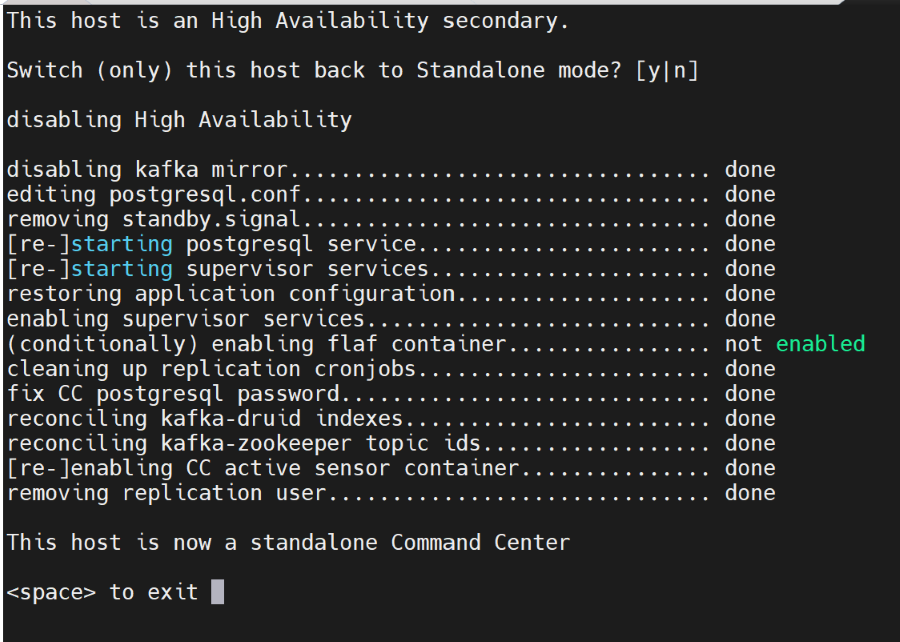
- Press the "y" key to switch the Secondary Command Center to a standalone Command Center.
- After the switch is successful, press the "spacebar" key as shown in the terminal to exit.
- Select Exit to exit the sdconfig menu.
- Check if all processes are running by the issuing the following
command:
sudo supervisorctl status
After the switchover, the Command Center web interface becomes accessible after around a minute and connections to the Command Center from Passive and Active Sensors are re-established.
Here’s how the process looks in the terminal:
What to expect after the switchover
When the primary Command Center node is unresponsive, each eyeInspect Sensor connected to it will start enquiring the secondary Command Center node to establish a new connection. Asset and alert information will be kept in the sensor until the disk usage exceeds the healthy threshold configured, which is 90% by default.
As soon as the Secondary Command Center becomes Active, the data will start flowing back from each sensor.
Data synchronization policy between Primary and Secondary Command Center nodes after switchover is outlined below:
- The following are synchronized in real time:
- Asset inventory
- Alerts
- Active scan data
- Passive sensor information
- Active sensor information
- Historical analytics data is synchronized at the start of every hour - for example, 1 PM, 2 PM etc - thus any analytics generated after the previous sync will not be visible in Secondary Command Center after switchover.
 minute read