Configure a Command Center IP Address
After installing the Passive Sensor plugin and running it on the selected
appliances:
- If there is only one Command Center in the deployment, enter its IP address in the Primary Command Center field to allow connection
- If there are two Command Centers (in high availability replication mode), enter the IP addresses of both the Primary and Secondary command centers to allow connection
To configure a Command Center IP address:
- In the Forescout console, select .
- Select the sensor to be updated and click Edit.
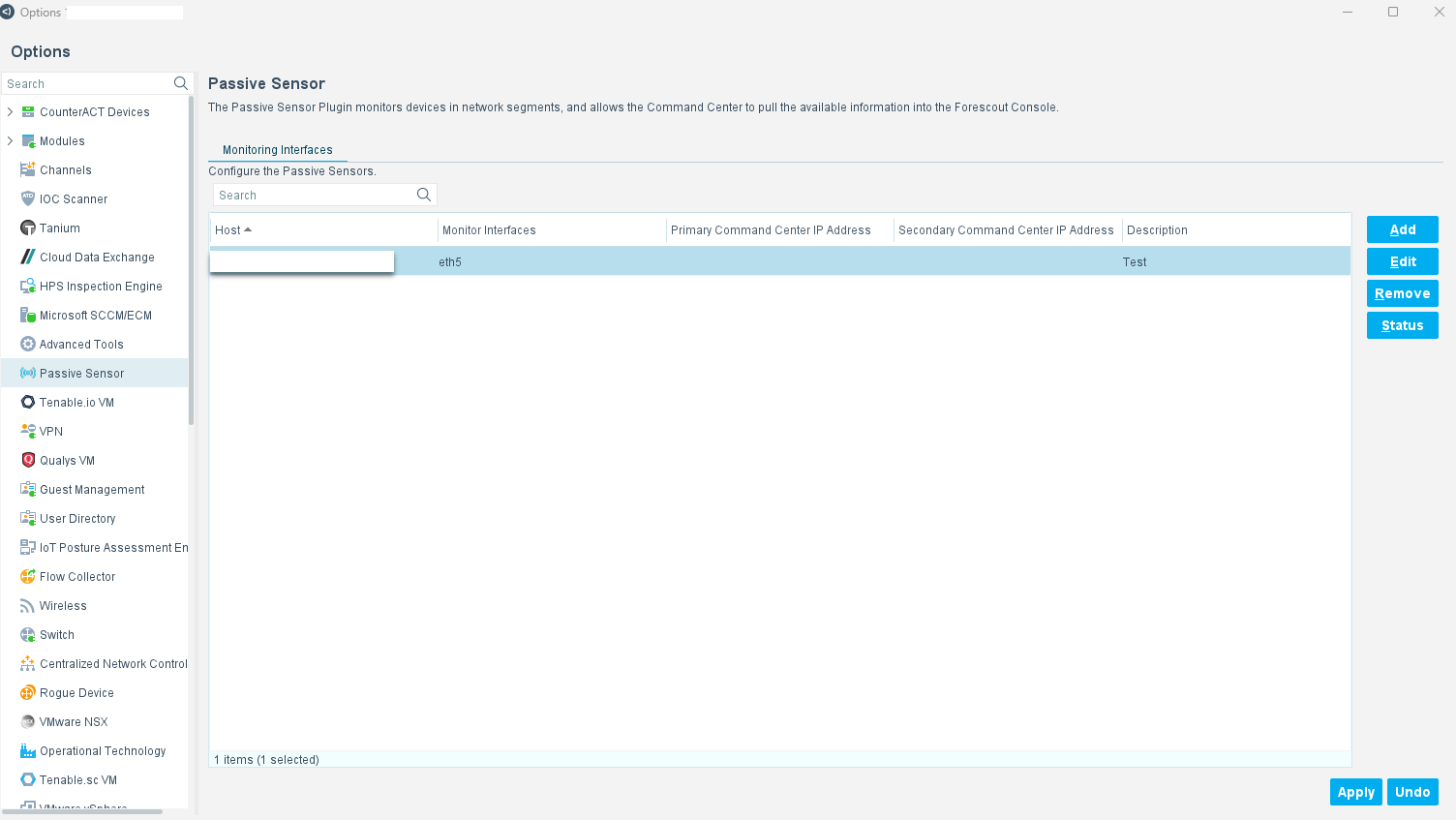
- In the Edit Sensor window, enter your Primary Command Center IP Address. If applicable,
enter your Secondary Command Center IP Address.
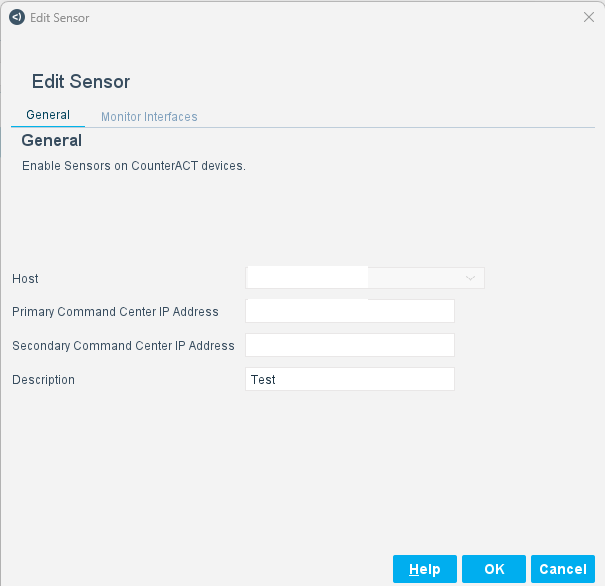
- Click OK.
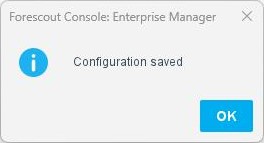
- Click Apply to save the configuration and view the confirmation message. Click
Close to close this message and view the Configuration saved message.
 Note: If the passive sensor plugin was already running, it stops and restarts after clicking Apply. The confirmation message displays the steps performed.
 - Click OK to finish
Once the Command Center instance restarts, you can then accept enrollment requests for the new sensor.
 minute read