Managing Groups of Appliances
Forescout provides tools that simplify management of large numbers of Appliances. Use these tools when configuration settings or other management tasks must be applied to groups of Appliances. For example time zone and network connection settings are typically identical for all Appliances in a network location or geographical region.
View and Manage Plugin and Module Assignments per Folder
You can quickly view all Forescout devices with a specific plugin or module installed.
Select .
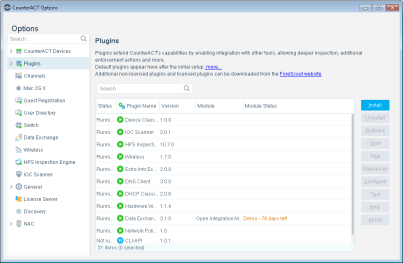
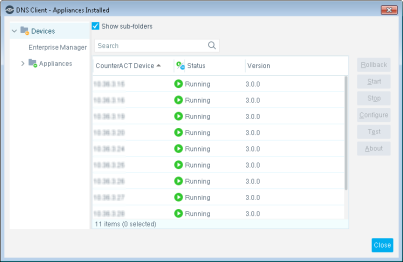
Double-click the required Content Module, or expand a module and double-click the required plugin. On the Devices tree, navigate to and select the Appliance, folder, or Enterprise Manager to display the list of devices on which the plugin or module is installed.
Configure Features for an Appliance or Group of Appliances
You can configure plugins and modules and certain features for individual Appliances or for a group of Appliances. This allows easy support of large, geographically dispersed environments.
When this option is available, configuration settings are organized using a row of tabs. Each tab duplicates all the configuration fields in the pane. Initially, only the Default tab is present.
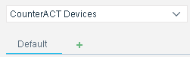
In the following example, additional tabs have been added, with separate configurations for regional groups of Appliances.

Use the following controls to create and manage configurations:
- Select the Plus-sign icon
 to create a new configuration.
- Use the Edit icon
 and the Delete icon x on a tab to update a configuration.
- When there are several configurations, it may be difficult to locate the configuration that applies to a specific device. Select the device from the CounterACT Devices drop-down. The configuration that applies to that device is highlighted for editing.
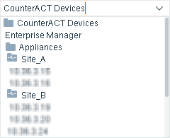
Example: To create a separate configuration for a device or group of devices:
- Select the Plus-sign tab. The Select CounterACT devices to configure dialog box opens.
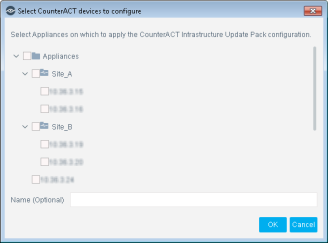
- Select the devices to which these configuration settings you want to apply these settings.
- (Optional) Specify a text label for this configuration instance in the Name (Optional) field.
-
Select OK. A tab is added to the pane.
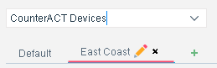
Configuration settings you define while this tab is selected apply only to the devices you selected in step 2.
 minute read