Activate a Forescout License
Activate or update centralized licenses (FLEXX) using the Forescout dashboard and Customer Portal.
Use this procedure to activate or update centralized licenses (FLEXX) through the Forescout Console and Customer Portal.
- Log into the Customer Portal at https://www.forescout.com/support/login/.
- Navigate to the Licenses tab using your Support Portal credentials.
- Scroll down to Deployments and select an existing
Deployment or Add Deployment.
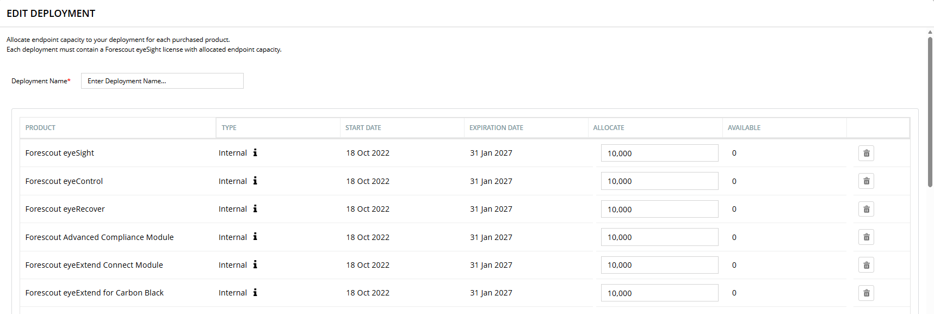
- Select the EDIT tab, enter a deployment name and seat count, and select Save.
- Copy the Deployment ID. Keep the Customer Portal open.
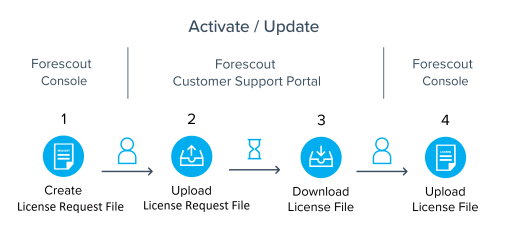
- Log into the Forescout Console and go to Options > Licenses > Activate or Update.
- Paste the Deployment ID and click Download License Request File. Keep this window open.
- Return to the Customer Portal on the Licenses tab and scroll to License Management.
- From the drop-down menu, select I want to: Activate License and select Upload License Request File.
- Download and save the generated license file (.fsl).
- Return to the Forescout Console, go to Upload License, click Choose File, and then select Activate License.
- Wait for the process to finish.
The system activates or updates the license.
If you renew your term
license, you must perform an update transaction to apply the new dates.
 minute read