Deactivate or Revoke a Forescout License
Deactivate Flexx licenses and reset license allocations using the Forescout Console and Customer Portal.
Use this procedure to revoke Flexx licenses and make allocations available for reuse. This includes deactivation of a permanent license previously applied to an eyeSight appliance.
- Log in to the Forescout Console.
- To view the deployment licenses, go to Options > Licenses.
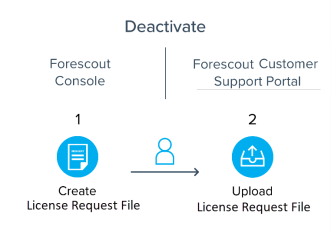
- Select Deactivate.
This action deactivates the entire license deployment. You cannot selectively or partially deactivate licenses within the deployment.
- In the dialog box, select Save to save the revocation request file to your local machine.
- Log in to the Customer Portal at https://www.forescout.com/support/login/ using your Support Portal credentials.
- Navigate to the Licenses tab and upload the saved revocation request file in the License Management section.
- The system revokes the license and makes all allocations available for
reallocation after you upload the file.
 minute read