Manage Forescout eyeSight users
You can:
- Create user management accounts for single users or user groups
- Assign permissions to allow, limit, or prevent user access to specific Console and web portal tools
- Limit view of endpoints per user
- Lock and unlock users
- Generate reports detailing user activity
- Create user password policies
- Create Terms & Conditions to be accepted during login
- Implement advanced security login methods
The Permissions and Scope options offer powerful user control. For example:
- Allow access to the entire network range, but never allow access to certain high security features, such as the Appliance configuration or Action Threshold features.
- Allow access to a specific network range, such as a particular building, and grant permission to all Forescout tools.
In addition, you can create users or user groups that have access to only the Console or only to web portals, or users that can access both.
Note: Users who have no permissions cannot log in to the Console or to any of the Forescout web portals.
Forescout eyeSight users
and user profile types
Working with user groups lets you streamline and simplify user creation. Specifically, you can define user groups based on RADIUS or user directory user groups. All users associated with a group are granted identical Forescout permissions and scope assignments.
For example, you can create one group of administrative users with full permissions and full access to all network segments and create another group of users who can only access certain features or certain network segment.
Users in a group log in to the Console and web portals using their user directory or RADIUS server credentials. They are authenticated via the authentication server defined when the group was created.
Two methods are available for grouping users:
- Associate user groups with a specific RADIUS attribute and value (shown below).
- Associate user groups with a specific User Directory group membership.
Users and user groups are defined in the CounterACT User Profiles table and assigned the following:
- Authentication requirements: Define which authentication method is required when logging in.
- Feature permissions: Prevent or allow access to specific Console and web portal feature
- Scope access: Define which network devices can be viewed and controlled.
Note: Users who have no permissions cannot log in to the Console or to any of the Forescout web portals.
Following is a list of User Types:
Single - PasswordUse this option to create user profiles for individual users who authenticate via the Forescout server with a user name and password. Individual users who authenticate via the Forescout server using a user name and password.
The user must authenticate with a User Name and Password.
Single - SSO (Web Only)Use this option to create user profiles for individual users who provide their single sign-on (SSO) credentials to authenticate with an external identity provider. See External Identity Provider User Authentication. These users can only access Forescout web portals (Web Access permissions).
The user must authenticate with an email address as the User Name.
Single - External User DirectoryUse this option to create user profiles for individual users who authenticate via a User Directory server defined in the User Directory Plugin, with the Use for Console Login option enabled.
The user must authenticate with a User Name, the User Directory Server Name, and a Full Name.
Single - Smart CardUse this option to create a user profile for an Individual user who authenticates via a Smart Card.
Related certificates and CRLs must be defined in Forescout, and the User Name defined here must be identical to the Common Name (CN) of the Smart Card certificate.
Note: For information about Smart Card certificates, see Smart Card Certificate Configuration.
The user must authenticate with a User Name and a Full Name.
Authentication can optionally include an x.509 DN Attribute (CN, SerialNumber, or emailaddress).
Authentication can optionally include two-factor authentication with one of the following verification methods:
- Single - Password
- Single - External User Directory
- Group - External RADIUS
- Group - External User Directory
Note: For information about these x.509 attributes, see x.509 Digital Certificate Attributes.
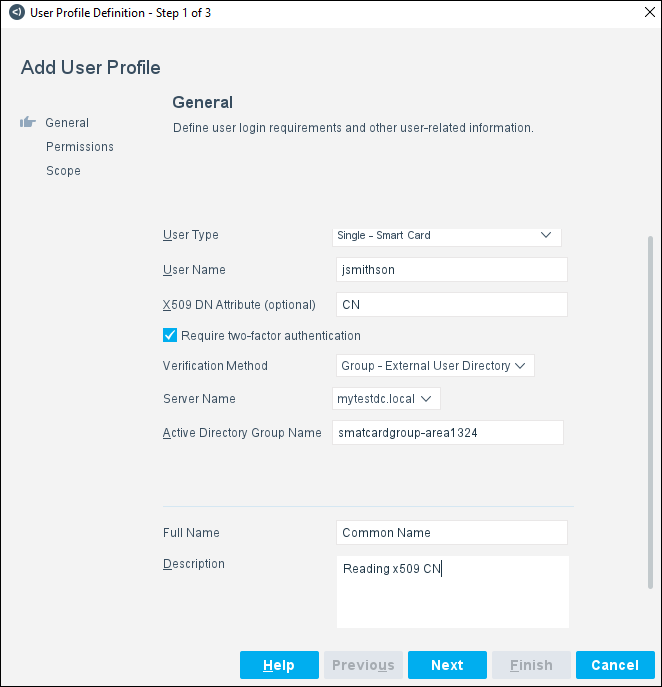
A sample of a user profile for a Single Smart Card user (General tab) is shown below:
Group - Smart Card - External User DirectoryUse this option to create a common user profile for a group of Smart Card users. The user must authenticate with an
x.509 DN attribute: Supported types:
- CommonName
- EmailAddress
- SerialNumber
- Subject Alternative Names (SAN): with Field Value of Principal Name or EmailAddress
Note: For information about these x.509 attributes, see x.509 Digital Certificate Attributes.
Related certificates and CRLs must be defined in Forescout, and the User Name defined here must be identical to the x.509 attribute of the Smart Card certificate.
Note: For information about Smart Card certificates, see Smart Card Certificate Configuration.
The user must also enter the
User Directory Server Name, and the
Active Directory Group Name as (mandatory) secondary
authentication.
The Active Directory (AD) User Identifier drop-down menu allows
you to choose which AD User Identifier to use to match the certificate when logging
in.
AD User Identifier settings:
- When X509 DN attribute is set to CommonName, AD User Identifier defaults to
sAMAccountName.?
- When X509 DN Attribute is set to Email Address, AD User Identifier defaults to
mail.
- When X509 DN attribute is set to Subject Alternative Names and SAN Field Value
is set to Email Address, AD User Identifier defaults to mail.
- When X509 DN attribute is set to Subject Alternative Names and SAN Field Value
is set to Principal Name, AD User Identifier defaults to userPrincipalName.
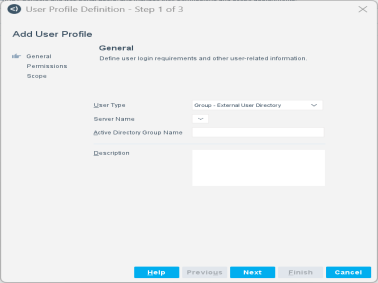
Group - External User DirectoryUse this option to create a user profile to associate a Forescout user group with a specific external directory group membership. All users associated with this group receive the permissions and scope assignments defined for this group user. In the User Directory Plugin, this external directory server must be defined with the Use for Console Login option enabled.
Because access control is determined at the authentication server, the Lock and Unlock buttons are disabled for this user type.
The user must authenticate with the User Directory Server Name, and the Active Directory Group Name.
Group - SSO with User Directory (Web Only)Use this option to grant access based on group membership in their organization. After SSO login is authenticated, the
queries the organization's Active Directory server to verify the user's group membership. These users can only to access Forescout web portals (Web Access permissions).
The user must authenticate with the User Directory Server Name, and the Active Directory Group Name.
Group - External RADIUSUse this option to associate Forescout user groups with a specific RADIUS attribute and value.
Because access control is determined at the authentication server, the Lock and Unlock buttons are disabled for this user type.
 minute read