Passive learning mode template
Passive Learning mode restricts eyeSight from probing endpoints in order to learn information about them. Use this mode in environments that may contain sensitive endpoints controlling real-time operational processes where active probing may harm or cause shutdowns in the system. This kind of probing is referred to as active probing.
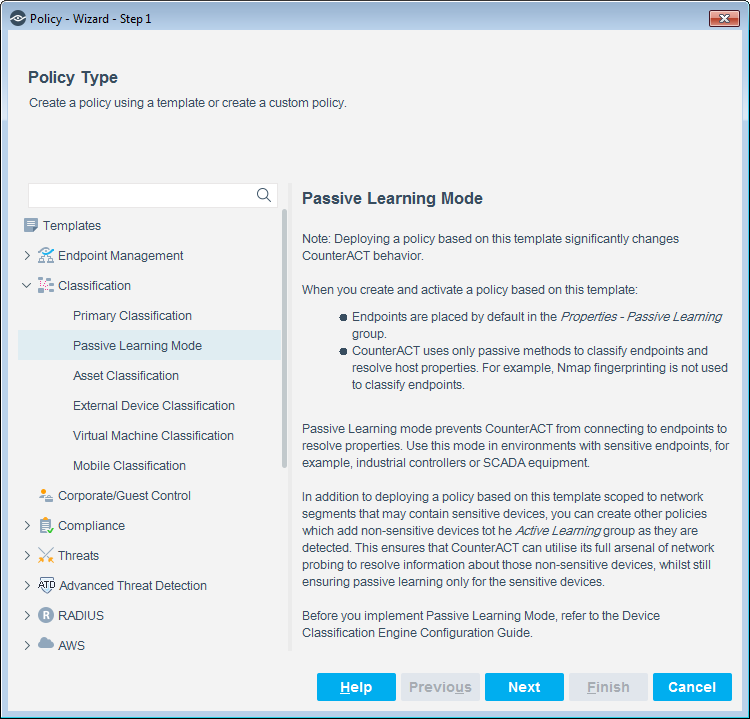
Deploying a policy based on this template significantly changes eyeSight behavior. When you create and activate a policy based on this template:
- Endpoints are placed by default in the Properties - Passive Learning group.
- eyeSight uses only passive methods to classify endpoints and resolve host properties. For example, Nmap fingerprinting is not used to classify endpoints.
In addition to deploying a policy based on this default template and scoped to network segments that contain sensitive devices, you can create an additional custom policy to add non-sensitive devices to the Active Probing - OK group as they are detected (or add them to the group manually). This lets you focus Passive Learning on sensitive devices only. The Active Probing - OK group is created and added to the list of Groups when you create a new policy using the Passive Learning Mode template.
To create a policy:
- Select Add from the Policy Manager and expand the Classification folder.
- Select Passive Learning Mode.
- Select Next and complete the policy creation wizard.
Policy Wizard-Policy Type-Passive Learning Mode
Passive Learning Sub-Rules
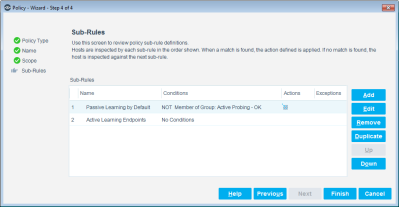
- Rule 1: Passive Learning by Default
This rule ensures that all endpoints that are not specifically added to the Active Probing - OK group by other policies, are added to the Properties - Passive Learning group. The effect of this rule is to make Passive Learning the default behavior of eyeSight.
- Rule 2: Active Probing - OK Endpoints
Endpoints that are added to the Active Probing - OK group by other policies match this sub-rule and are therefore removed from the Properties - Passive Learning group.
 minute read