Policy safety features
Several safety features are available to help ensure that your policies efficiently handle endpoints.
Working with action thresholds
An action threshold is the maximum percentage of endpoints that can be controlled by a specific action type defined at a single device. By working with thresholds, you gain more control over how many endpoints are simultaneously restricted in one way or another..
In some scenarios, policy enforcement requires blocking or restricting network devices and users. Action thresholds are designed to automatically implement safeguards when rolling out such sanctions across your network. Consider a situation in which you defined multiple policies that utilize a blocking action, for example, the Virtual Firewall or Switch Block action. In a situation where an extensive number of endpoints match these policies, you may block more endpoints than you anticipate.
How Action thresholds work
- Forescout products set default thresholds for an action type.
- Forescout products put actions on-hold for endpoints that are detected after the threshold is passed.
- An On-hold indicator blinks on the Console status bar. Manual approval is required to cancel the on-hold status and carry out the actions.
- Select the indicator to access the Action Threshold dialog box, where you can, for example, change the threshold or stop the device. Additional options are also available.
- When the situation is remediated and the blocking limit falls below the threshold, you can cancel the on-hold status and continue to block or remediate.
- You can also manually select endpoints and cancel on-hold status.
You can also create threshold policy exceptions, i.e., policies that you want to exclude from action threshold calculations. For example, you can exclude all thresholds when working with policies that handle outside contractors.
How On-hold thresholds are calculated
Thresholds for each action type are calculated per device, based on the number of endpoints assigned to the device.
To enforce on-hold status, the following must occur:
- A threshold percentage must be exceeded. See Actions Covered and Threshold Percentages for details.
- The number of endpoints with an action assigned to them must be equal to or more than the minimal number of endpoints Forescout eyeSight is instructed to detect before calculating the threshold. By default, this number is ten.
Using the default, if the total number of endpoints assigned to a device is 500, and the default threshold for the Switch Block action is 2%, then the threshold limit is passed after 2% of the endpoints on the device (or 10 endpoints in this example) are blocked via the switch. At this point, the action is put on-hold for new endpoints detected.
Actions covered and threshold percentages
The following table lists actions covered by thresholds and the default threshold values.
| Action | Default Threshold |
|---|---|
|
Switch Block |
2% |
|
Assign to VLAN |
2% |
|
Virtual Firewall |
2% |
|
HTTP Notification |
20% |
|
HTTP Redirection to URL |
20% |
|
Send Email |
2% during one minute |
|
VPN Block |
1% |
|
WLAN Block |
1% |
|
Kill Process on Windows |
2% |
|
Add to Blocking Exceptions list |
2% |
|
ACL |
2% |
|
Disable External Device |
2% |
How do I know when a threshold violation occurred?
The action threshold indicator flashes if a threshold violation occurred.
You can select the icon to open the Action Threshold dialog box for details. At that point the indicator will remain on the status bar, but will not flash.
A tooltip gives you information about the on-hold status.
Configure action thresholds
Select .
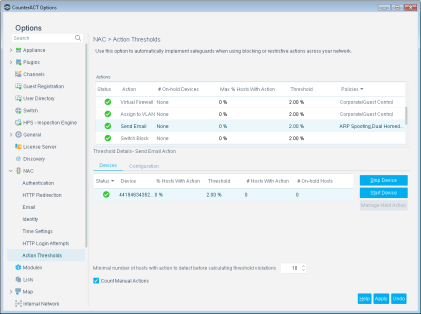
The Actions area lists all the actions defined in your enterprise and provides related information.


Select an action from this section and review detailed threshold information in the Threshold Details area. This section displays threshold information for the action you select in the Actions area, for example, the current number of endpoints On-hold at a specific device for the Virtual Firewall action. You can also use the tools in this section to:
- Change the default threshold.
- Create threshold policy exceptions; policies to exclude from action threshold calculations. For example, exclude all policies that handle organizational visitors.
- Configure thresholds if you are working in small environments.
- Start or stop a device.
- Cancel the On-Hold mechanism.
- Include or exclude endpoints that were manually assigned an action.
The Devices tab describes threshold information for an action you select in the Actions area, for example, the current number of endpoints on hold at a specific device for the Send Email action.

- Perform the action.
- Cancel the action. The action remains canceled until it is either deleted or unmatched to a policy and then matched.
- Leave the action on-hold.
Use the Configuration tab of the Thresholds pane to change the default configuration for the threshold and to create threshold policy exceptions - policies that you want to exclude from action threshold calculations. For example, exclude all policies that handle organizational visitors. You can exclude an entire policy or a specific rule. Threshold values that contain fractions are rounded to the nearest whole number.
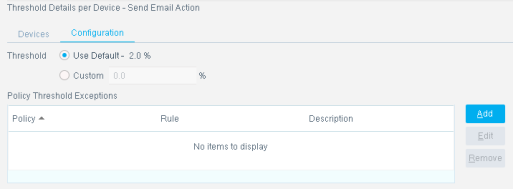
Managing actions on-hold on a specific device
If too many actions are not being carried out, you can take the following actions to release the On-hold mechanism on previously detected endpoints.
- Increase the action threshold in the Configuration tab from the Options > NAC > Actions Thresholds pane.
- Stop the relevant policies.
- Increase the minimum number of endpoints to detect.
- Add the relevant policies to the Policy Threshold Exceptions list in the Configuration tab from .
- Apply the Manage Held Action option to selected devices.
Approve actions on a specific endpoints
You can release the On-hold status for specific endpoints and approve the action.
- In the Detections pane, click the Actions column header, and look for the hourglass icon. This icon indicates endpoints that are On-hold or Pending. The first set of endpoints is On-hold.
- Right-click the endpoint, and then select Approve Actions. Select the action that you want to release from On-hold.
Handling irresolvable criteria
In some situations, eyeSight cannot properly resolve endpoint property criteria. Such criteria are considered irresolvable criteria.
Property criteria can have a status of Irresolvable for one of two reasons:
- eyeSight failed to resolve the criteria.
- A system error caused eyeSight not to respond to the resolve request (for example, a plugin is not running or experienced a timeout).
Many properties provide an option for handling irresolvable criteria. If eyeSight cannot verify a property, you can choose how to resolve that endpoint.
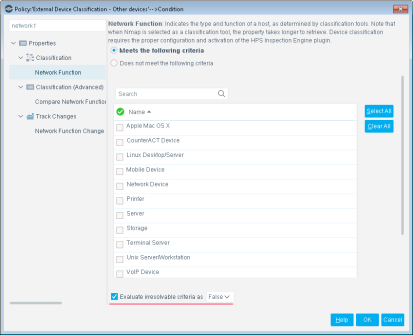
You can instruct eyeSight to handle irresolvable criteria as follows:
If you do not select the Evaluate irresolvable criteria as option, the criteria is handled as irresolvable and the endpoint does not undergo further analysis. The endpoint is not checked to see if it matches additional condition criteria
By default, all irresolvable criteria are evaluated according to the user-defined settings configured in the property (Evaluate irresolvable criteria as True/False).
However, when criteria are irresolvable due to a system error, you can change this default setting. Because this status did not stem from an actual failure to resolve, but rather from of an error, this resolution can be considered imprecise. As a result, you can override any user-defined settings and continue to evaluate such criteria as irresolvable. The endpoint does not undergo further analysis and is not checked against additional condition criteria.
To access this setting, select .
- Always as Irresolvable - continue to evaluate Irresolvable criteria as such when the evaluation was caused by a system error.
- According to user-defined settings per property -irresolvable criteria are evaluated according to the user-defined settings configured in the property.
Handling criteria defined as empty lists
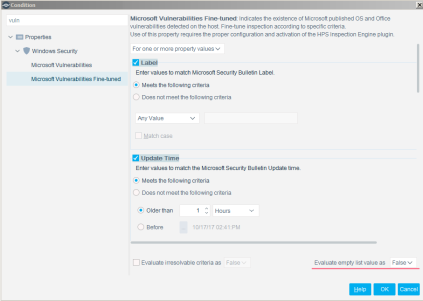
Properties supply information learned on an endpoint to evaluation criteria. If a property is normally populated with information that is not present on an endpoint, eyeSight evaluates the property as an empty list for that endpoint. You can choose to evaluate the properties as True or False in this case.
For example, the Microsoft Vulnerabilities Fine-tuned property is used to report and evaluate the Microsoft vulnerabilities on an endpoint. If the endpoint has no Microsoft vulnerabilities, no content is returned for the property, and a criteria based on this property cannot be evaluated.
 minute read