Define a Forescout eyeSight failover cluster
Forescout eyeSight uses a folder tree to organize Appliances. A failover cluster is a folder in this tree to which specific settings have been applied.
Refer to Working with Appliance Folders in the Forescout eyeSight Administration Guide for details about working with Appliance Folders.
To create a failover cluster, follow this general procedure:
- Create folder in the tree or select an existing folder.
- Identify segments of the Forescout Internal Network that should participate in failover and assign these segments to the folder.
- Identify Appliances that you want to support failover between these segments and place these Appliances in the folder.
- Define the folder as a failover cluster. To define a Failover Cluster:
- Select .
- Select .
- Do one of the following:
- Select a folder in the Appliances tree that you want to configure as a failover cluster. Rename the folder to indicate it is a failover cluster.
- Right-click a node and create a new folder where you want the failover cluster. The folder name should indicate a failover cluster. Note: If you define a failover cluster folder under a parent folder that is itself a failover cluster, the two failover clusters will function independently.
- Populate the failover cluster folder with Appliances that will support failover:
- Select the root-level Appliances node of the folder tree. The table displays all Appliances defined in the Console and shows the path to their location in the tree.
Note: Verify that the Show child folder information option is enabled.
- Use table search and sorting tools to find the Appliances you want to place in the failover cluster. You can select folders in the tree to work with sub-sections of the tree.
- Select the Appliances and select Move.
- In the dialog box, select the failover cluster folder and select OK. The Appliances are placed in the failover cluster folder.
Note: If you are adapting an existing folder to become a failover cluster, remove from the folder any Appliances that should not participate in failover.
- Select the root-level Appliances node of the folder tree. The table displays all Appliances defined in the Console and shows the path to their location in the tree.
- Clear statically assigned segments from Appliances in the failover cluster folder. Appliances in the failover cluster support only the network segments assigned to the folder. They cannot support individually assigned segments.
Note: Segments listed in italic font are assigned to the parent folder; segments listed in plain font are statically assigned to the Appliance itself.
- In the Appliance folders tree, select the failover cluster folder. The table shows the Appliances you placed in the folder.
- Verify that no Internal Network segments are assigned to an Appliance: The Assigned Segments and IP Addresses fields of the table should only list segments assigned to the folder (shown in gray italic text).
- Assign Internal Network segments that will participate in failover:
- Select the folder and select Assign Segments
 .
.
- Specify the segments you want to participate in failover.
- If you are adapting an existing folder to become a failover cluster, remove segments that should not participate in failover.
- Select OK. The specified segments are assigned to the folder.
- Select the folder and select Assign Segments
- Select the prepared folder and then select Configure Failover . The Configure Failover Cluster dialog box appears.
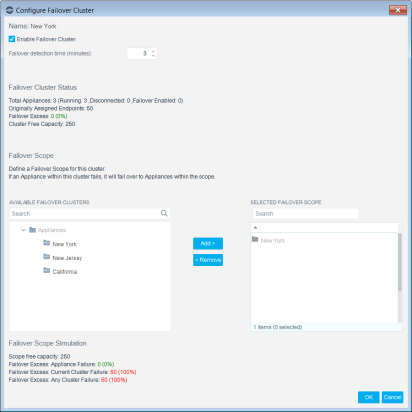
- Select Enable Failover Cluster to enable failover capabilities for all Appliances in the cluster. Disabling a cluster that is in the failover scope of one or more other clusters will remove it from the scope of these clusters.
- Select a Failover detection time, in minutes. The Failover detection time is the time it takes to detect that an Appliance has failed. The minimum and default time period is 3 minutes, to ensure that any disconnection from the Enterprise Manager is not temporary and to reduce false positive failovers. Failure detection starts once the configured number of minutes has passed and can take up to an additional 30 seconds until failover occurs. For example, if you configured a failover detection time of 5 minutes, it may take up to 5 minutes and 30 seconds before the Appliance is considered failed.
Endpoints and network devices generally fail over to recipient Appliances immediately after the detection time has passed. The total failover time (failover detection time + time to failover to recipient Appliances) may depend on several additional factors, including the performance capabilities of the Appliances participating in failover.
- Define a failover scope for this cluster by assigning one or more clusters whose Appliances will serve as failover recipients. Select a folder from the Available Failover Clusters list and select Add to move it to the Selected failover scope list. You can add multiple clusters. If you add an Appliance folder to the scope, it is automatically converted to a failover cluster. If an Appliance within this failover cluster fails, the Appliance will fail over to Appliances within the failover scope, with a preference for local, intra-cluster Appliances.
- Select OK. The folder is defined as a failover cluster.
Note: If you make other configuration changes to this folder in the IP Assignment and Failover pane, these changes are implemented without violating the rules of the failover cluster. For example, Appliances with statically assigned segments cannot be part of a failover cluster. If you move an Appliance with a statically assigned segment to the failover cluster folder, the Appliance's new folder location is accepted, but the Appliance is excluded from failover behavior.
 minute read