Switch from Per-Appliance to Flexx Licensing
If you are running the in Per-Appliance licensing mode, you can switch to work with Flexx Licensing in the Console only after completing the required migration process with your Forescout sales representative.
Forescout Extended Modules in Flexx Licensing
If you are using Forescout eyeExtend modules, be aware that legacy Integration Modules that package together groups of related licensed modules are not supported when using Flexx licensing. Only eyeExtend modules that package individual licensed modules are supported. An exception to this is the Open Integration Module, which is an eyeExtend module even though it packages more than one module. Before switching modes, uninstall any Integration Modules and reinstall them as Extended Modules.
To switch to Flexx licensing:
- Verify that you have:
- Valid credentials to access the Forescout Customer Support Portal. Contact your Forescout sales representative for details.
- A valid license entitlement.
- Log in to the Enterprise Manager via the Console.
- Navigate to Options > Licenses and select Switch to Flexx Licensing.
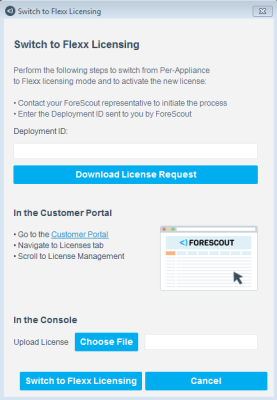
- In the Switch to Flexx Licensing dialog box, enter the Deployment ID, and then select Download License Request.
The Deployment ID is listed in the Proof of Entitlement email that you received from Forescout notifying you that your purchases are available in the Customer Support Portal. - Select a file name and location to save the request file, and select Save.
- In the Licenses tab of the Forescout Customer Support Portal, upload the license request file that you downloaded and then download the license file.
- In the Console, select and then Switch to Flexx Licensing to return to the Switch to Flexx Licensing dialog box.
- In the Upload License field, select Choose file to find the new license file and then select Switch to Flexx Licensing.
Continuing with the process will restart the Console, Enterprise Manager, and all connected Appliances in the deployment. The License Migration dialog box opens.
If your deployment includes a Recovery Enterprise Manager or High Availability device, verify that it is connected to the Enterprise Manager before you activate the license file on your deployment. - Select Yes.
A dialog box opens indicating that the license was activated successfully.
Note: If the Failover Clustering Module is installed in your deployment, uninstall it from the Console (on the Enterprise Manager) on the pane. When using Flexx licensing, Failover Clustering functionality is supported by the Forescout eyeRecover License.
 minute read