Welcome to Forescout eyeSight v8.5.x
The Forescout eyeSight provides unparalleled visibility across your entire extended enterprise - without disrupting critical business processes. It discovers every IP-connected device, auto-classifies it, and assesses its compliance posture and risk the instant a device connects to the network.
Refer to the Forescout eyeSight Installation Guide for information on software installation, post-installation, and other installation procedures for Forescout components, including the Enterprise Manager, Appliance, and Console. However, if you need to upgrade your existing eyeSight to a current release, refer to the Forescout eyeSight Upgrade Guide.
Latest release notes
For the latest release note content included in this guide, see eyeSight v8.5.5 Release Notes.
About the Forescout eyeSight
To enhance network security, the eyeSight provides infrastructure and device visibility, policy management, orchestration, and workflow streamlining. The eyeSight provides enterprises with real-time contextual information of devices and users on the network. Policies are defined using this contextual information that helps ensure compliance, remediation, appropriate network access, and streamlining of service operations.
Real-Time Network Visibility
eyeSight eyeSight classifies devices the moment they attempt to access your network. For example:
- Desktops, laptops, and servers
- Mobile devices, such as smartphones, and tablets
- Personal and corporate devices
- On-premises virtual machines and off-premises cloud instances
- Switches, WLAN controllers and access points, devices connecting via VPNs, routers, printers, modems, VoIP phones (including PoE-connected VoIP phones, and devices), WLAN access points, and other network devices
- Peripheral devices, such as USB memory sticks, external disk drives, and webcams
- IoT devices
- Rogue devices
Inspection capabilities resolve an extensive range of information about these devices, for example:
- Desktop and mobile operating system information
- Virtual machine details, for example, VMware Guest Machine health status or Amazon EC2 instance type
- User directory information
- Applications installed and running
- Login and authentication information
- Software patch levels
- Endpoint-connected devices, such as USB drives
- Switch ports to which devices are connected
- Windows registry information
Policy-Initiated or Manual Control
Networks are constantly changing, including connected device types, software, configurations, compliance requirements, and the internal and external threat landscape. The Console enterprise policies are used to implement the necessary notification, remediation, and restriction controls to secure the network.
Examples of eyeSight product capabilities include:
User Enforcement and Education
- Open trouble tickets
- Send email to users or administrators
- Personalize captive portal messages to notify end users, enforce policy confirmation and allow self-remediation
- Force authentication/password change
- Log-off user, disable user AD account
Application Control and Remediation
- Start/stop applications
- Start/stop peer-to-peer/IM
- Apply updates and patches
- Help ensure antivirus products are up-to-date
- Start/stop processes
Network Restrictions
- Port disable (802.1X, SNMP, CLI)
- VLAN control
- VPN disconnect
- ACL block at switches, firewalls and routers
- Wireless allow/deny
- Quarantine until the device is remediated
Traffic Control
- Virtual firewall
- Update network ACL (switch, router, firewall)
Operating System Control & Remediation
- Patch/hotfix update
- Registry configuration
Device Control
- Disable NIC
- Disable use of peripheral devices
Comprehensive Third-Party Orchestration
eyeSight eyeExtend modules allow information sharing with third-party network, security, mobility and IT management products, allowing for automated workflows, time and cost savings and enhanced security. This sharing of information can resolve security issues and contain compromised devices. Use the information in this guide to integrate with a variety of third-party systems, for example:
- Advanced Threat Detection systems
- Security Information and Event Management systems
- IT Service Management systems
- Endpoint Protection Platforms/Endpoint Detection and Response systems
- Vulnerability Assessment systems
- Next-Generation Firewall systems
- Almost any third-party product using a web API, SQL or LDAP
When integrating with third-party systems, use the eyeSight tools described in this guide to:
- Trigger third-party remediation and ticketing systems
- Efficiently exchange information with third-party systems
- Mitigate a wide variety of network, security and operational issues
- Extend the network visibility provided by eyeSight eyeSight to third-party systems
- Set up third-party systems to trigger actions on endpoints detected by eyeSight
Integration is carried out by working with eyeSight eyeExtend modules (Extended Modules). See eyeSight Base Modules, Content Modules, and eyeExtend Modules for details.
On-Demand Asset Intelligence
Use Forescout tools to carry out information sharing and automation among your existing IT security and management systems. These tools help you fix security issues and contain breaches.
View Real-Time At-A-Glance Dashboards
The Dashboards view is a web-based information center that provides a real-time overview of the network through both Out-Of-The-Box (OOTB) and user-created dashboard widgets. Dashboards deliver dynamic, at-a-glance information about:
- Device visibility (OOTB)
- Device compliance (OOTB)
- Health monitoring (OOTB)
- Forescout policy data, including custom policies
See Dashboards for more information.
Generate Reports
The Reports plugin lets you generate reports showing real-time and trend information about policies, endpoint compliance status, vulnerabilities, device details, assets and network guests. Use reports to keep network administrators, executives, the Help Desk, IT teams, security teams or other enterprise teams well-informed about network activity. Reports can help you understand:
- Long-term network compliance progress and trends
- Immediate security needs
- Compliance with policies
- Status of a specific policy
- Network device statistics
Analyze a Real-Time Network Inventory
A live network Asset Inventory view displays current network activity on multiple levels, such as processes and services running, vulnerabilities detected, open ports, or logged in users. Use the Asset Inventory to:
- Broaden your view of the network from endpoint-specific to activity-specific.
- View endpoints that have been detected with specific attributes, whether or not they are policy-compliant.
- Easily track network activity.
- Incorporate inventory detections into policies. For example, if you discover that network guests are running unauthorized processes on your network, create a policy that detects and halts these processes on guest machines.
Work with the Assets View
The Assets view, is a web-based search, filter and discovery tool that lets you leverage extensive network and device information collected and correlated by eyeSight products.
Forescout eyeSight Components
eyeSight devices include Enterprise Manager, Appliance, and Virtual Systems.
Connections between eyeSight devices use fingerprints for verification purposes. When a connection is established, the fingerprints of the two eyeSight devices are compared. If they match, the connection is accepted. This ensures that only trusted eyeSight devices connect with each other.
This includes connections between:
- Enterprise Managers and Appliances
- Enterprise Managers and Recovery Enterprise Managers
- Appliances and other Appliances (Direct Inter-Appliance Communication)
Refer to the Enterprise Manager / Appliance Communication Technical Note for information about Enterprise Manager/Appliance communication.
The Appliance
An eyeSight Appliance is a dedicated device that monitors traffic going through your corporate network. It helps protect the network against malicious activity and performs extensive network protection.
Your Appliance should have been installed at your network so that it sees vital network traffic.
To handle malware and intelligent hackers, the Appliance should be set up:
- At the connection point between the Internal Network and the rest of the network. This enables protection of a specific network range against infection and attack attempts initiated from the rest of the network, and network protection against infection attempts generated from a specific network area (for example, contractors segment, which is potentially more dangerous).
- Behind a VPN concentrator, where encrypted VPN channels are decrypted, and malicious traffic enters your network.
- Behind remote access servers, where remote access users enter your network.
To apply an admission control policy, the Appliance should be set up:
- Within broadcast domains, preferably mirroring trunk ports.
To work with the Virtual Firewall, the Appliance should be set up:
- Between segments or VLANs.
Your Appliance may be one of several Appliances included in an Enterprise solution or may be part of a High Availability system. The High Availability feature provides high network uptime utilizing redundancy and automatic recovery.
For more information about the High Availability Pairing feature, refer to the Forescout eyeSight Resiliency and Recovery User Guide. For more information about Appliance installation, Appliance specifications and deployment, refer to the Forescout eyeSight installation Guide.
The Enterprise Manager
The Enterprise Manager is an aggregation device that communicates with multiple eyeSight Appliances distributed across an enterprise. It manages Appliance activity and policies and collects information about endpoint activity detected at each Appliance. This information can be displayed and reported in the Enterprise Manager.
Your Enterprise Manager may be part of a High Availability system or a remote recovery system. The High Availability feature provides high network uptime utilizing redundancy and automatic recovery. The Recovery Enterprise Manager is used as a remote recovery device for an Enterprise Manager that is no longer functioning due to, for example, a natural disaster or crisis.
Virtual Systems
eyeSight virtual devices (Appliances and Enterprise Managers) can be installed and managed in virtual data centers and IT environments. They provide capabilities identical to eyeSight device software installations carried out on dedicated machines.
Refer to the Forescout eyeSight Installation Guide for details about installing virtual systems.
Use eyeSight virtual devices to:
- Simplify and ease product distribution and deployment, especially for distributed remote sites.
- Reduce IT costs, space, energy consumption and maintenance by using less hardware.
- Comply with green IT requirements.
If your deployment is operating in per-appliance licensing, installing and working with licenses differs slightly for virtual systems and physical systems. See Per-Appliance Device License for details.
Hybrid Deployments
Virtual and physical hybrid deployments support.
A physical Enterprise Manager can manage both physical and virtual Appliances, and a virtual Enterprise Manager can manage both physical and virtual Appliances.
Support for Endpoints Behind NAT/SASE Connector
For information about eyeSight - Endpoint Behind NAT/SASE integration and setup, refer to the .
See also the Process OS X and Windows Endpoints for NAT / SASE TemplateeyeSight
eyeSight User Interfaces
eyeSight user interfaces include the Forescout Console and the eyeSightWeb Portals.
The Forescout Console
The Forescout Console is the management application used to view important detailed information about endpoints and control them. This information is collected by eyeSight devices.
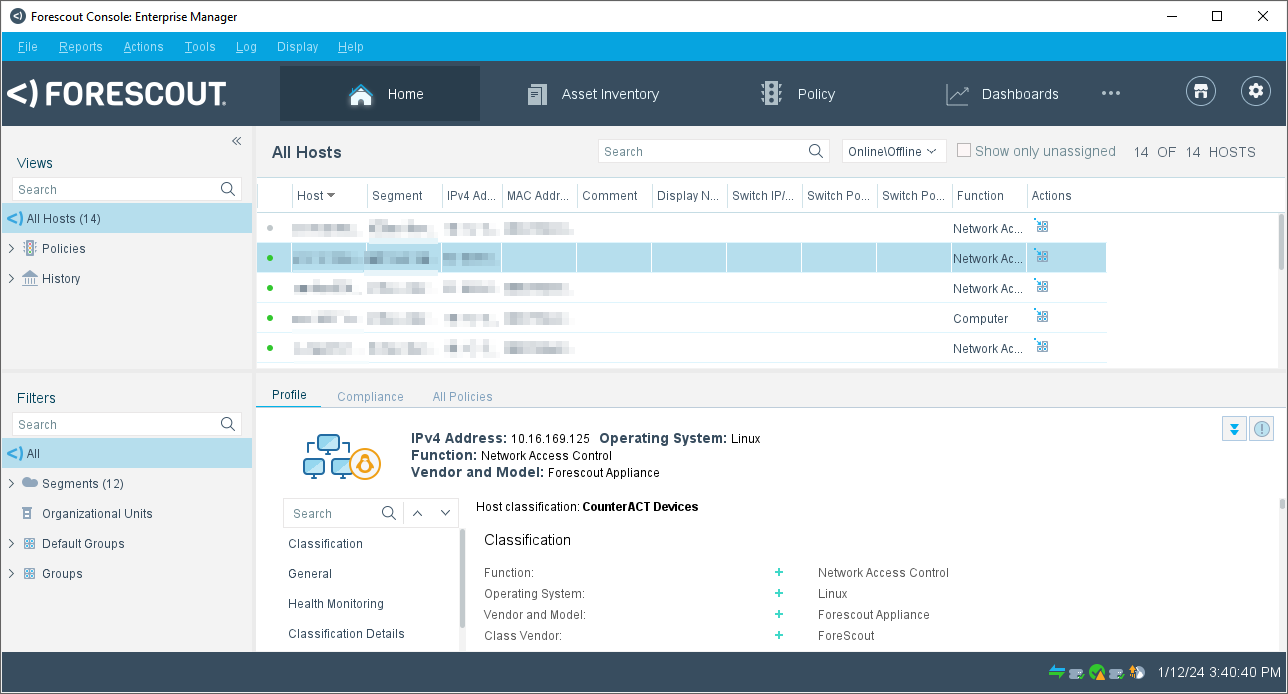
About the Forescout Console
Detection information is displayed in the Forescout Console, which serves as your unified information, management, and control center.
Key features of the Forescout Console include:
- The Forescout Marketplace is accessible by clicking the Marketplace icon
 in
the upper right-hand corner of the Console.
in
the upper right-hand corner of the Console. - An integrated display of endpoints detected by your NAC, Threat Protection, Compliance, and Corporate/Guest Control policies, as well as other endpoints discovered by eyeSight eyeSight.
- Display of extensive endpoint details, such as MAC address, IP address, domain, and NetBIOS machine information; related user information, such as mail addresses and telephone numbers, as well as the machine block or release status.
- A live network inventory view that displays network activity at multiple levels, for example, processes and services running, detected vulnerabilities, open ports, or logged in users.
- A site map, powered by Google Maps, that provides at-a-glance, real-time corporate and guest status information, compliance levels, security alerts, and more—across offices, cities, countries, and continents.
- Powerful command options that let you manually and automatically remediate, and control detected endpoints and communicate with endpoint users.
- Sophisticated reporting tools let you generate an extensive range of reports that detail and summarize important network activity, asset and inventory information, NAC policy activity, vulnerability scanning and more, as well as the Forescout eyeSight’s response to these activities.
- Control tools let you start and stop eyeSight devices and update the configuration defined during installation, for example, the network range protected by Forescout products or the time zone setting. Other control tools let you communicate with your network management application and work with third-party applications.
Forescout eyeSight Web Portals
Forescout offers additional features that can be accessed via browser-based portals.
Key features of the Forescout Web Portals include:
- Forescout Web Client:
- Dashboards: Provides a real-time overview of the network and delivers dynamic at-a-glance information about device visibility and compliance. See Dashboards for details.
- Assets View: Allows you to view, search and filter devices detected by eyeSight eyeSight. See Assets View for details.
- eyeSegment Application (Segmentation): Allows you to monitor and analyze your physical network traffic from a dynamic zone perspective. Refer to the eyeSight eyeSegment Application How-to Guide for details.
- User Portal Builder: Allows you to create, duplicate, preview or export/import customized Guest Management Portal and HTTP pages. See The Forescout User Portal Builder for details.
- Reports Portal: Allows you to generate comprehensive real-time and trend information about policies, vulnerabilities and the network inventory. See Generating Reports and Logs for details.
- Assets Portal: Displays endpoint information, policy violations, login information,
User Directory details, organizational mapping details, and endpoint device connections.
See Assets Portal for details. Forescout eyeControl uses a script on the endpoint when carrying out this action if the endpoint is managed via domain credentials Manageable (Domain). Select , then select this plugin, and then select Help.
Forescout eyeSight Help Tools
The Forescout Console provides a range of Help tools to assist first-time users in gaining proficiency and an understanding of the Console.
Help tools also guide veteran users in working with more advanced Forescout Console options. This topic describes the available help tools and how to access them.
Forescout Documentation Portal
The Forescout Documentation Portal is an intelligent content delivery platform that provides you with a wide range of technical content in one centralized location.
The Forescout Documentation Portal offers unique features that help you fully engage with content:
- Create and share personalized collections of content with My Docs
- Personalize search results to match your preferences
- Watch topics that interest you to get notified when something changes
You can access the portal at: https://docs.forescout.com/
Forescout Console Help Buttons
You can quickly access specific information about the tasks and topics by using the Help buttons that appear in Forescout eyeSight dialog boxes, panes, and wizard panes.
Forescout eyeSight Administration Guide Help
Select to open the Forescout eyeSight Administration Guide.
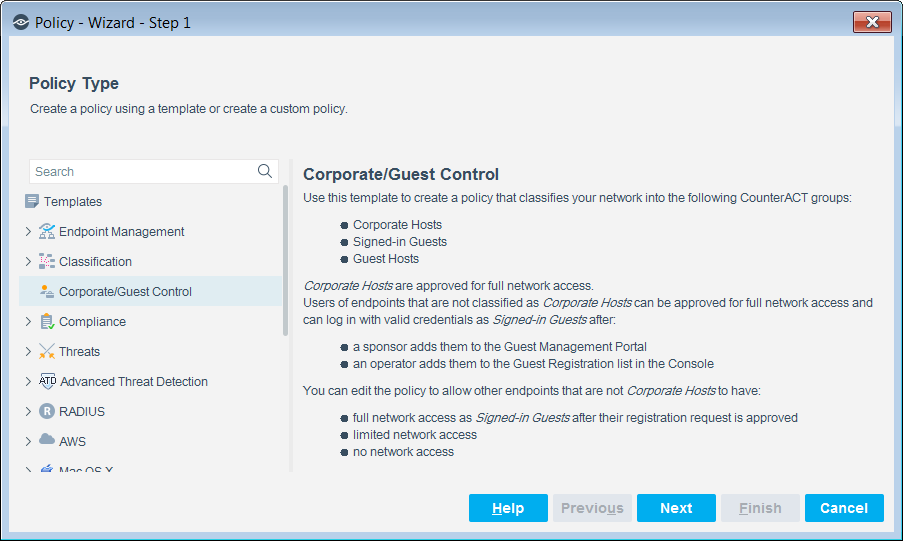
Forescout Console Feature Dialog Box Descriptions
Forescout dialog boxes are designed to automatically display helpful descriptions about various Forescout Console features. For example:
Troubleshooting Messages
Troubleshooting messages about various issues, failed actions, and other errors can be viewed in the Detections pane for a selected endpoint. Information is also available about resolving these issues. To view troubleshooting tips in the Details pane, select the information icon  at the top right corner of the pane, or select the Details link in any tab.
Troubleshooting Endpoint Policy Matches
You can quickly troubleshoot an endpoint policy match by viewing member-of-group assignments per policy. This information is presented in a diagram accessed from the tab for each endpoint detected. This is useful if you want to investigate why a certain action, such as Assign to VLAN, was applied to an endpoint. See Root Cause Analysis of Endpoint Policy Match for details.
Plugin/Module Configuration Help
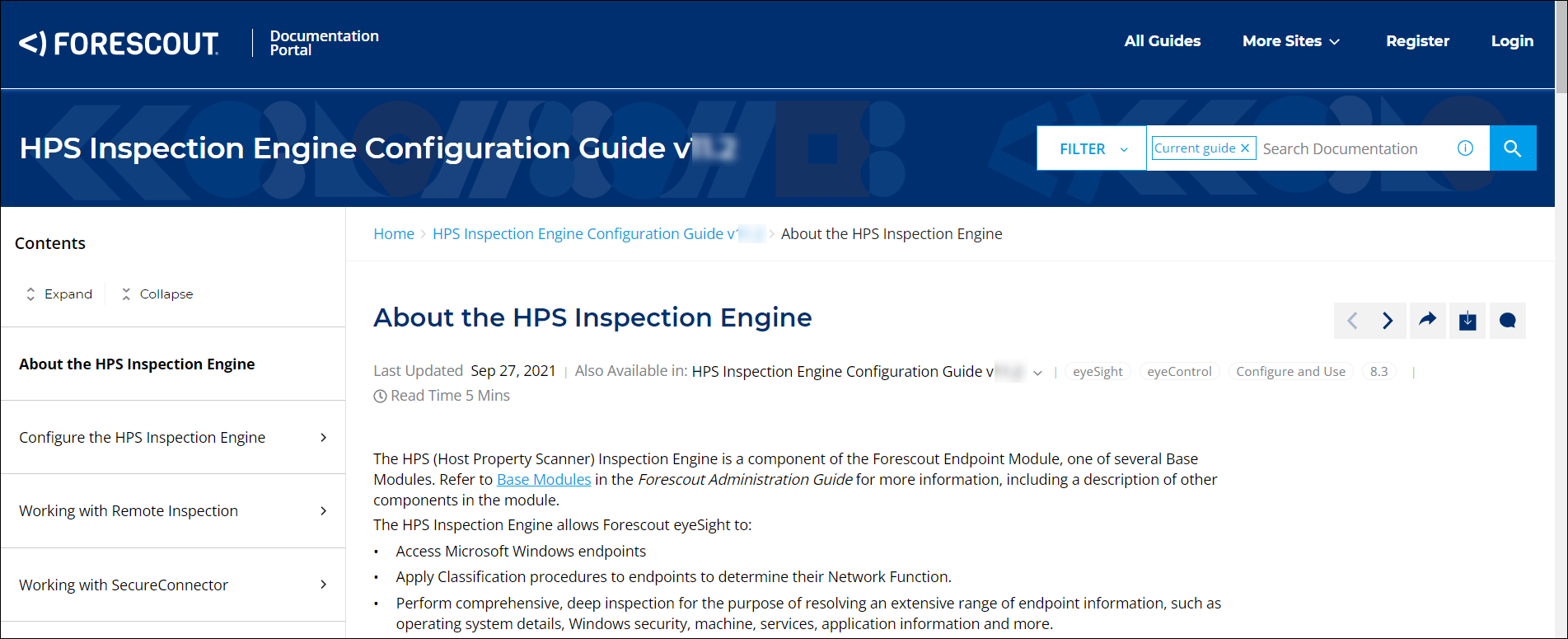
When configuring a eyeSight component, access its configuration guide (Help) directly from the Console Modules pane. Select a plugin or a module and then select Help. Doing so, opens the Forescout Documentation Portal in a web browser page that displays the requested component configuration guide.
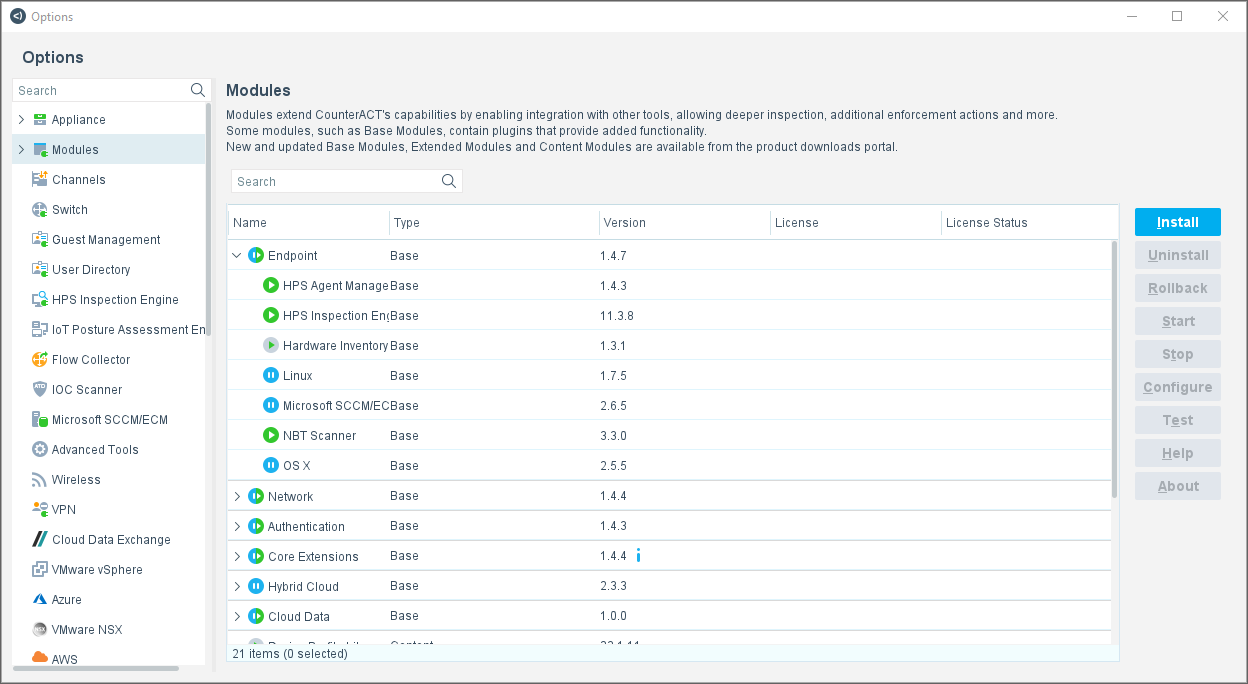
For example, selecting , and then selecting Help, presents the following in a web browser page:
 minute read