Corporate tab
Use the Corporate tab to define which servers are used for domain authentication, as well as other authentication settings.
Before configuring corporate users, you must have already configured User Directory servers. Typically, this configuration is performed when setting up the Console using the Initial Setup Wizard.
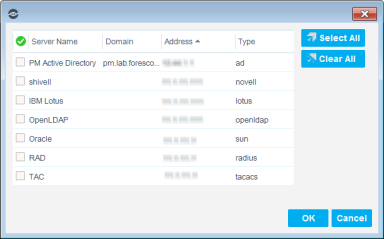
To see which servers are defined, select . See Initial Setup Wizard - User Directory for details.
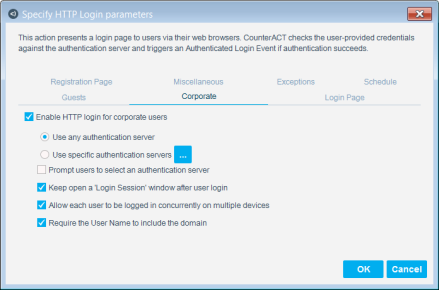
To enable corporate user authentication against an authentication server, select Enable HTTP login for corporate users.
To allow authentication against any of the authentication servers defined in the User Directory Plugin, select Use any authentication server.
To authenticate users against specific servers, select Use specific authentication server and then browse to and select those servers.
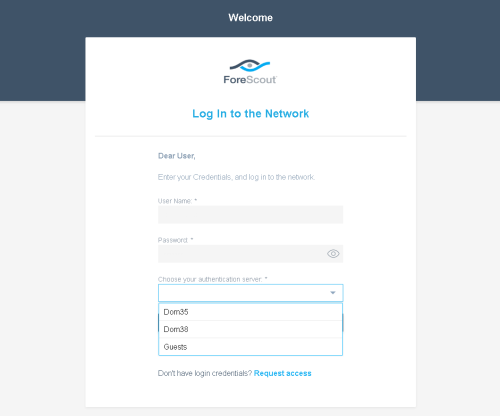
To allow the endpoint user to select a server against which to authenticate, select Prompt users to select an authentication server. When this option is selected, the Login page displays a Domain drop-down menu, from which the endpoint user can select a domain.
To display a Forescout Login Session window for corporate users, select the Keep open a 'Login Session' window after guest login option. The user must keep this window open to maintain a network to Internet connection, provided this access was granted in the policy. During this time, the Authentication, Signed In Status property for the endpoint is resolved as Signed In as a Domain User.
Control the number of machines a single user can log in to concurrently. Select Allow each guest to be logged in concurrently on multiple devices to allow multiple logins. If this option is not selected, a second login by the same user closes the first session on the original computer.
Select Require the User Name to include the domain to require corporate users to include the domain in the login page User Name field.
 minute read