Netskope
This series of topics covers all products offered by Netskope™ that can be used as a Data Source for Forescout Cloud log ingestion.
Netskope Data Source (Pull)
Netskope™ is a Cloud Access Security Broker (CASB) that helps address cloud service risks, enforce security policies, and comply with regulations, even when cloud services are beyond their perimeter and out of their direct control. To add Netskope to Forescout Cloud as a Data Source:
- Review the Customer-Side Configuration Prerequisites.
- Select the Data Source in the Forescout UI.
- Configure the Netskope Data Source in the Forescout UI
- Configure the Netskope integration in the Cloud Data Exchange plugin.
Target Data Logs
Forescout targets Alert and Events logs for ingestion in Forescout Cloud.
Netskope Customer Side Configuration Prerequisites
Forescout Cloud uses the pull mechanism to ingest logs from this Data Source. The following procedure is modified from vendor documentation located here. To be able to integrate an instance with Forescout Cloud, we need a Base API URL and authentication token.
-
For the Netskope integration, Forescout needs the API token along with your Netskope tenant URL (ex: https://customer.goskope.com).
- Netskope REST APIs use an authorization token to make authorized calls to the API. The token can be generated or revoked in the Netskope UI by going to Settings > Tools > Rest API v2.
-
Click the Edit icon next to the Expiration date and set the expiration period to NEVER.
Once Netskope has been configured, proceed to the next section to select the Data Source in the Forescout UI. Additional reference points are available here.
Selecting the Netskope Data Source
- In Forescout Cloud, click the Administration tab.
- On the Administration screen, click the Data Sources tab.
- Click the + Data Source button.
- Click the DATA SOURCE dropdown and select the Data Source
Name you are adding from the list. Forescout supports multiple Data Source types from the same vendor; be sure to select the correct name from the list.
- Click the CONNECTOR dropdown and select the Connector you are using for the Data Source. When deploying a Connector in a hosted environment, the Connector you select will typically be named "Forescout hosted".
- If applicable, enter the source identifier name into the SOURCE NAME.
For the pull-based Data Source you are adding, the configuration parameters you should enter on the right side of the window are typically specific to the vendor and device type. These settings are required to allow the Cloud Connector with the installed custom puller application to retrieve the target data logs securely.
Configuring Forescout Cloud to Receive Netskope Logs
| Setting | Description |
|---|---|
| Data Source Name | Netskope |
| Log Retrieval Method | Pull |
| Connector Deployment Environment | Any |
| UI Location | Administration > Data Sources > +Data Source > Add Data Source to Connector > Configurations |
- Enter PULLER VERSION V2.
- Enter the API URL.
- Enter the AUTHENTICATION TOKEN.
- Enter the data source pulling interval schedule into the SCHEDULE INTERVAL field in seconds. The default value is 300.
- Select the EVENT TYPE.
- Alerts and Events: Ingest alert and event data from Netskope.
- Hot Information: Ingest client status data from Netskope.
- Enter the NO FLOW ALERT THRESHOLD interval to specify the time to wait before alerting on the absences of logs. The default interval is 10800 seconds.
- The MAX PULLING AGE field is where you can specify how far back in time records can be pulled, with the default being 7 days expressed in seconds as 86400.
- In the NOTES field, enter any comments about the deployment you want preserved for later reference.
- The PULLER EXECUTOR TYPE field displays the operating mode of the Data Source, which in this case is pulling for periodic retrieval of target data logs.
- Click the Apply button.
The UI will indicate whether the deployment has been successful.
eyeAlert API permissions for Netskope
For eyeAlert to monitor alerts and events data from Netskope, you need to configure the following event_type APIs and grant the Endpoint View permission for Forescout:
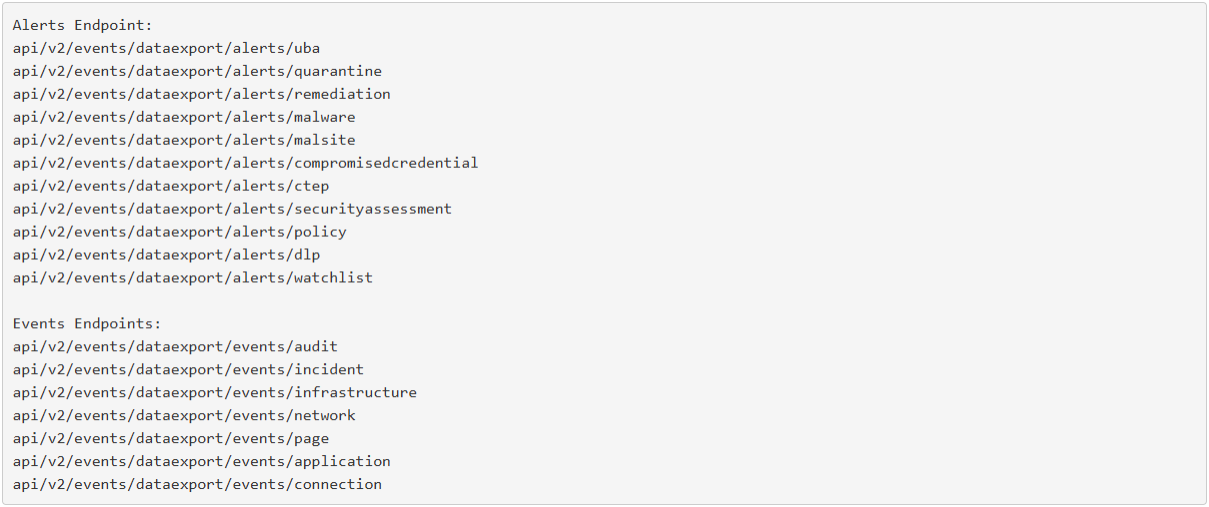
eyeFocus and eyeScope API permissions for Netskope
For eyeFocus and eyeScope to properly ingest device-related data from Netskope, you need to configure the following event_type API and grant the Endpoint View permission for Forescout:

 minute read