Integrating Jira Enterprise Service Management with Forescout Cloud
To integrate Forescout Cloud with the on-premises Jira Enterprise Service Management, complete the following procedure:
- On the Forescout Cloud console, select .
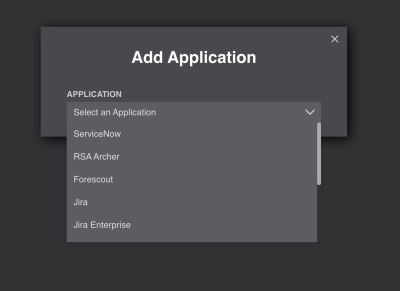
- Click the + Add App button.
- Select Case Management from the CATEGORY dropdown.
- Select Jira Enterprise from
the list.
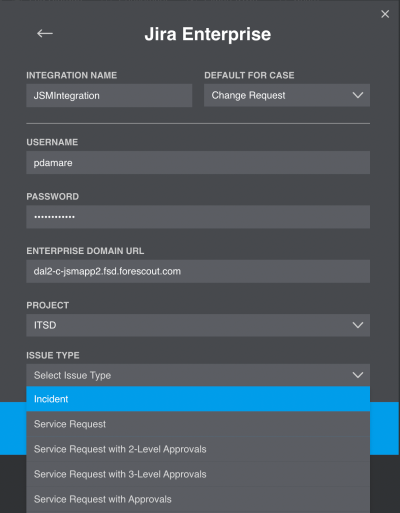
- Specify a unique name for the integration in the INTEGRATION NAME field.
- Use the DEFAULT FOR CASE dropdown to choose a specific default Forescout Cloud case type for the integration.
- Enter your Jira Enterprise USERNAME and PASSWORD, and your ENTERPRISE DOMAIN URL.
- Select the PROJECT and ISSUE TYPE and click Connect. Jira Enterprise should appear in
the App Integration list if the integration has been successful:

- Once the integration has succeeded you can verify operation by clicking the
Cases tab, selecting a case, and scrolling down to External Case
Management, which should present two options:
- New Issue: Forescout Cloud will create a new issue based on the issue type selected in step 6.
- Link Existing Issue: This will link an existing Jira Enterprise issue to a Forescout Cloud case.
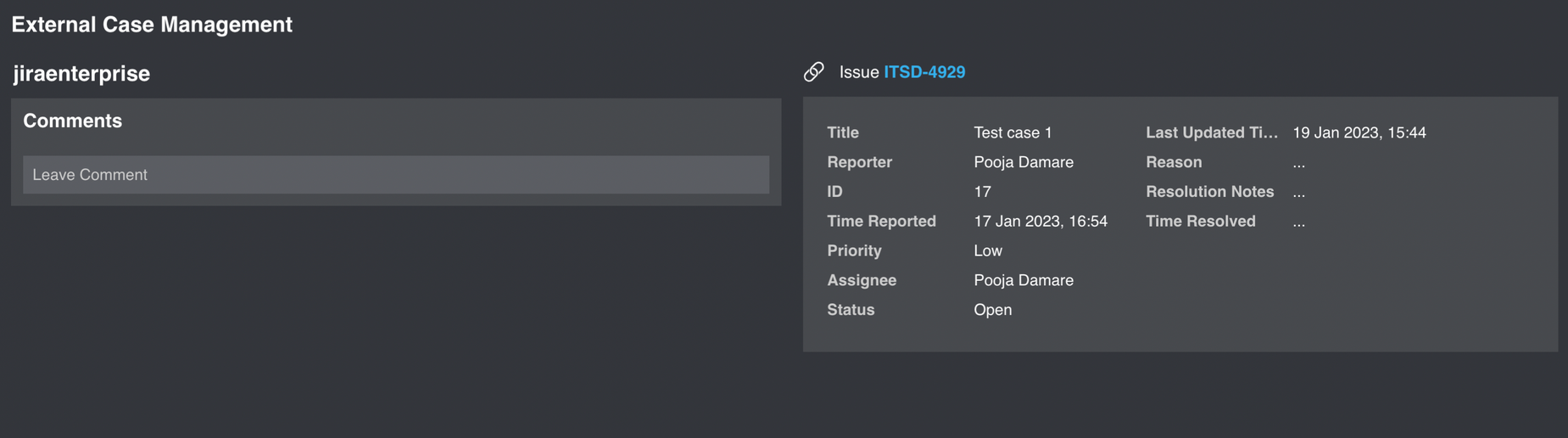
- Once the issue is created or linked, details of the Jira issue will be shown:
 minute read