My Integrations Tab
My Integrations Tab
My Integrations shows all integrations that are already installed on the tenant. This view is designed for operations and day-to-day management, especially when multiple integrations are already configured.
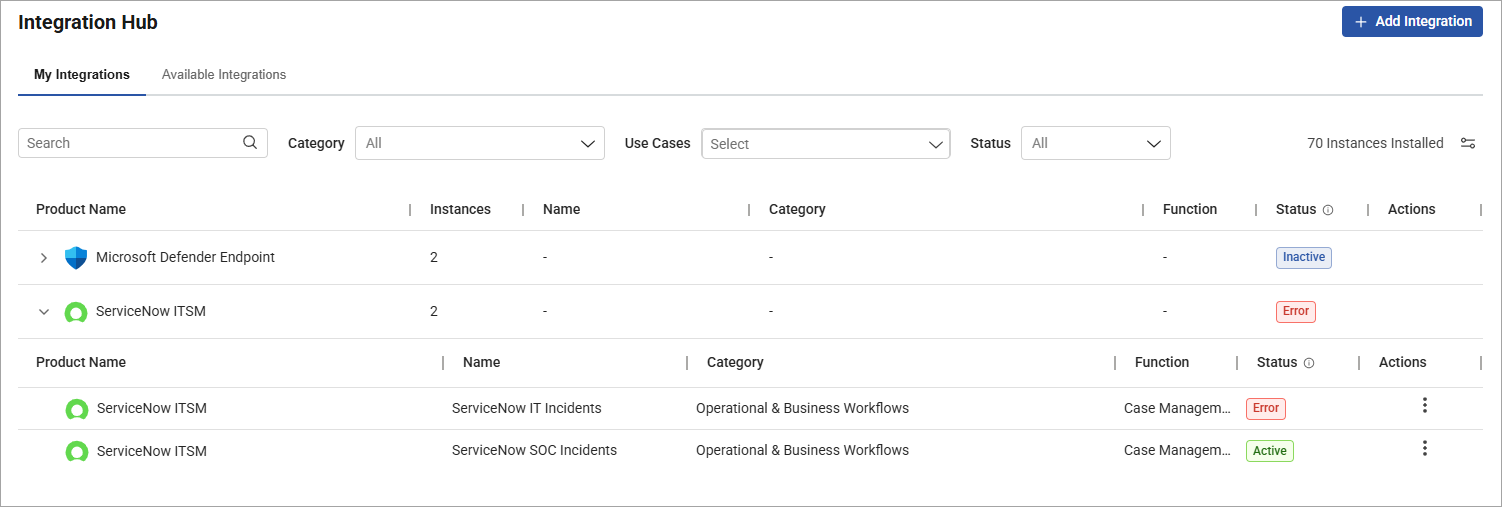
If there are no integrations installed, the system will suggest the four most popular integrations to configure. If multiple instances of the same integration exist, they are treated as separate configurations and are grouped under the same product in the My Integrations table.
Integration Statuses
Within the My Integrations table, you can identify your integration's status at-a-glance using the Status column.
-
Active: The integration is working as expected.
-
Error: The integration is failing to sync or unavailable.
-
Inactive: The integration is connected but has no data to display.
-
Warning: The integration is partially working or experiencing intermittent issues.
You can hover over the integration status to get a summary of the error or issue.

Sort, filter, and customize the Integrations table
The Integrations list provides summary information about each integration, which can be sorted and filtered by column.
| Column | Description |
|---|---|
| Product Name | The integration product, for example, Jira or CrowdStrike EDR. |
| Instances | How many configured instances exist under the product. |
| Name | The configured instance name (when available) |
| Category | The integration category or categories selected for the integration instance. For example, Operational & Business Workflows. |
| Function | The role supported by the instance(s), such as SOAR, Logs, or Case Management. |
| App State (SOAR applications) | Describes whether the application-level capability is enabled or not. |
| Default for Case (Case Management) | Describes whether the instance is marked as the default for case workflows. |
| Status | The current state shown in the UI, such as Active or Inactive. |
| Actions | A menu option that shows supported actions for the instance. |
You can use the Customize Columns (slide icon) option to customize the table columns. You can also reset your columns to the default visibility by clicking Restore to default. To change the position and order of the columns, drag and drop them in the table view.
View Integration Details
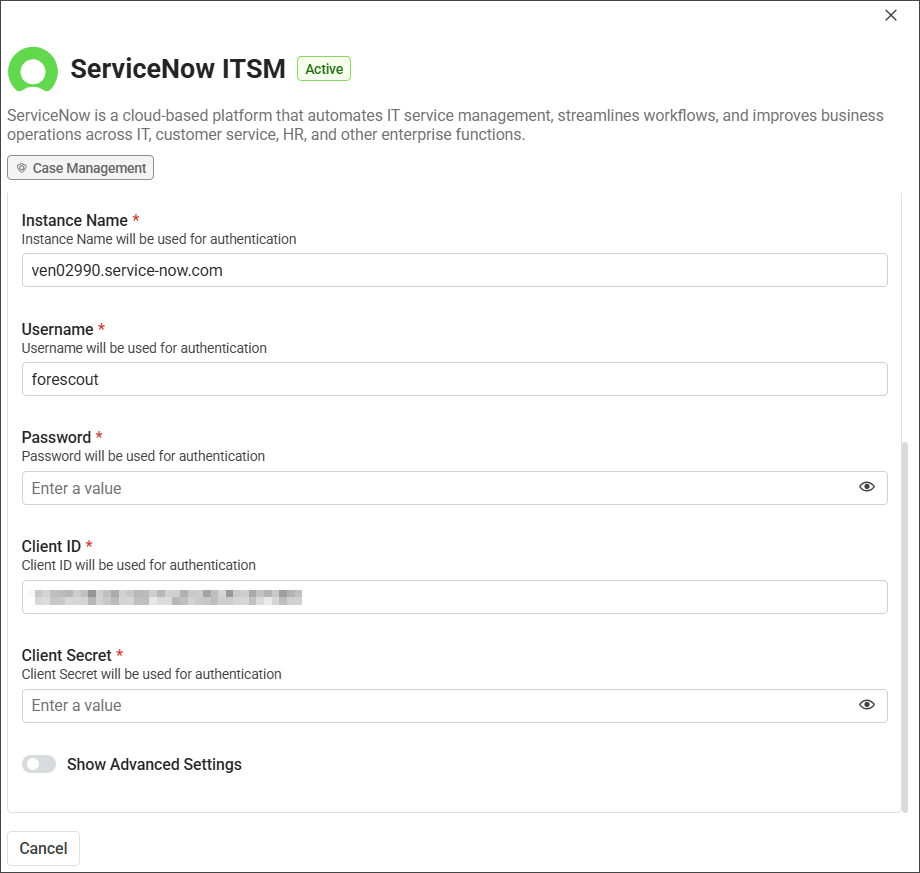
From the Actions menu, you can view detailed information about the integration by clicking View Details. This opens the Integration drawer.
 minute read