My Day Personalized Security Dashboard
My Day is a personalized dashboard experience that's available to all Forescout Cloud users. It provides insights and recommended actions related to the most important data affecting your security posture.
Using VistaroAI, Forescout Cloud automatically analyzes your real-time data using skills that are based on real-world security workflows and expertise to deliver reliable results. Then, it synthesizes that data into clear narratives and graphics that help you quickly identify and understand threats to your systems. Based on those insights, you can take recommended actions from VistaroAI (e.g., create a case, assign labels to assets, continue your investigation) to dive deeper and investigate any security risks.
For example, a network security operator might want to start their day by reviewing their organization’s attack surface and anything that changed overnight, such as significant risk score increases or newly published CVEs. Using My Day, they can choose the risk assessment and vulnerability management areas of interest to display the latest and most important data, and then prioritize the most important threats and respond efficiently.
My Day provides insights into areas of interest based on the Forescout Cloud products associated with your account. Depending on your entitlements, you can access data related to:
-
Alert management
-
Assets management
-
Incident response
-
Network security
-
Risk assessment
-
Threat intelligence
-
Vulnerability management
My Day is currently available in the US, Canada, UK, Germany, and Australia regions. Support for the UAE region is planned for a future release.
Setting up My Day
When configuring My Day, select the areas of interest that are most relevant to your work. You can configure these areas in one of the following ways:
-
Using the landing page – Available the first time you access My Day. After the initial setup, use User Settings to update your areas of interest.
-
Using User Settings – Available after the initial configuration. You can update your areas of interest at any time.
Set up My Day using the landing page
-
Open Forescout Cloud.
-
Click the Home icon in the left navigation pane.
-
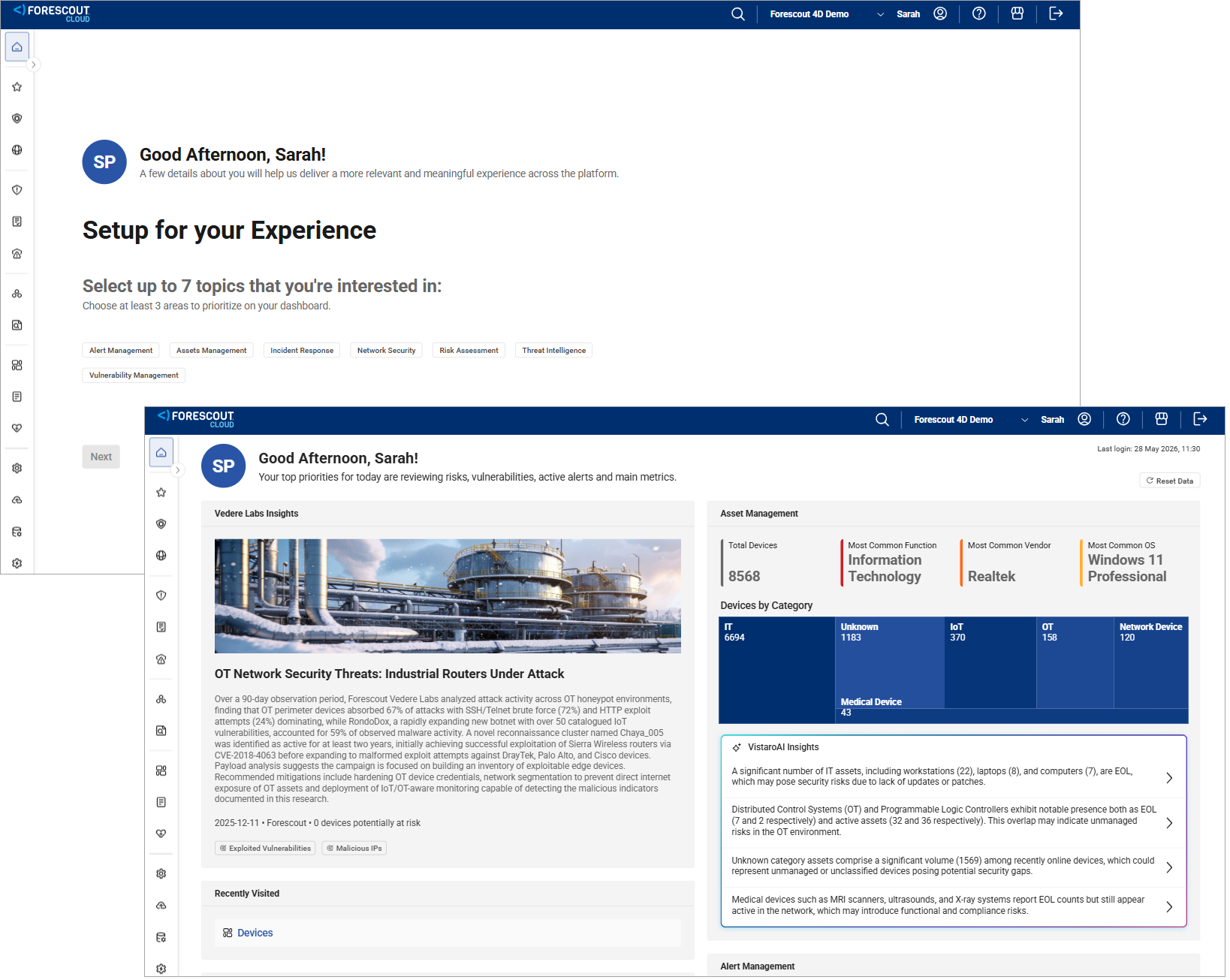
On the My Day landing page, select one or more areas of interest.
-
Click Next.
The My Day dashboard opens and displays widgets containing high-level information related to the areas of interest you selected. The Vedere Labs Insights widget displays the latest findings from Forescout's cybersecurity research team.
Set up My Day using User Settings
-
Open Forescout Cloud.
-
Click the Profile icon in the top navigation bar.

-
In the Personalization Settings section, select one or more areas of interest from the drop-down menu.
-
Click Save Changes.
Navigating My Day
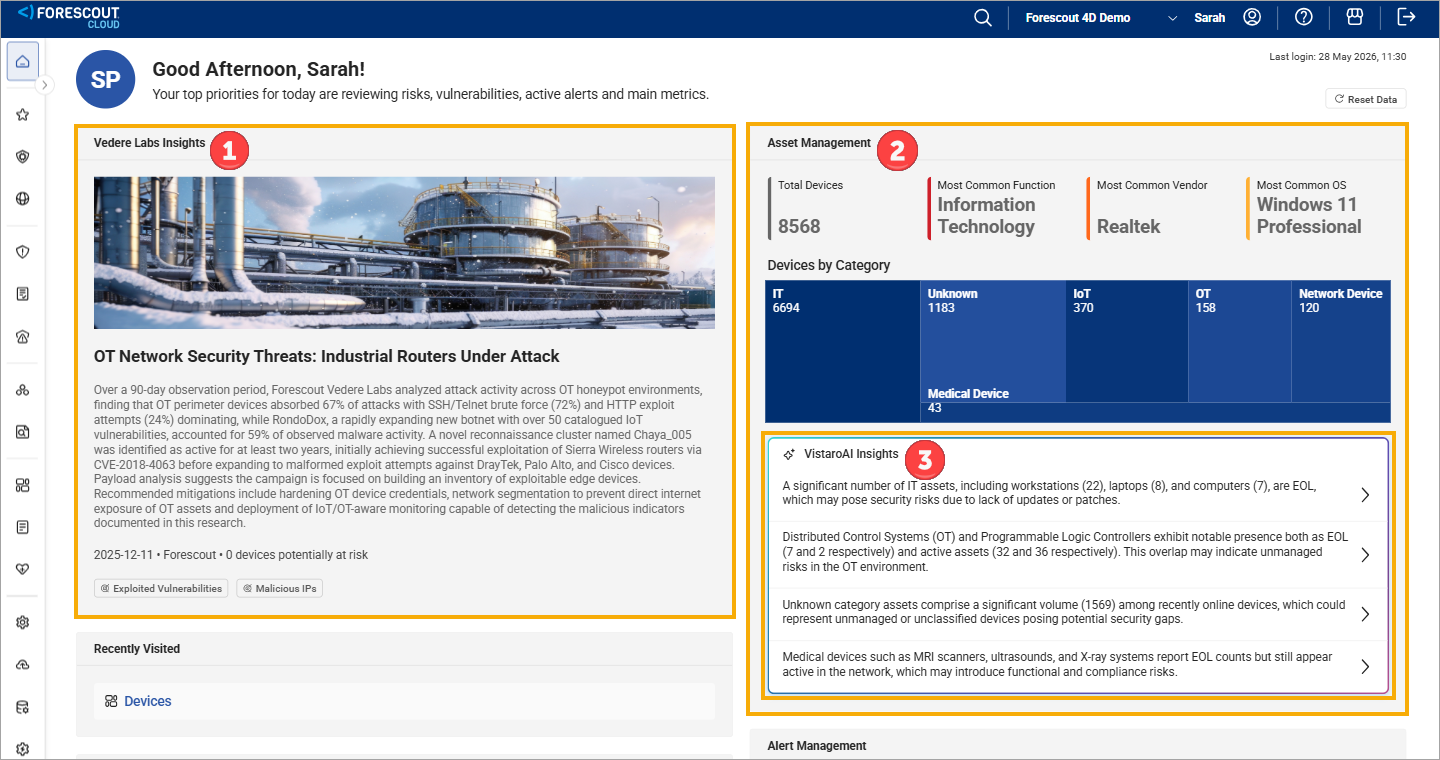
My Day provides a user interface that includes the following sections:
-
Vedere Labs Insights – Read the latest news from Vedere Labs, Forescout’s cybersecurity research team and findings database. VistaroAI scans your account for devices that are potentially impacted by threats identified by Lab’s research and shares the most relevant news on your My Day dashboard.
-
Areas of interest – Assess high-level data points related to the areas of interest you chose on the landing page. You can click a metric in any of the widgets to open a pane with details related to your data. Use the pane to filter your data and navigate to other pages and dashboards, such as the Assets or Vulnerabilities pages.
-
VistaroAI Insights – Review curated findings from VistaroAI based on a comprehensive analysis of your data. Then, determine if you need to investigate any findings and start your investigation.
Investigating a finding
Using My Day, you can investigate security risks in your systems.
To investigate security risks:
-
In the VistaroAI Insights section of a widget, review the findings.
-
Click a finding you want to investigate to start an investigation.
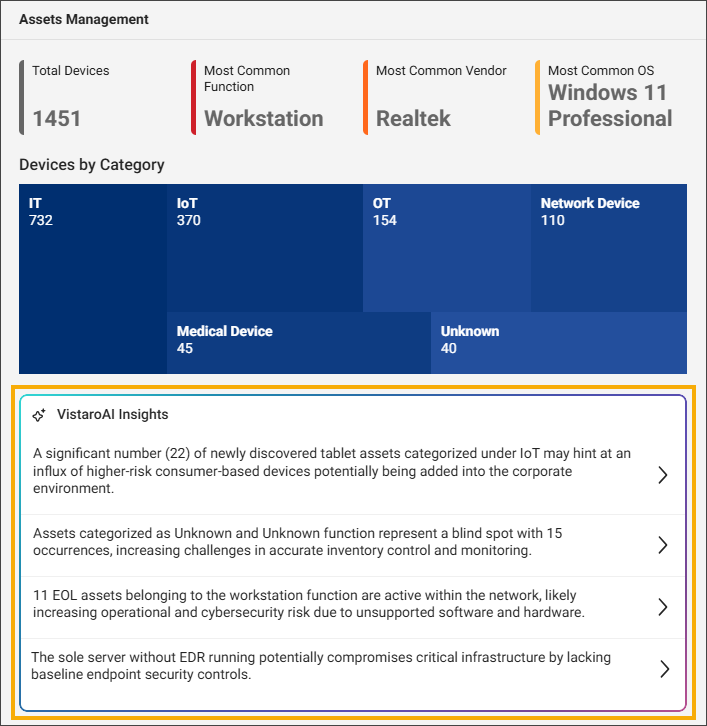
VistaroAI analyzes your real-time data and opens a new pane with key insights, visuals, and recommended investigation steps. Content in this pane varies based on the selected finding.
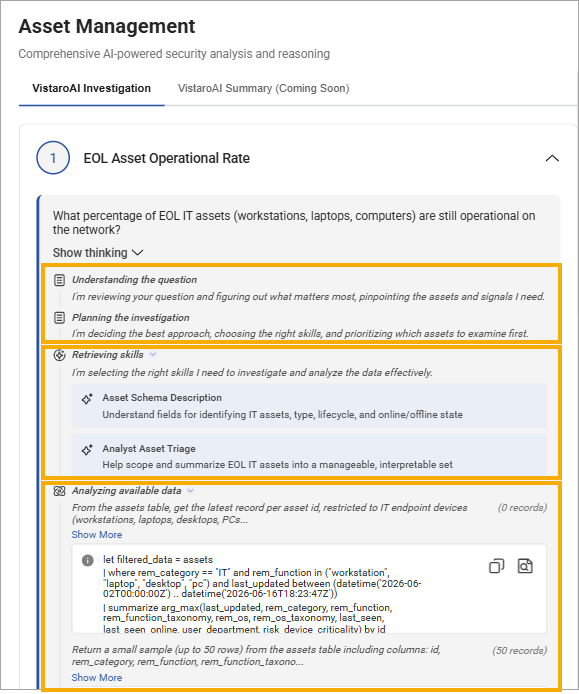
Note: You can run multiple investigations simultaneously by selecting additional findings. Closing the pane won't stop the analysis. Use the Processing tag in the VistaroAI Insights section to monitor active analyses, and reopen completed analyses to continue your investigation. - (Optional) Learn how VistaroAI performed the analysis by clicking Show
thinking. Using the expanded section, you can:
- Review the italicized text to understand the analysis process.
- Click Skills in use to see the skills that VistaroAI used during the analysis. These skills are based on real-world security workflows and expertise.
- Click Analyze available data to view query data related to your
finding. You can click the Copy icon to copy the query and then
click the Go to Xplorer icon to open Xplorer, where you can paste
and run the query. For more information, see Searching logs with Xplorer.
-
When the investigation is complete, a Ready for Review tag displays under the finding, allowing you to view the results. Selecting the Detection Source Analysis box displays key insights, including a Continue Investigation section where you can initiate next steps, such as creating a case.
 minute read