Run advanced queries in Xplorer
Advanced queries provide additional filtering and analysis capabilities for users who are familiar with Kusto Query Language (KQL) and the underlying data structure. You can use this option to build complex queries for visualizations and add them to custom dashboards to monitor your most meaningful data.
Forescout Cloud provides multiple features to support you in writing queries, including:
When you're ready to build and run your query, see Running an advanced query.
Sample queries
Forescout Cloud provides sample queries that you can view, edit, and run to understand how advanced queries work. Sample queries are available in the Example Queries tab.
Field suggestions
As you type, Xplorer automatically suggests available field and table names. It can match partial text, even if the typed characters appear in the middle or end of a word. You can complete the full name by selecting the name in the list or by pressing the tab button.
Auto-complete suggests words based on its placement within the query:
- Beginning of query: Recommends table names or KQL
function (
let,logs, etc.). - First line: Recommends KQL query syntax (
where,summarize, etc.). - After keyword: Recommends columns relevant to the selected table.
- After column: Recommends other operators, as applicable.
For complex fields, you can reference nested fields in your query using a dot notation (e.g., open_ports.port, open_ports.protocol). Xplorer suggests sub-columns across all tables when you type a dot, including assets, logs, cases, and more. Use the Discover Nested Fields button to refresh the field metadata used by the automatic suggestions. The field list is generated from data in your environment and is specific to your account. Although it typically changes infrequently, you may want to refresh it when new log types or data sources are added.
Query supports
You can press Shift + Enter to move to the next line and automatically inserts a pipe character to make it more natural to write multi-step queries. Each new line is numbered to make it easier to reference and debug long queries.
When filtering on list fields, you don't need to know whether a field is a list or a scalar. Using == on a list field automatically performs a contains check to reduce confusion and prevent failed queries.
Running an advanced query
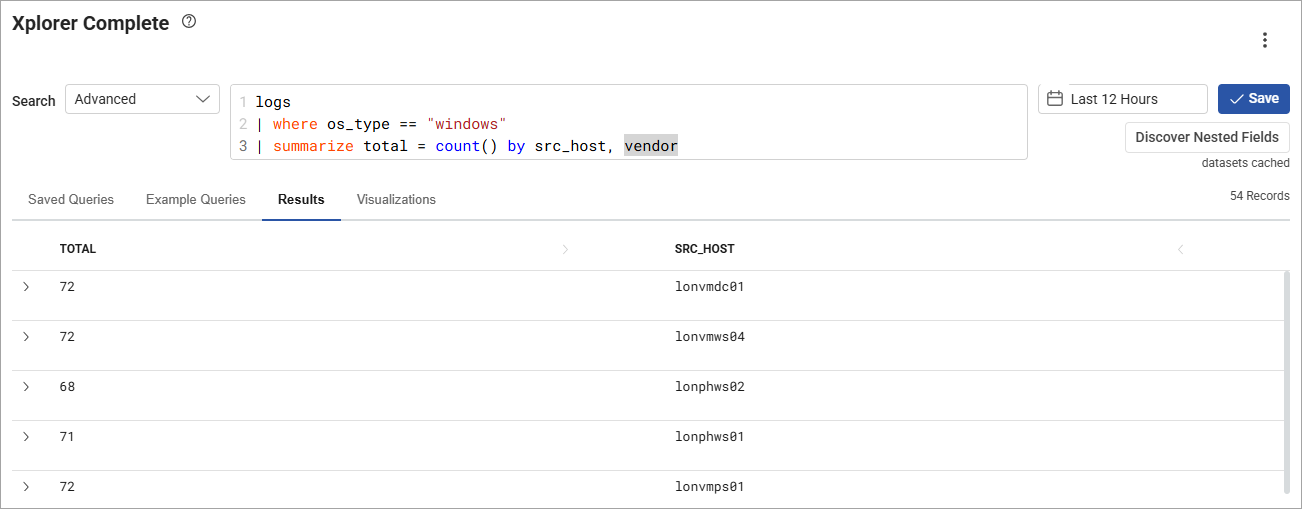
The example query below counts Windows log events by source host and vendor for the selected time range.
To run an advanced query:
-
In the left navigation pane, navigate to the Investigate section and click Logs > Xplorer.
-
In the dropdown next to Search, select Advanced.
-
In the Search Query field, start typing your query.
Xplorer automatically suggests available field and table names. You can complete the full name by selecting the name in the list or by pressing the tab button.
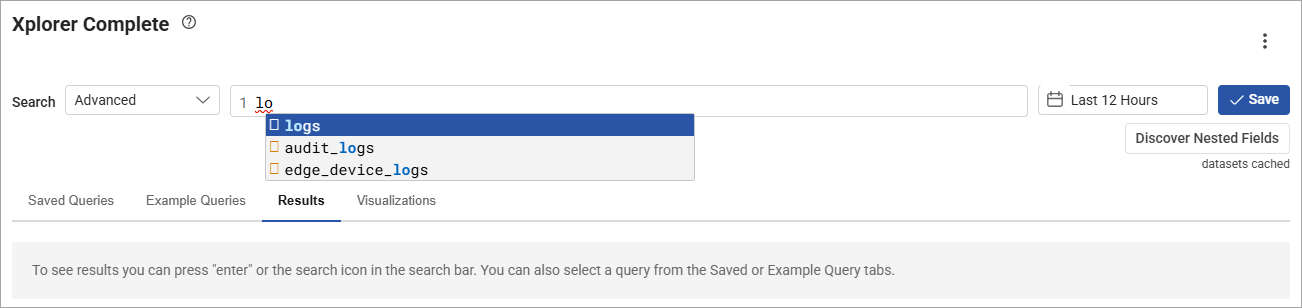
When you click the tab button, Xplorer automatically adds a new numbered line and inserts a pipe character.
-
Complete your query.
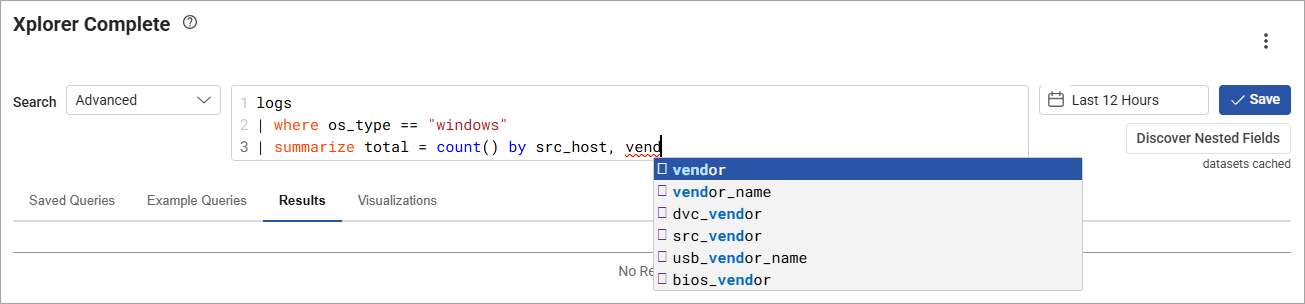
-
With your cursor in the Search Query field, press Enter to run the query.
The results display under the Results tab.
-
(Optional) In the time range field (calendar icon), select a time range to filter the results by event timestamp (e.g., Last 12 Hours). When you select the time range, the results automatically update to reflect your preference.
-
(Optional) Save your query by clicking the Save button, providing a name and category (personal or shared) for the query, and clicking Save. You can access your saved queries under the Saved Queries tab.
 minute read