Speech to text
The speech to text feature in Natural Language Search Xplorer mode allows users to speak the request instead of typing it. Artificial Intelligence (AI) then provides a translation of the speech into the input field, making the data-entry process much faster. This feature also allows users to speak using your own language with multiple common languages supported.
Using the speech to text feature
To access the speech to text feature, the feature must be enabled:
- Go to Cloud Admin > Account settings > Features tab.
- Toggle Yes next to Enable use of Forescout VistaroAI.
- Select the Enable secure AI-based speech transcription check box.
To use speech-to-text:
- In Xplorer, click the Microphone icon and begin speaking
to state your request.Note: 60 seconds is the maximum recording time. Seven (7) seconds is for the silence.

- Click the Generate Query link to run the search. The VistaroAI Generated
Query request window displays.
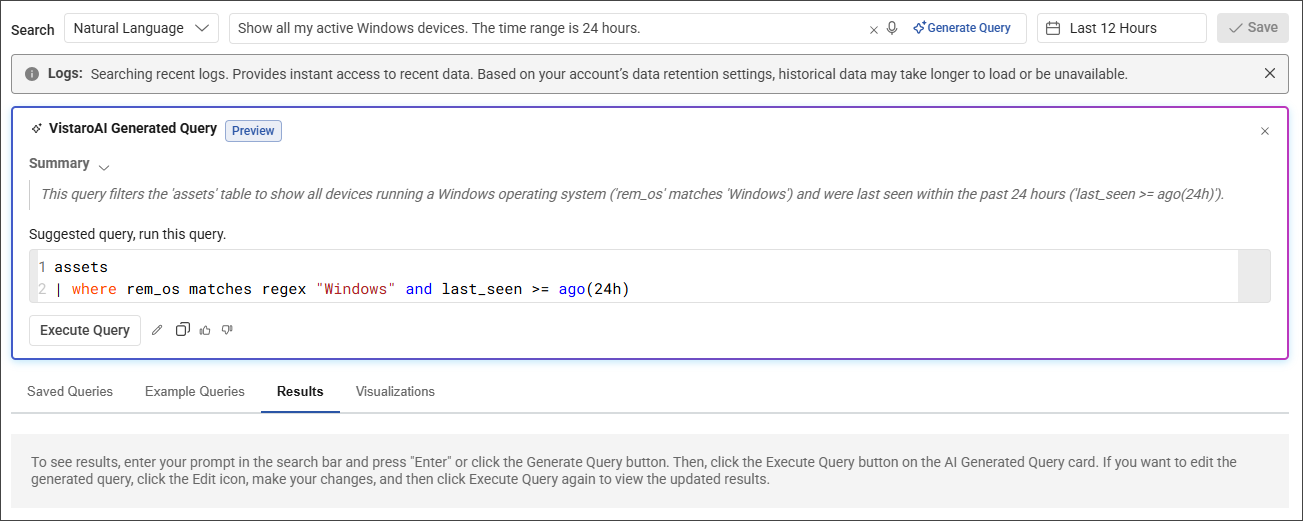
- Click the Execute Query button to run the search.
 minute read