Xplorer visualizations
After you create a simple or advanced query, you can view the results as a visualization, which is a chart or graph that presents your query results visually instead of as a table of rows.
The following advanced query retrieves the first 50 unique devices and hosts with a populated data source and returns the associated data source, host name, and IPv4 address for each host after sorting the results alphabetically by host name.
logs
| where isnotempty(data_source)
| summarize arg_max(data_source, dvc_host, dvc_ip4) by dvc_host
| project data_source, dvc_host, dvc_ip4
| sort by dvc_host asc
| take 50
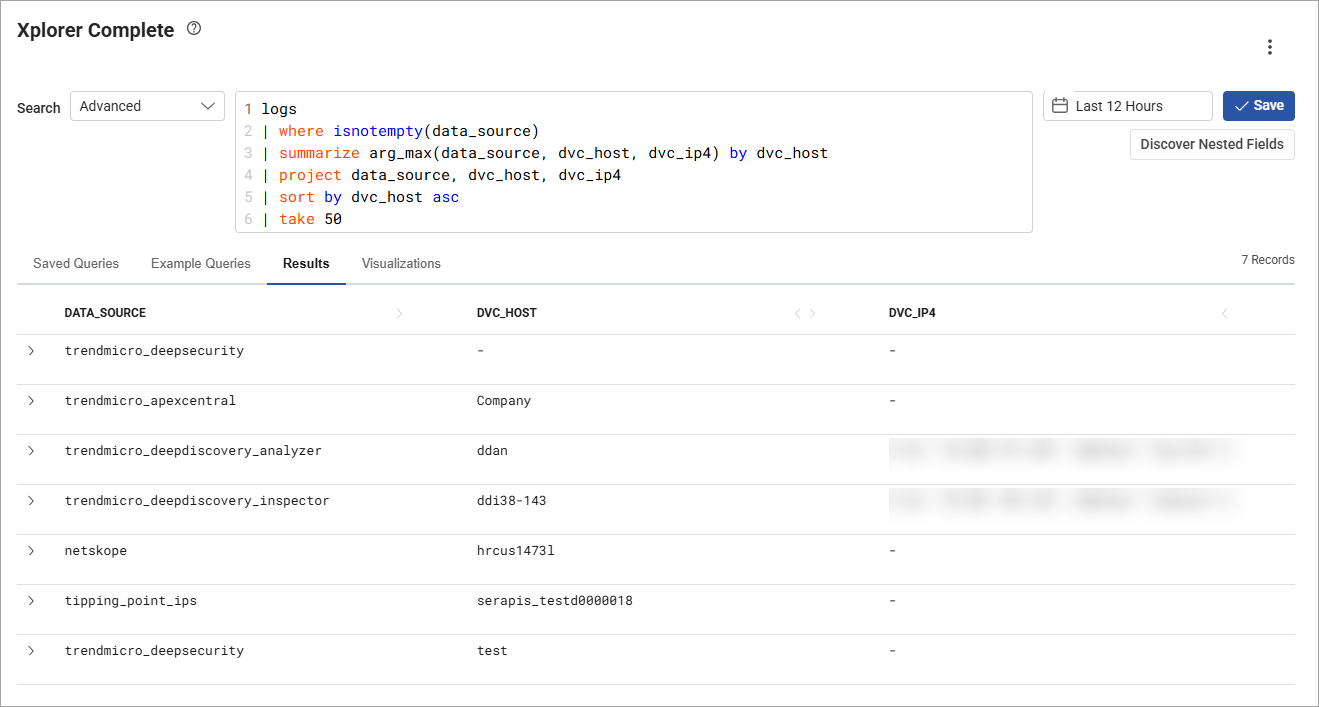
The current query doesn't include an aggregation, so a visualization isn't available. There are two ways to add an aggregation:
-
Manually: Add an aggregation by directly editing the query.
-
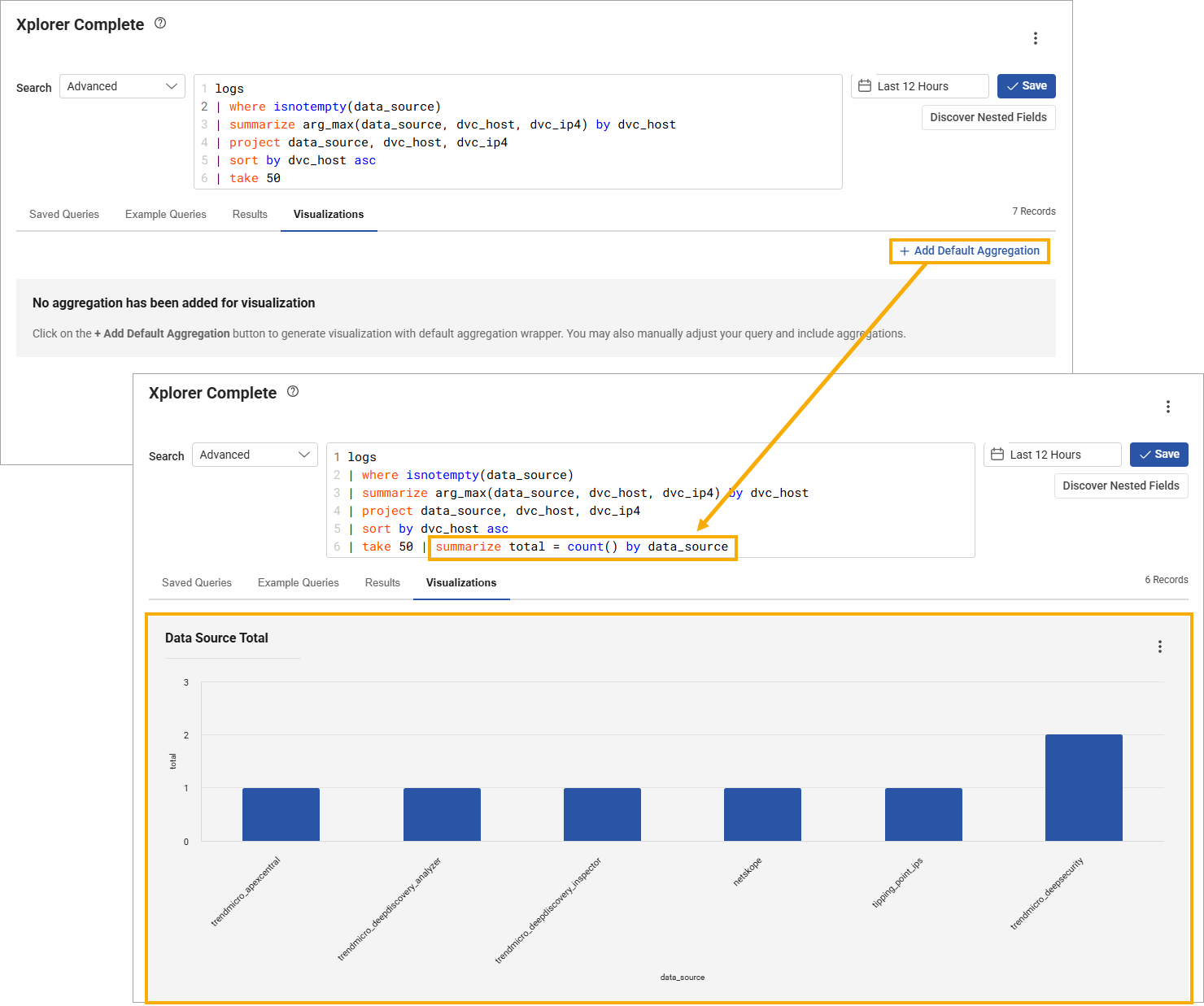
Automatically: Click the Add Default Aggregation link to add a basic aggregation.
The following example uses the Add Default Aggregation link, which automatically added | summarize total = count() by data_source to the last line of the query to summarize the number of hosts associated with each data source. After adding the aggregation, you can click the Visualizations tab to view your data in chart form.
Customizing your visualization
After you create and save a visualization, you can customize it to fit your needs using the Customize Visualization editor (ellipses button > Customize Visualization). The editor allows you to define a title, X axis label, data series, aggregation column, and ascending or descending order.
Visualization types that aren't supported for a particular query are grayed out.
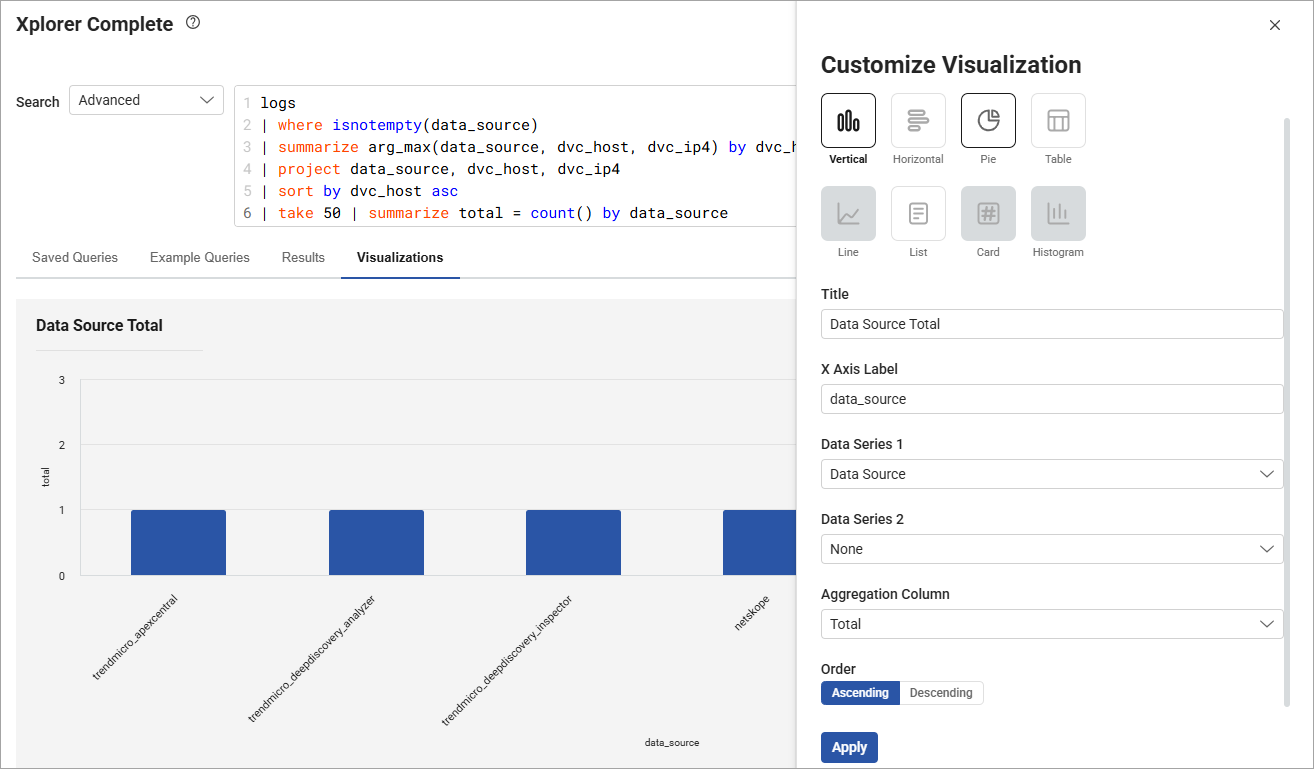
The following display options are supported by the available visualization formats:
- Vertical – Vertical bar chart with selection options for the Data Series 1 , Data Series 2, and Aggregation Column fields.
- Horizontal – Horizontal bar chart with selection options for the Data Series 1 , Data Series 2, and Aggregation Column fields.
- Line (Advanced queries only) – Line graph with selection options for the only Data Series field.
- Pie – Pie chart with selection options for the only Data Series field and Aggregation Column field.
- Table – Table with selection options for the Column field. You can select a maximum of five columns.
- List (Advanced queries only) – Standard list presentation with selection options for the only Data Series field and Aggregation Column field.
- Card (Advanced queries only) – A simple count visualization.
-
Histogram – Depicts the frequency distribution of variables in a data set with selection options for the only Data Series field and Aggregation Columnfield. You can narrow the time range by clicking a column or by clicking and dragging across a specific portion of the histogram.
Adding your visualization to a dashboard
After you create and save a visualization, you can add it to a new or existing dashboard:
-
New dashboard – Click ellipses > Create a New Dashboard. Your visualization displays on a new dashboard as a widget. You can then add additional widgets to your dashboard.
-
Existing dashboard – Click ellipses > Add to Existing Dashboard. Select an available dashboard and click Add.
 minute read