Expanded asset view
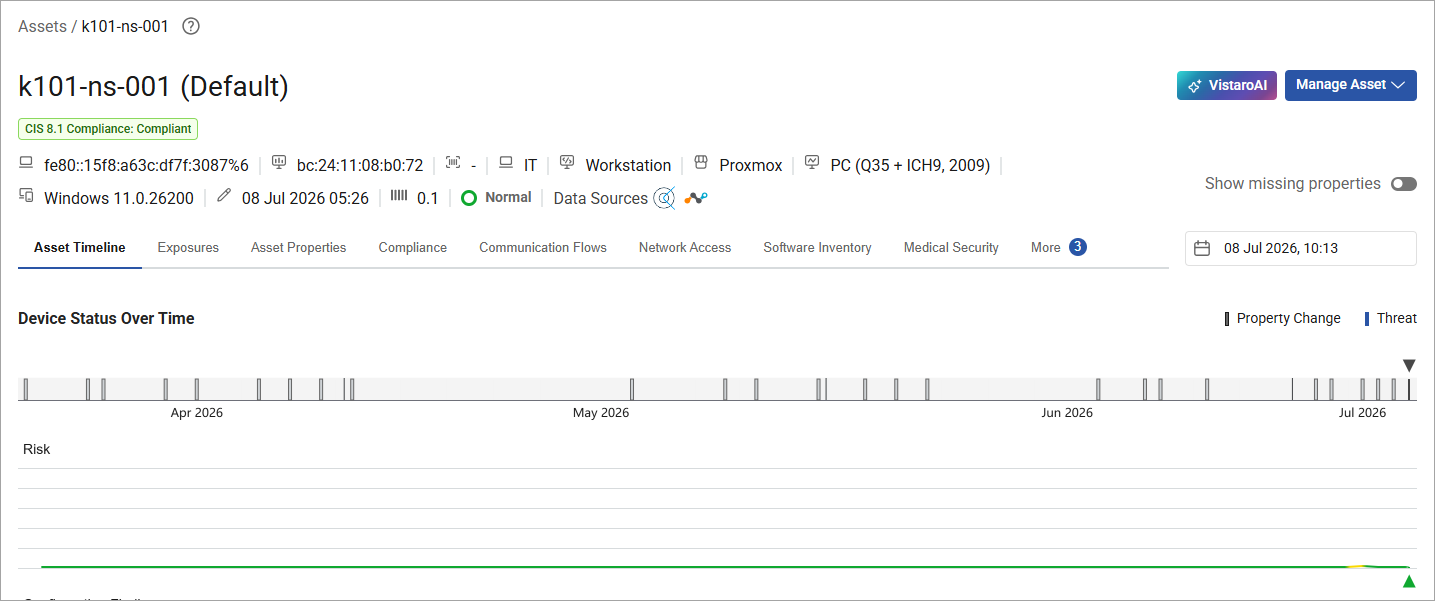
Clicking on an individual Asset displays the Asset's profile view, which shows the Device-status-over-time view of configuration state changes and risk changes over the past 90-days.
Selecting the Property Change marker on the Asset Timeline will populate the Events panel with the configuration changes that were recorded for the date selected.
If combined with Forescout eyeAlertl, the asset timeline of events may also have blue marks which indicate when threats were detected for the Asset.
The Expanded Asset View displays the following clickable sub-tabs at the top of the screen, so you can quickly scroll to the following information categories:
- Asset Timeline
- Exposures
- Threats
- Compliance
- Communication Flows
- Modules (for connected hardware devices)
- Network Access
- Software Inventory
- Medical Utilization (for medical devices)
- Medical Security (for medical devices)
- Actions
- Asset Properties
VistaroAI risk context summary
The Forescout Risk and Exposure Management AI-powered Summary is triggered by clicking the VistaroAI button at the top of the Expanded Asset view. The summary provides clear and detailed context for the Asset's risk exposure and compliance posture.

The summary offers factual data, description and insights broken into the following categories:
- Risk Summary: Provides the Risk Score and a narrative description of the Asset's notable security issues contributing to the score, such as open ports for common services that increase the exploitable attack surface and allow remote access.
- Device and Location Details: Provides relevant details about the specific Asset, including its address, machine type, criticality, vendor, and when it was first and last seen on your network.
- Device Mitigation: Provides the titles and CVSS scores of all CVEs registered against the asset, which can be referenced by analysts to implement the necessary updates to improve the asset's security posture.
Data Sources
For eyeFocus analysts investigating a specific asset (e.g., a Windows Server VM discovered via eyeSight and enriched via AWS Config and CrowdStrike), the Data Sources capability will surface contributing systems and source-contributed properties, so that users can validate asset attributes and troubleshoot discrepancies without support escalation.

Editing and verifying specific asset properties
Click the edit (pencil) icon to edit the properties of a specific Asset.
To verify which Asset attributes have already been modified from their default setting, look for the "Edited" label in summary information at top of the view and in the Device Details section of the view.
Additional expanded asset information categories
Recalls: Provides detailed information about known recalls for the Medical Device Asset. Clicking on a specific recall loads a screen that provides detailed information about the recall.Network Access: Provides network connectivity information about the Asset.
Device Details: Provides all available meta data about the Asset's characteristics, including general information about the physical Device's identifying characteristics, open ports, Nested Device data and classification details such as the Device's vendor and purpose. This category of information also includes characteristics specific to Medical Devices such as FDA Class and whether Protected Health Information is present.
eyeFocus SOAR actions
You can specify SOAR actions for the Asset from the SOAR section of the Expanded Asset View. You can also configure SOAR Workflows and actions from the SOAR Workflows screen.
To quickly add a SOAR Action to an Asset from this location, click + Add SOAR Actions, fill in the following fields, and click Trigger:
- Application
- Actions
- Agent ID
- Description
 minute read