Manage Endpoints Using SecureConnector
This topic describes how to use SecureConnector to query and manage Linux endpoints.
Refer to the HPS Inspection Engine Configuration Guide and the section that discusses the Start SecureConnector / Stop SecureConnector actions in the Forescout eyeSight Administration Guide for more information about SecureConnector.
SecureConnector Deployment Options
SecureConnector can be implemented on the endpoint as a dissolvable executable, a permanent application, or a service.
- A dissolvable executable runs once on installation and does not run again after the user logs out or the machine is rebooted.
- When installed as a permanent application, SecureConnector runs every time the user logs in, and in some cases as soon as the machine boots.
- When installed as a permanent service, SecureConnector runs when the machine boots.
| SecureConnector on Endpoint | Windows Endpoints | Linux Endpoints | macOS/OS X Endpoints |
|---|---|---|---|
| As a dissolvable executable | Y | Y | Y |
| As a permanent application | Y | X | X |
| As a permanent service / system daemon | Y | Y | Y |
SecureConnector Details
| Item | Detail |
|---|---|
| Size on disk | 20 MB. |
| Installation type | System daemon or dissolvable. Defined in the Start SecureConnector action. |
| Visibility options (systray icon) | Visible or non-visible. |
| Deployment options | Interactive: HTTP redirection to download portal. Defined in the Start SecureConnector action. Background: Download and installation of setup file using shell script or third-party software distribution tool. See Background Installation of SecureConnector. |
| SecureConnector privilege level | Daemon installation: root privilege. Dissolvable installation: user privilege. Ubuntu versions 19.10 and higher require root privilege. |
| Daemon/service installation folder | The default installation directory is /usr/lib/forescout/. |
| Dissolvable installation folder | The folder where the installation package is deposited, and from which the Run.sh script runs. |
| Daemon/serviced script folder | /tmp/ |
| Dissolvable script folder | /tmp/ |
| Starts on boot | Daemon/service mode: Yes. Dissolvable mode: No. Installation mode is set in the Start SecureConnector action. |
The
You can specify interaction and installation settings including:
- The text displayed to prompt end users to install the package
- Whether SecureConnector is deployed as a permanent service/system daemon, or as a dissolvable executable
- Whether the SecureConnector icon is visible in the task bar
When the
Start SecureConnector action is applied to Linux endpoints, configure the following action options as follows:- Install Method
- Only the
HTTP installation at the endpoint installation method is supported. - Deployment Type
- Only the
Install Dissolvable andInstall Permanent as Service options are supported for Linux endpoints.
Refer to the section about the
Start SecureConnector / Stop SecureConnector actions in the Administration Guide for more details.
The
By default, end users can stop SecureConnector on their devices as follows:
- End users can select the SecureConnector toolbar icon, and then select
Exit .- When SecureConnector is installed as a service/daemon, this stops SecureConnector for the current session. The daemon runs at the next session.
- When SecureConnector runs as a dissolvable executable, this stops and removes SecureConnector.
- End users can use the following command to uninstall SecureConnector from their device:
bash /usr/lib/forescout/Uninstall.sh When you configure the plugin, you can enable password protection for SecureConnector on endpoints. When password protection is enabled, users who try to stop or uninstall SecureConnector are prompted for a password.
Additional Sites are Forescout devices that SecureConnector connects to
when it cannot connect to the managing Appliance of the endpoint. Use the
Using Certificates to Authenticate the SecureConnector Connection
When an endpoint managed by SecureConnector accesses the network, the SecureConnector client on the endpoint connects to the CounterACT Appliance that manages the endpoint. This client-server connection is secured using X.509-compliant public key certificates, as follows:
- The CounterACT Appliance presents a server-side certificate that is used by the SecureConnector client to authenticate the connection. To work with SecureConnector, trust chain(s) and certificate(s) for this authentication must be imported at the Forescout Console.
When multi-domain certificates are used, SecureConnector authenticates the server-side certificate using the Subject Alternate Name (SAN) extension field in addition to the Subject Common Name field.
- When Forescout runs in Certification Compliance mode, optional configuration settings let you require a client-side certificate. When this option is enabled, SecureConnector on endpoints must present a certificate to the CounterACT Appliance. Refer to the Installation Guide for more information about Certification Compliance mode.
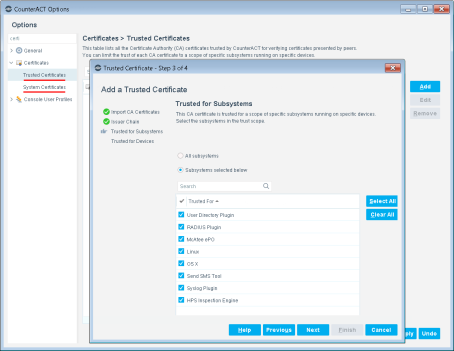
Use the Trusted Certificates and System Certificates panes of the Console to install required trust chains and certificates in Forescout. Specify the relevant plugins of the Endpoint Module when you configure the Scope/Subsystem fields. For details, refer to the appendix on in the Administration Guide.
Typically Forescout endpoint detection capabilities are combined with endpoint authentication and compliance policies to enforce network access control: Upon connection, network access of endpoints is restricted (typically to the DHCP and DNS servers and to the for detection and remediation interactions) until the user/endpoint is authenticated and compliance is proven. Only then is the necessary network access granted. However, authenticating endpoints and verifying compliance can cause a delay during which even legitimate endpoints have only restricted access. If complex compliance policies are in place, this delay in network access may be noticeable, resulting in an unsatisfactory user experience for corporate users.
Certificate-based rapid authentication provides a strong, secure and extremely fast endpoint authentication mechanism. It uses your corporate PKI (Public Key Infrastructure) to provide immediate, authenticated network access for corporate users and other known endpoints.
The following describes a typical scenario when endpoints connect to the network:
- Corporate endpoints and other trusted endpoints managed by SecureConnector immediately initiate certificate-based authentication as part of SecureConnector’s TLS interaction with the . Endpoints are granted immediate network access based on a signed X.509 digital certificate. The continues the compliance checks defined in active policies, and may revoke or change endpoint access if these checks fail.
- A corporate policy may grant limited network access to endpoints without a valid rapid authentication certificate, or with an expired or revoked certificate, or endpoints not managed by SecureConnector, until normal, policy-driven compliance checks are run.
For more information about implementing certificate-based rapid authentication in your environment, refer to the About the SecureConnector Advanced Features How-to Guide.
 minute read