About Windows Applications HPA Module
Windows Applications Host Posture Assessment (HPA) works with the Host Property Scanner (HPS) Inspection Engine to support in-depth discovery and management of the following software and applications on Windows endpoints:
-
Windows operating system information including:
-
Release
-
Package/Flavor
-
Service Pack
-
-
The following third-party applications, which present unique security challenges:
-
Antivirus
-
Peer-to-peer
-
Anti-spyware
-
Personal Firewall
-
Instant Messaging
-
Hard Drive Encryption
-
Cloud Storage
-
Microsoft products and other applications on Windows endpoints
-
The Windows Applications HPA Module provides host properties and actions that let you detect and manage endpoints based on this information. Use the Forescout policies to discover endpoints running specific applications, and to apply remediation actions.
For example:
-
Identify endpoints running specific Windows operating systems and apply patches or vulnerability updates.
-
Identify endpoints running specific peer-to-peer applications and kill the application.
-
Update a specific antivirus package and start it on an endpoint.
Capabilities Provided by the Windows Applications HPA Content Module
The module provides host properties and actions to support the following policy-based detections and management actions:
Use the Windows Applications HPA Module to Detect Windows Versions
The module provides the following host properties to detect Windows applications.
Detect Windows Versions
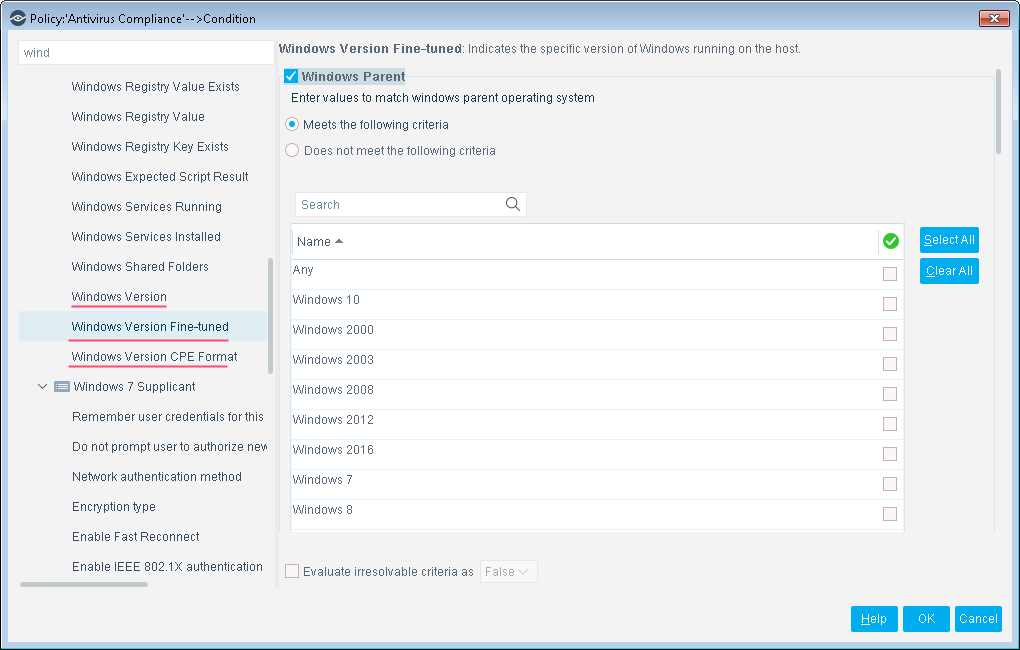
| Windows Version | Identifies Windows versions detected on the endpoint. |
| Windows Version CPE Format |
Identifies Windows versions running on an endpoint, in Common Platform Enumeration format. The property returns the full CPE 2.3 name string for each Windows version, as follows:
Use Forescout text matching tools to create policy conditions that identify logical parts or substrings of the CPE name string. |
| Windows Version Fine-tuned | Identifies Windows versions detected on the endpoint, based on detailed criteria such as Windows version, flavor, and service packs. |
Use the Windows Applications HPA Module to Detect Third-Party Applications
The module provides the following host properties to detect third-party applications.
Detect Third-Part Apps
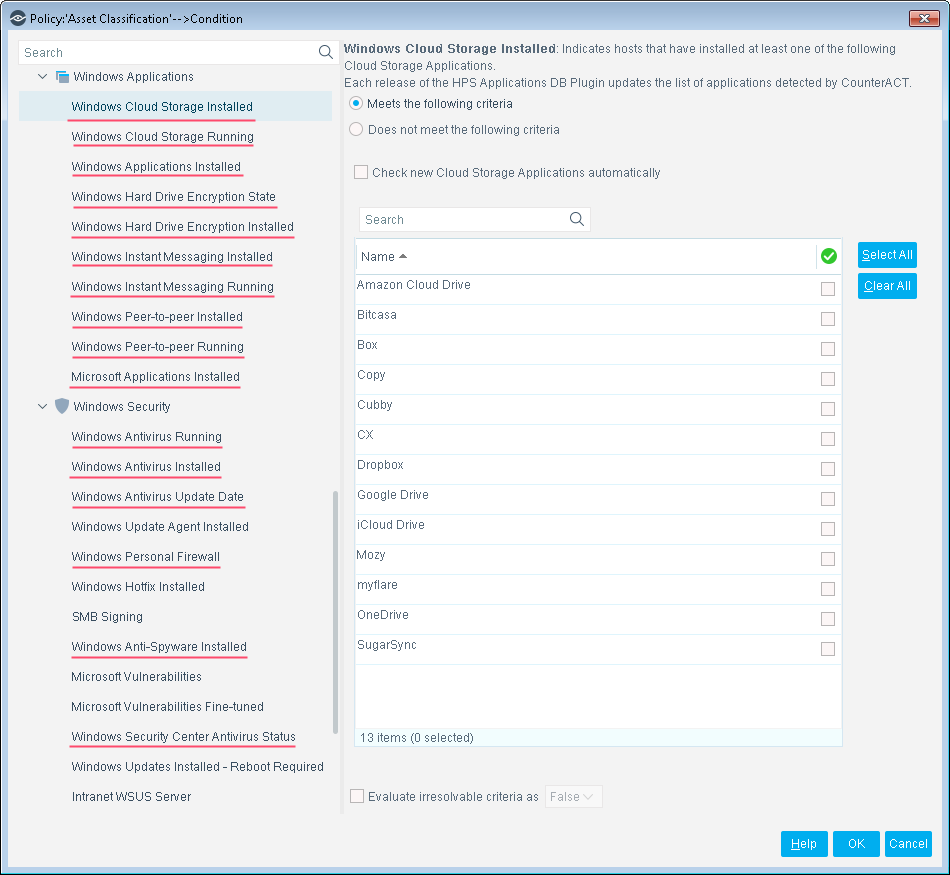
These host properties list the third-party applications that Forescout eyeSight detects. Each release of this module updates the applications that are listed, while eyeSight detects new applications.
The Check new… and Detect new… checkboxes determine whether new applications supported by subsequent updates are added to the condition you define.
-
By default, the checkbox is cleared, and the condition remains as you defined it. New applications are not included in the condition criteria.
-
Select the checkbox to include new applications in the condition criteria.
| Windows Anti-Spyware Installed | Identifies the anti-spyware applications(s) installed on the Windows endpoint. |
| Windows Antivirus Installed | Identifies the antivirus applications(s) installed on the Windows endpoint, as detected by Forescout eyeSight. |
| Windows Antivirus Running | Identifies the antivirus application(s) running on the Windows endpoint, as detected by Forescout eyeSight. |
| Windows Antivirus Update Date | Identifies the most recent date and time that antivirus application(s) were updated on the Windows endpoint, as detected by Forescout eyeSight. |
| Windows Cloud Storage Application Installed | Identifies the cloud storage applications(s) installed on the Windows endpoint. |
| Windows Cloud Storage Application Running | Identifies the cloud storage application(s) running on the Windows endpoint. |
| Windows Hard Drive Encryption Installed | Identifies whether supported encryption applications are installed on the Windows endpoint. |
| Windows Hard Drive Encryption State | Identifies whether one or more drives/partitions on the Windows endpoint have been encrypted using supported encryption applications. |
| Windows Instant Messaging Installed | Identifies the instant messaging applications(s) installed on the Windows endpoint. |
| Windows Instant Messaging Running | Identifies the instant messaging application(s) running on the Windows endpoint. |
| Microsoft Applications Installed | Identifies the Microsoft application(s) installed on the Windows endpoint. |
| Windows Peer-to-peer Installed | Identifies the peer-to-peer applications(s) installed on the Windows endpoint. |
| Windows Peer-to-peer Running | Identifies the peer-to-peer application(s) running on the Windows endpoint. |
| Windows Personal Firewall | Identifies the personal firewall applications(s) installed on the Windows endpoint. |
| Windows Security Center Antivirus Status | Identifies the presence and status of antivirus applications installed on the Windows endpoint, as reported by the Windows Security Center. |
To create policy conditions based on these properties, choose from the list of supported third-party applications. Forescout has analyzed the structure, footprint, and related processes of these applications, so the module detects them more accurately and inspects them more deeply. New releases of the module typically add supported applications or enhance support for known applications.
When you use these properties in policies rules, remember that these properties do not detect or inspect unsupported applications. For example:
-
The Windows Instant Messaging Installed property detects supported messaging applications installed on endpoints. It does not detect other messaging applications that may be present on the Windows endpoint. When no supported applications are detected on the endpoint, the property resolves to the value None - but unsupported messaging applications may be present.
-
Similarly, the Windows Hard Drive Encryption State property detects drives/partitions encrypted by supported applications. When no drives are encrypted by supported applications, the property resolves to the value Not Encrypted for each partition on the endpoint - but partitions may be encrypted by unsupported applications.
Use other host properties to create conditions that inspect endpoints and detect files or processes of unsupported applications.
Use the Windows Applications HPA Module to Manage Third-Party Applications
The module provides the following actions to remediate/manage third-party applications:
Kill Cloud Storage on Windows
This action halts the specified cloud storage applications that are running on Windows endpoints.
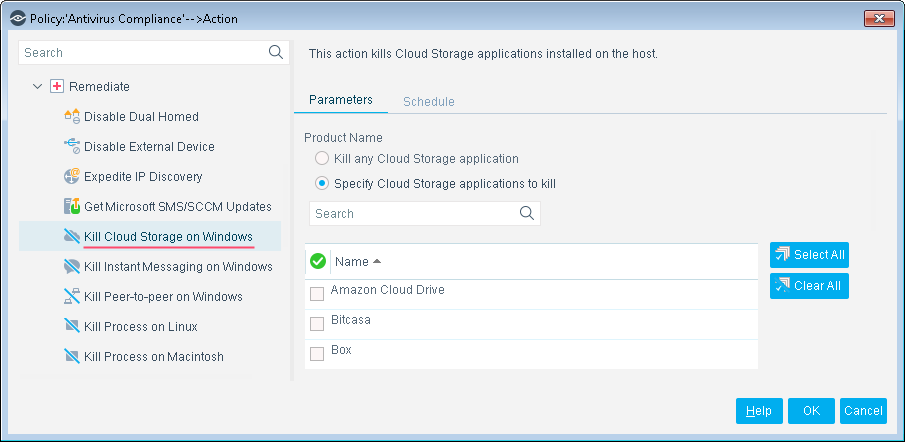
By default, the application is killed once a minute. If the endpoint has SecureConnector installed it is killed once a second.
To increase kill frequency, Forescout eyeSight can automatically install SecureConnector on endpoints when this action is applied to them. When you configure the HPS Inspection Engine, select the Automatically run SecureConnector on Windows endpoints to increase frequency of Kill Process, Kill IM and P2P actions checkbox. See Configure SecureConnector in the HPS Inspection Engine Configuration Guide for details.
Kill Instant Messaging on Windows
This action halts specific instant messaging applications that are running on Windows endpoints.
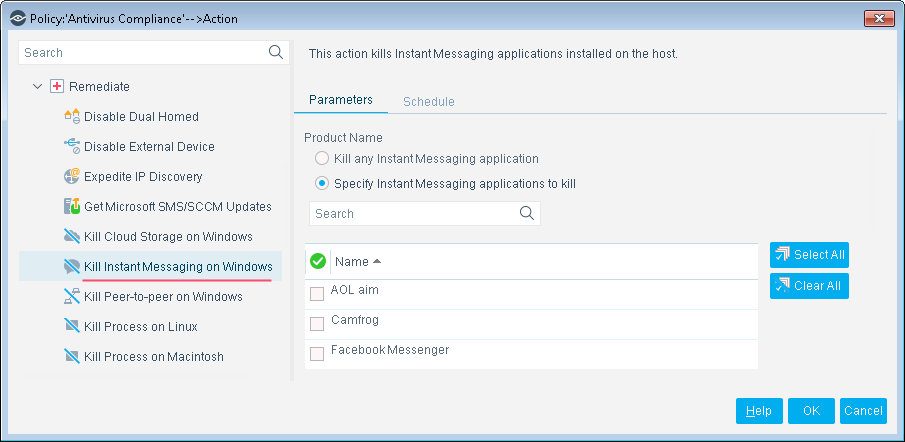
By default, the application is killed once a minute. If the endpoint has SecureConnector installed it is killed once a second.
To increase kill frequency, Forescout eyeSight can automatically install SecureConnector on endpoints when this action is applied to them. When you configure the HPS Inspection Engine, select the Automatically run SecureConnector on Windows endpoints to increase frequency of Kill Process, Kill IM and P2P actions checkbox. See Configure SecureConnector in the HPS Inspection Engine Configuration Guide for details.
Kill Peer-to-Peer on Windows
This action halts specific peer-to-peer applications installed at Windows endpoints.
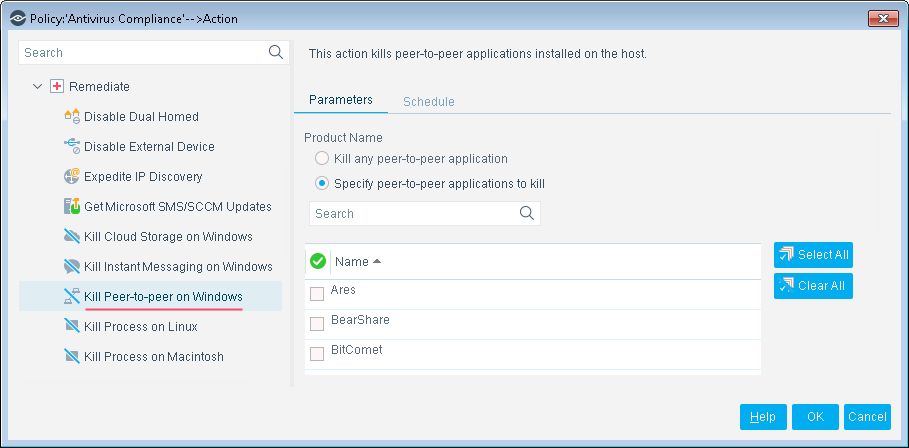
By default, the application is killed once a minute. If the endpoint has SecureConnector installed it is killed once a second.
To increase kill frequency, Forescout eyeSight can automatically install SecureConnector on endpoints when this action is applied to them. When you configure the HPS Inspection Engine, select the Automatically run SecureConnector on Windows endpoints to increase frequency of Kill Process, Kill IM and P2P actions checkbox. See Configure SecureConnector in the HPS Inspection Engine Configuration Guide for details.
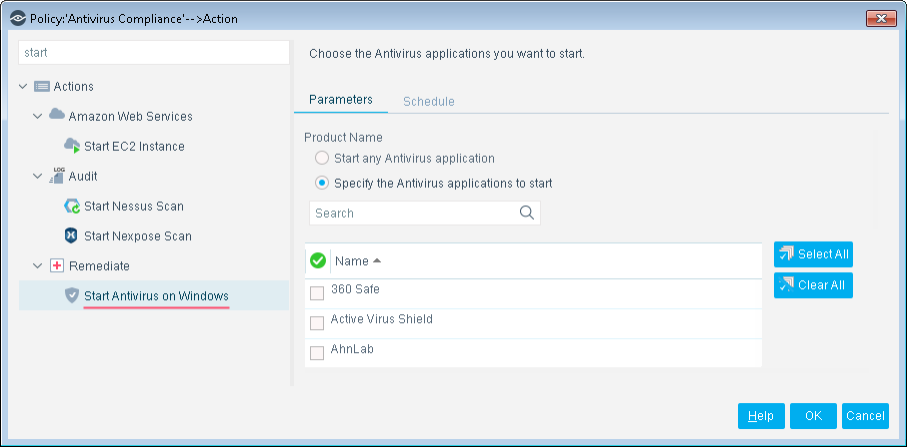
Start Antivirus on Windows
Launch antivirus applications that have been halted at Windows endpoints.
Update Antivirus on Windows
Update outdated antivirus applications at Windows endpoints.
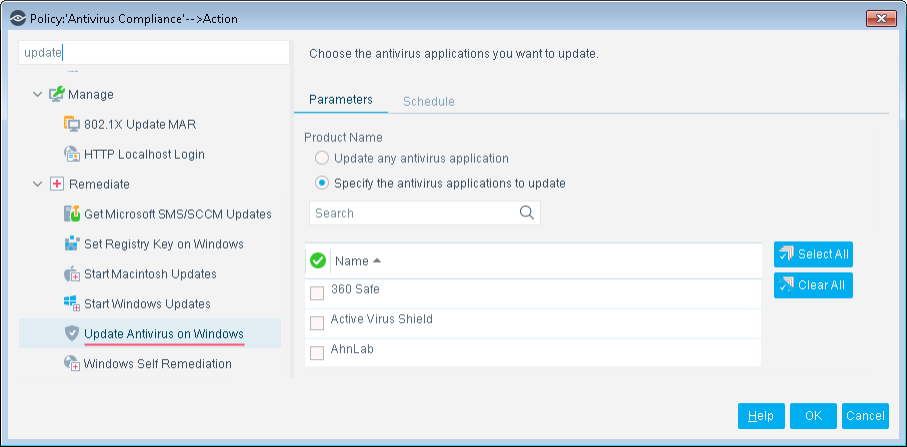
You might need to select more than one application if you think several antivirus applications are installed on endpoints in the policy scope. If more than one antivirus application is installed on an endpoint, Forescout eyeControl updates only the first of the selected applications that it detects.
Install the Windows Applications HPA Module
To install the module:
- Navigate to the Downloads page on the Customer Support Portal.
-
Download the
.fpifile for the component. -
Save the file to the machine where the Console is installed.
-
Log into the Console and select from the menu.
-
Select Modules > Install. The Open dialog box opens.
- Browse to and select the saved component
.fpifile. -
Select Install. The Installation screen opens.
-
Select I agree to the License Agreement to confirm that you have read and agree to its terms, and then select Install. The installation cannot proceed unless you agree to the License Agreement.
The Installation begins immediately after selecting Install and cannot be interrupted or canceled.In modules that contain more than one component, the installation proceeds automatically one component at a time. -
When the installation completes, select Close to close the window. The installed component (module or plugin) is displayed in the Modules pane.
Some components are not automatically started following installation. -
Start the plugin. In Tools > Options > Modules, right-click on the component name in the Modules pane. In the menu that appears, click Start.
-
To confirm that your installed and configured component is running, in Tools > Options > Modules, hover over the component name in the Modules pane to view a tooltip indicating whether it is running on devices in your development.
 - The component is stopped on all eyeSight devices.
 - The component is stopped on some eyeSight devices.
 - The component is Running on all eyeSight devices.
 minute read