Add a Forescout eyeSight custom widget
You can add widgets to a dashboard to visualize information about Forescout eyeSight policies. You can add widgets to any dashboard that you created. Depending on the data you select to populate the widget, different chart type displays are available (see Widget Chart Type for more information).
To create widgets that accurately reflect the information you want to see in the dashboard, you should understand how Forescout policies and other basic features work.
To add a widget:
- At the lower right corner of the dashboard, select Add Widget
 . The Add Widget wizard opens.
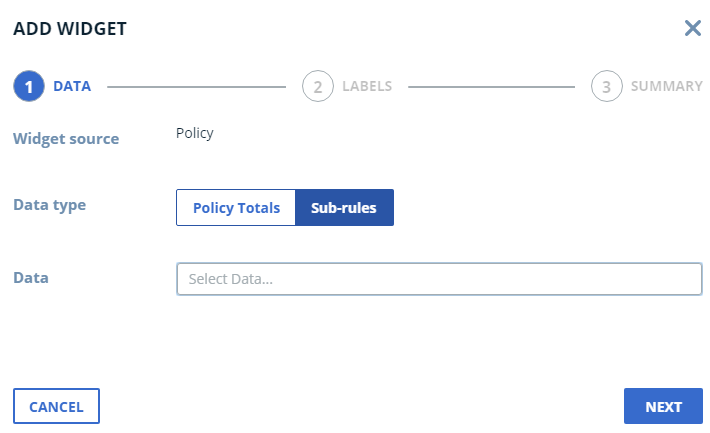
- In the Data tab, specify the following options.
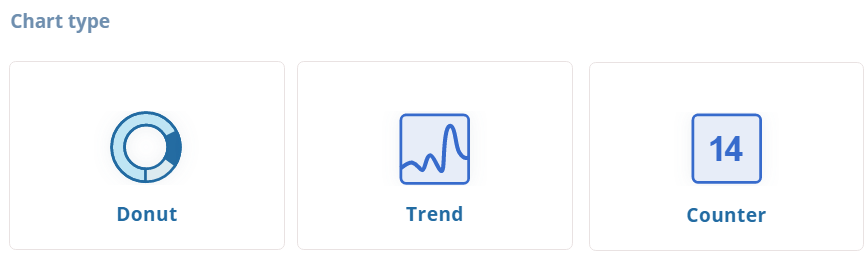 Data typePolicy Totals. Select policy totals for one or more policies. The policy total is the total number of devices that match any of the sub-rules for a specific policy. This does not include devices that only match the policy main rule, but not any of the sub-rules.Sub-rules. Select one or more individual sub-rules from a single policy.DataThe policies or sub-rules on which the dashboard is based.Widget TypeSome or all of these widgets may be available, depending on the number of policy totals or sub-rules reported by the policy.Donut: 10 individual sub-rules from any one policyTrend: 5 individual sub-rules from any one policy, or 5 policy totals of different policiesCounter: 4 individual sub-rules from any one policy, or 4 policy totals of different policies
 - Select Next.
- In the Labels tab:
- Enter a title for the new widget.
- If you are adding a Counter widget, configure the following additional options:
- Configure whether to display an additional counter with the total number of all selected policies/sub-rules.
- Configure whether to display trend arrows next to chart values.
- Enter labels for sub-rules to be displayed in the legend of the widget. By default, the label name is identical to the name of the sub-rule.
- If you are adding a Counter widget, toggle the trend arrows indicator
 next to each policy/sub-rule to configure whether upward and downward
trend arrows are marked as positive or negative.
next to each policy/sub-rule to configure whether upward and downward
trend arrows are marked as positive or negative.
- Select Next.
- On the Summary page, review the information and select Finish.
 minute read