Application issues dashboard tag
Applying this tag to relevant policy sub-rules will include matched devices in the Applications - Top 5 Reasons for Noncompliance Widget.
By default, this widget displays devices matched to policies created from relevant compliance templates. To include additional devices not detected by these templates, tag sub-rules related to application issues that you want displayed in the widget with the Application Issues tag.
This tag can only be applied to sub-rules in Compliance policies that are labeled as Not Compliant. See Categorizing Policies for details.
To tag a sub-rule:
- In the Policy Manager, navigate to the required Compliance policy. See Categorizing Policies for details.
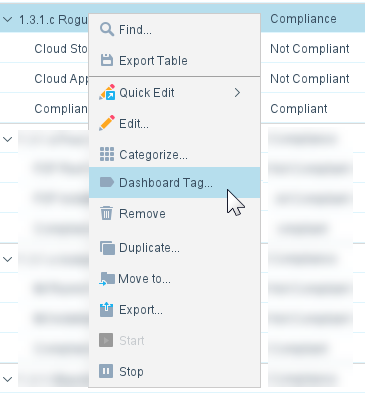
- Right-click the policy, and then select Dashboard Tag....
- Select the relevant sub-rule/s (categorized as Not Compliant), and then select Application Issues from the drop-down menu in the Dashboard Tag column.
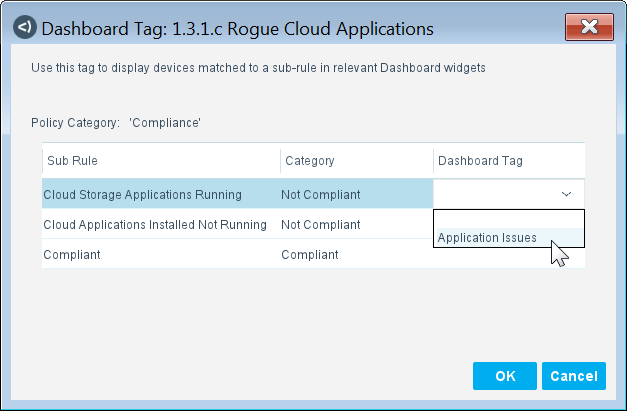
To remove the tag, deselect Application Issues by selecting the blank entry in the drop-down menu.
- Select OK.
 minute read