Categorizing policies
Assign policies to policy categories to:
- Help you organize and view policies in the Policy Manager. For example, display only policies that have been labeled as Compliance policies.
- Include categorized policies in the Compliance folder and Corporate/Guests folder in the Views pane of the Console. See Home Views.
- Include categorized policies in the Forescout Compliance Center. See Working with the Forescout Compliance Center.
- Display categorized policies in the Site Map. See Working in the Site Map.
- The Compliance Status and Corporate/Guest Status properties. See Device Information Properties.
By default, these include policies generated from Classification, Compliance and Corporate/Guest Control templates.
This section describes how to categorize other policies as either Classification, Compliance or Corporate/Guest.
Follow these guidelines:
- Create a policy for which you need to view results in a dashboard.
- Categorize the policy as either Classification, Compliance, or Corporate / Guest.
- Label endpoints that match the policy sub-rules as follows:
Sample Categorization and Labeling - Running Vital File on Windows Endpoint Policy
- Create a policy. In this example, the policy name is Non-Compliant Endpoints by Operating System.
- Select Categorize.
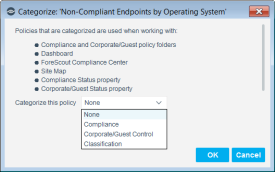
- Select Compliance from the Categorize this policy drop-down menu.
- Select a sub-rule, select the Label field, and then
select Compliant.
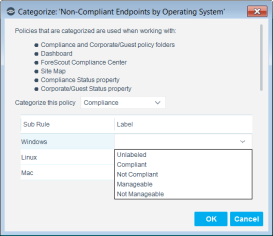
Endpoints that match this sub-rule are calculated as compliant.
- Select Unlabeled if you do not need results to be calculated for endpoints that match the sub-rule.
 minute read