Work with the Forescout Compliance Center
The Forescout Compliance Center is an endpoint web-based compliance wizard used for the purpose of:
- Letting users log in.
- Bringing endpoints to network compliance.
- Informing users of their compliance level with respect to your corporate security policies.
- Offering users instructions for performing self-remediation by following links that you provide.
Note: For the Forescout Compliance Center to be effective, the endpoint user must have SecureConnector installed on the endpoint device accessing the network. See Start SecureConnector / Stop SecureConnector for information about installing SecureConnector.
The Forescout Compliance Center dialog box is displayed until the endpoint has successfully logged in and is compliant with selected policies.
Users can also manually open the compliance wizard from their endpoint to view their compliance status.
Customize page design
The design of the Forescout Compliance Center may be customized. In addition to customizing the look and feel of the page (adding logos, images and text), you can also create a separate design for endpoints that are compliant and another design for endpoints that are not compliant. See Customizing HTTP Pages.
Using the Compliance Center vs. policies
The tasks carried out via the Host Compliance Center dialog box can also be carried out using policies. When using policies, many of the activities displayed in the Security Center are hidden from the endpoint user. For example, SecureConnector can be installed remotely and antivirus updates or compliance violations can be remediated without endpoint user interaction.
You should consider using the dialog box when you want to offload the task of maintaining compliance from your IT team, educate your users regarding security requirements at your organization, and force them to bring their machines into compliance. This may be useful, for example, at universities or organizations where guests may be required to self-remediate.
What endpoint users see
Users can access the Compliance Center from endpoints that run SecureConnector.

Hold the cursor over the Forescout icon in the system tray to view that endpoint's compliance status.
If there is noncompliance at the endpoint, Forescout eyeSight notifies the user. On the Windows Notification Bar at the bottom of the window, the Forescout icon is displayed as red. Placing the cursor over the icon, the endpoint details are displayed. For example:
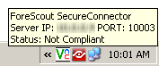
Right-click the icon to open the Forescout Compliance Center dialog box. The Login tab prompts users to enter their login credentials to sign into your network. See the HTTP Login action for more information about when the Login tab is activated.
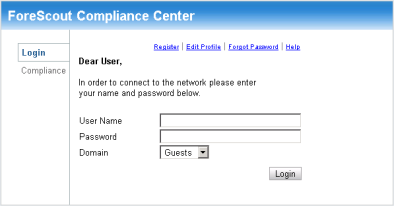
After users successfully sign in, the Compliance tab opens.
The Compliance tab:
- Assists you in downloading and installing SecureConnector.
- Assists you in achieving network compliance.
You can add comments to this tab by using the HTTP Notification action. Messages entered using these actions are also displayed in the tab.
Achieve Compliance
The Compliance tab displays the endpoint compliance status.
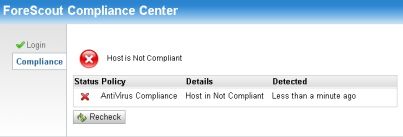
If there is any noncompliance with any policy, Host is Not Compliant is displayed. This indication refers to all policies that you run on the endpoint which are categorized as Compliance in the Policy Manager, as well as default Compliance template policies.
In addition, the Compliance tab can be used to display messages and links prompting noncompliant endpoints to become compliant by taking action, for example, by clicking a link that redirects end users to a site where they can download the latest antivirus application or to install patches.
Users can select Recheck to verify their compliance status. All categorized policies are rechecked against the GUI Policy Editor options. Categorization is configured in the Policy Manager.
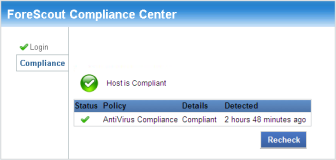
If the endpoint meets all the requirements of each of these policies, it is compliant, and Host is Compliant is displayed.
Install SecureConnector
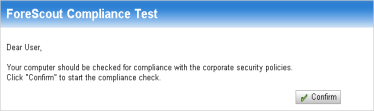
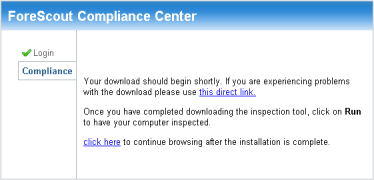
If the endpoint is not managed by SecureConnector, the wizard prompts you to download and run SecureConnector. The following pages are displayed:
 minute read