Policy preferences
The preferences set here are applied to all connected Appliances. Preferences cannot be set individually for each Appliance.
To access the NAC options select , and then select NAC.
Defining authentication servers
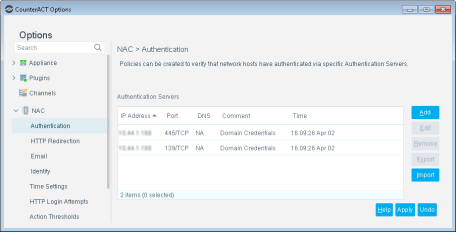
Policies can be created to verify network users have been authenticated via specific authentication servers.
The following authentication servers are supported:
- HTTP (80/TCP)
- Telnet (23/TCP)
- NetBIOS-SSN (139/TCP)
- Microsoft-DS (445/TCP)
- Microsoft-MAPI (135/TCP)
- FTP (21/TCP)
- IMAP(143/TCP)
- POP3(110/TCP)
- rlogin (513/TCP)
After you configure authentication servers, they are automatically deployed. These servers are automatically opened and added as Virtual Firewall rules. View these rules in the Firewall Policy pane.
HTTP Redirection options
Each Appliance can support up to 200 hijack actions per minute.
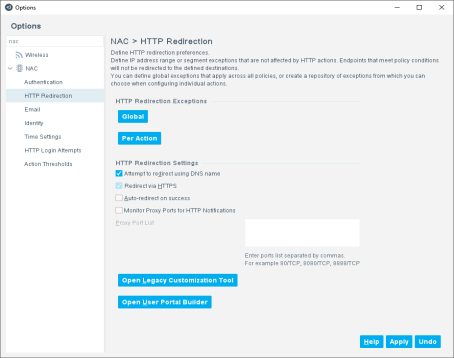
Several options are available for handling HTTP traffic from .
Defining HTTP Redirect exceptions
You may need to refrain from redirecting business essential Internet sites or refrain from blocking access to important files on the Internet. This can be performed by creating HTTP redirect exceptions.
By default, user web sessions going to the Internet and Intranet are redirected. An option is available to only handle Internet traffic. See Redirecting Web and Intranet Sessions.
You can define exceptions in two ways:
- Global URL Exceptions. Global URL exceptions that apply for all actions.
- IP Address Exceptions per Action. IP address exceptions that can be applied to individual actions.
Endpoint users who browse to URLs in this list are not redirected by Forescout eyeControl even when an HTTP action is applied to the endpoint.
A number of URL strings are included in the list of global HTTP redirection exceptions by default. These strings are included to prevent endpoint users from receiving browser errors related to various issues, such as proxy servers, certificate revocation, and captive portals. These strings can be edited or removed.
By default, the following URLs are never redirected:
- windowsupdate.microsoft.com
- windowsupdate.com
- update.microsoft.com
- updates.microsoft.com
- exchange
This enables access to Microsoft Windows Update servers and prevents redirection of the Exchange server when used via the web interface. These URLs cannot be seen or edited by the user.
- Select .
- Select Global… in the HTTP Redirection Exceptions section to open the Global dialog box.
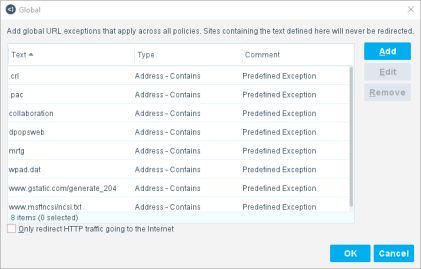
- Select Add.
- In the New URL Text dialog box, select an option from the Look in URL drop-down menu.
- Filename
- Address
- Select Contains or Exact.
- In the Text field, enter the URL address or filename to search for.
- Select OK
Redirecting web and Intranet sessions
By default, all user sessions are redirected regardless of whether the traffic goes to the Internet or to the Intranet. An option is available to redirect Internet traffic only.
- In the Global dialog box, select Only redirect HTTP traffic going to the Internet. User sessions to the Intranet are not redirected.
IP address exceptions per action
Configuring HTTP Redirection Exceptions per action lets you define IP address ranges or segments that are not affected by a specific HTTP action. For example, create a policy that displays a customized message in end user web browsers using the HTTP Notification action, except for endpoint IP addresses between 192.168.10.15 and 192.168.10.30.
Add IP address ranges or segments to a repository of HTTP exceptions that can later be applied to individual actions.
This feature applies to the following HTTP actions:
 HTTP Localhost Login
 HTTP Login
 HTTP Notification
 HTTP Redirection to URL
 Start SecureConnector
 Windows Self Remediation
You can add an HTTP Redirection exception per action in the following ways:
When multiple HTTP actions, each containing HTTP Redirection Exceptions, are simultaneously applied to an endpoint, only the exceptions for the first HTTP action received by Forescout eyeControl are applied. Additional HTTP Redirection Exceptions are only applied when there are no other HTTP actions applied to the endpoint.
Add an exception to the repository
Exceptions that you create in the repository can be applied in the Exceptions tab of HTTP actions.
- Select .
- Select Per Action... in the HTTP Redirection Exceptions area.
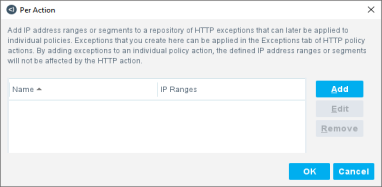
- Select Add.
- Enter a name for the exception in the Add IP Range dialog box.
- Select Add to add an IP address range or segment, and then select OK.
- Select OK in the Add IP Range dialog box.
- Select OK in the Per Action dialog box.
Apply an exception to an action
- In the relevant HTTP action configuration, navigate to the Exceptions tab.
- Select Add. In the dialog box that opens, Select the name of the HTTP exception from the Select IP Range drop-down menu, and select OK. The exception is displayed in the Exceptions table.
Redirect using web server DNS name
When Forescout eyeControl redirects a browser to the captive web server, it can either use the web server IP address or its DNS name. Using the DNS name is recommended when using encrypted HTTPS transactions. The web server can have a certificate installed, avoiding the browser warning when interacting over HTTPS with an uncertified web server. For the DNS option to work properly, the endpoints must resolve this name using their defined DNS servers.
- Select .
- Select Attempt redirect using the DNS name to redirect using the DNS name.
Global redirect via HTTPS
Redirect via HTTPS is selected by default and cannot be changed.
Redirected traffic includes information sent to network users via the HTTP actions, as well as authentication credentials sent back to the Appliance. For example, when you use the HTTP Localhost Login action, authentication credentials are sent back to the Appliance using the method that you defined.
If you transmit via HTTPS, network users see a security alert in their web browser when they attempt to access the web. The alert indicates that the site's security certificate was not signed by a known Certificate Authority (CA). (A default self-signed certificate is installed during product installation). You can generate a known CA Security Certificate to avoid this situation. See Generating and Importing a Trusted Web Server Certificate and HTTP Redirection for details.
Skip HTTP redirect confirmation message
You can instruct Forescout eyeControl to not display the confirmation message that appears by default at the endpoint after the HTTP action is successfully completed. When this happens, endpoint users are automatically redirected to the page they originally browsed to.
- Select .
- In the HTTP Redirection Settings area, select Auto-redirect on success.
Defining proxy ports for HTTP notification
If your organization is configured to access the web through a proxy, you must enable the ports.
- In the HTTP pane, select Monitor Proxy Ports for HTTP Notifications.
- Enter the ports in the Proxy Ports List field. Use the following format: 80/TCP, 8080/TCP, 8888/TCP.
- Select Applyr.
Customize HTTP pages
Redirected web pages are generated by eyeSight users to interact with endpoints when specific actions are performed. At the endpoint, a default or customized web page replaces the page otherwise displayed. The content inside the page is configured when defining policy actions. See Working with Actions for details.
Use the User Portal Builder when customizing the web pages displayed by the following eyeSight eyeControl actions:
- HTTP Login
- HTTP Notification
For more information, see The Forescout User Portal Builder.
When you upgrade from versions earlier than 8.0.0, customizations created using the legacy Forescout Customization Tool are preserved for these interfaces and are upgraded to the User Portal Builder. However, customization files that are configured manually and then copied to the Forescout file system in versions earlier than 8.0.0 are not available after upgrade. Use the User Portal Builder to recreate these customizations.
Use the legacy Customization Tool when customizing the web pages displayed by the following Forescout actions:
- HTTP Localhost Login
- Start SecureConnector
- Start Macintosh Updates
- Start Windows Updates
- Windows Self Remediation
- Compliance Center
For more information, see The Legacy Customization Tool.
When you upgrade from versions earlier than 8.0.0, all customizations for these interfaces are upgraded.
Email preferences
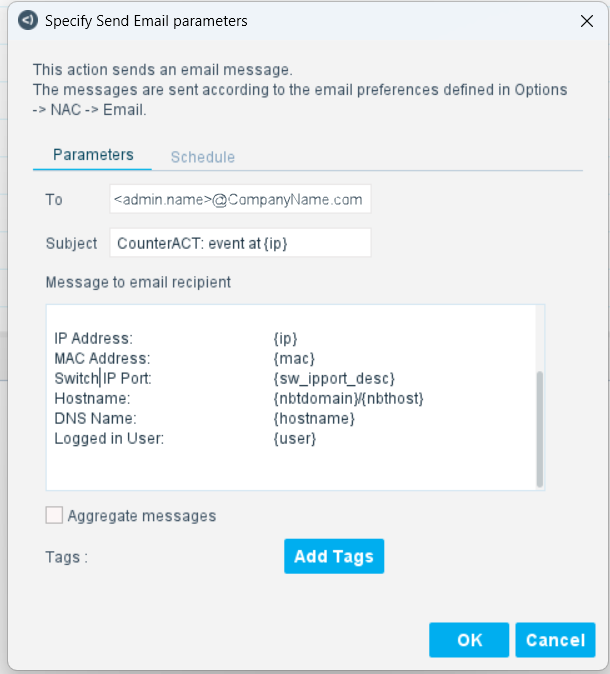
The Send Email action automatically delivers email to administrators when a policy is matched. If there is extensive activity as a result of your policy, the recipients may receive an overwhelming number of emails.
The following tools are available to help you manage email deliveries:
- Define the maximum number of email alerts delivered per day (from midnight)
- Define the maximum number of events that are listed in each email
For example, you can define that you only want to deliver five emails per day, and that each email will contain up to 50 events. The limits defined apply to each email recipient, and for both the Send Email and Send email to host actions.
Customizing endpoint identity change thresholds and detection mechanisms
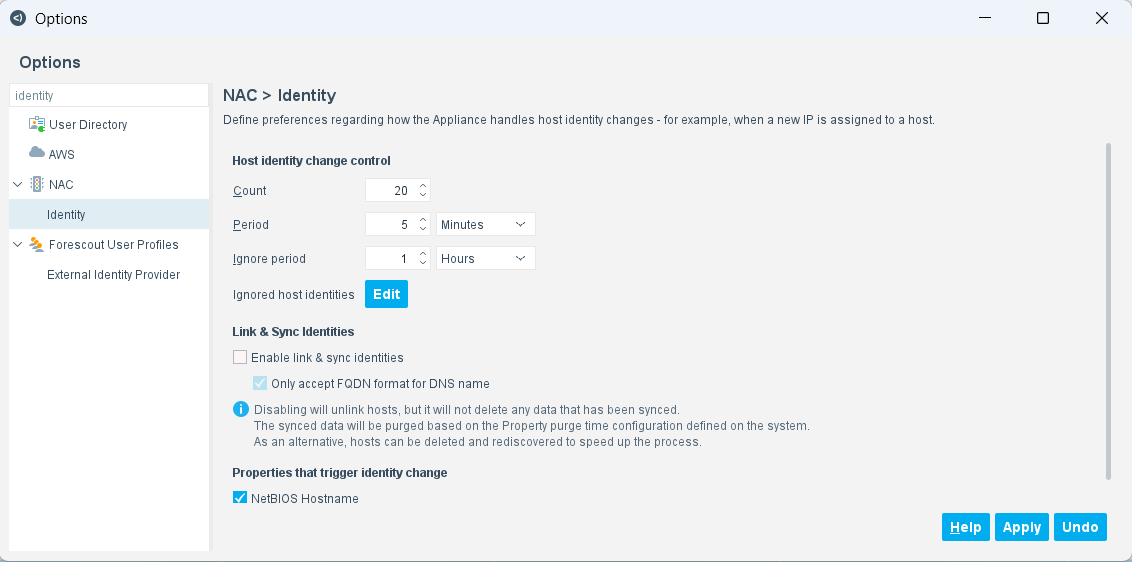
IP addresses associated with a specific MAC address may change frequently. This may happen, for example, if several VPN users receive different IP addresses for the same MAC address. eyeSight ignores these changes for the purpose of rechecking the same endpoints and carrying out actions on them.
By default, IP address changes are ignored when up to 20 changes occur within a 5-minute period on the same MAC address.
Before the threshold is passed:
- All actions are released from the original IP address and no actions are applied to the new IP address when the change occurs.
- However, eyeSight activates the Admission based activation option for the IP address
The detection is displayed in the Detections pane with the same MAC addresses and the most current IP address detected.
After the threshold has passed: If there is an IP address change after the threshold has passed:
- The MAC address is ignored as a mechanism for identifying the endpoints in any policy.
- The MAC is automatically added to a list of ignored addresses which can be modified manually by adding or deleting MAC addresses as needed.
- All new detections on the MAC are displayed individually per IP address.
Select . Use the options in this pane to update the default IP address threshold. You can also apply the ignore mechanism and threshold definitions to NetBIOS host name changes detected on the same IP address.
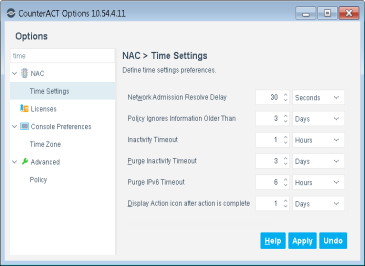
Time settings
Select to set the time settings.
 minute read