Miscellaneous tab
Use the Miscellaneous tab to configure additional user login parameters.
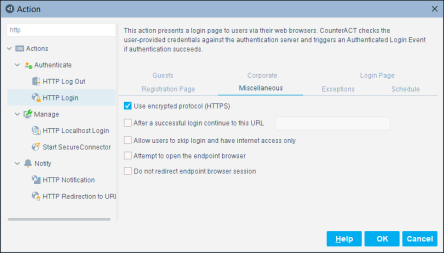
Use encrypted protocol (HTTPS)
It is recommended to select Use Encrypted protocol (HTTPS) to send the Login page via HTTPS. To send it via the non-encrypted HTTP protocol, clear the Use Encrypted protocol (HTTPS) checkbox. See Transmitting Actions via HTTPS for details.
Direct user to a predestined site after successful login
To force the user to begin browsing at a specific website, such as your corporate home page, select After a successful login continue to this URL and enter the URL.
Allow user to skip login
If you think login credentials may not be available to users, and you want them to have browsing access, select Allow the user to skip login and have internet access only. When selected, the Login page includes a guest link option.
Attempt to open a browser at the endpoint
You can define the action to automatically open a browser at the endpoint, instead of waiting for the user to browse. This ensures that the HTTP message gets to the network user faster. Select Attempt to open the endpoint browser. (This option is for managed machines only, and is not available for Windows 2000 and Windows 2003 Server machines.) Forescout eyeControl uses a script when this option is selected.
Do not redirect endpoint browser session
If the previous option Attempt to open the endpoint browser is selected together with this option, the Login page opens as a new page. If the Attempt to open the endpoint browser option is not selected together with this option, endpoint users must right-click the desktop SecureConnector taskbar icon, and select View Compliance Center to view the page. Hosts must be managed.
Customize HTTP Login Action Text
You can customize text that the HTTP Login action generates at the user endpoint. These texts appear in re-directed HTML pages that are generated at endpoints of users who attempt to access the corporate network.
In the Endpoint Messages pane, customize any of the HTTP Login action texts. In the pane, identify HTTP Login action texts by any one of the following Action column entries:
- Guest verification code...
- HTTP Login (with or without other values)
- HTTP Login mobile
For details about customizing texts that appear to endpoint users, see Localize Redirected Web Pages and Messages.
 minute read