Offline License Activation
To activate the license file, you will need to create a license request file in the , upload the request file to the Forescout Customer Support Portal, download the license file to your machine, and then upload the license file via the Console.
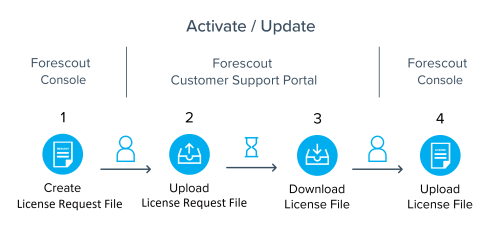
After activating a license for an eyeExtend module, the module name appears in the Licenses page even if the module itself hasn't been installed yet.
- Log in to the Enterprise Manager via the .
- From the Tools menu, select .
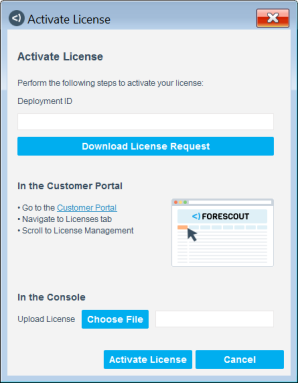
- In the Activate License dialog box, enter the Deployment ID and select Download License Request.
The Deployment ID is listed in the Proof of Entitlement email that you received from Forescout notifying you that your purchases are available in the Customer Support Portal. - Select a file name and location to save the request file and select Save.
- Go to the Forescout Customer Support Portal and navigate to the Licenses tab.
- In the License Management section, upload the request file that you downloaded in step ‎5 and then download the license file. See Upload License Requests and Download License Files for more information.
- Return to the Activate License dialog box in the Console by navigating to Options > Licenses and selecting Activate.
- In the Upload License field, select Choose file to find the new license file and then select Activate License. A dialog box opens indicating that the license was activated successfully.
- Select Close.
 minute read