Offline License Deactivation
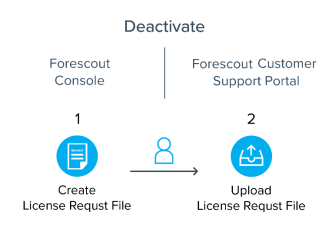
To deactivate the license file:
- Log in to the Enterprise Manager via the .
- From the Tools menu, select . The License Deactivation dialog box opens.
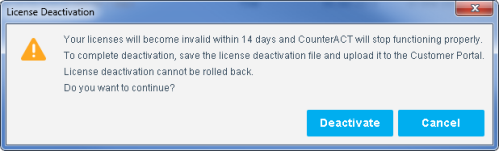
If you do not upload an updated license within 14 days, the license will become invalid. - Select Deactivate.
- Select Save to save the deactivation request file to your machine.
- Upload the request file saved in the previous step to the Forescout Customer Support Portal. See Upload License Requests and Download License Files. After the file is successfully uploaded, all license allocations are deactivated.
 minute read