Threat protection
A network threat is a device from which a malicious event, for example, a NetBIOS attack, was detected via a Threat Protection policy.
If you are using Flexx licensing, ensure that you have a valid eyeSight eyeControl license to use the full capabilities of this feature.
How threats are detected
This topic describes how infection attempts are carried out, and how Forescout eyeControl protects your network.
During an infection attempt, self-propagating malware tries to establish connections with endpoints within your network. These are called "scans." After connections are established, the malware uses these connections to learn about the endpoints' available services and resources (ports). In response, the network sends information about these available services and resources back to the worm.
With this information, the malware carries out threats using known or new attack methods. Malicious traffic quickly infects your network through various entry points, such as VPN users, trusted partner networks, or vulnerable laptops.
The eyeSight prevents infection attempts by identifying and suppressing malware before it propagates within your network and to organizations outside your network. eyeSight monitors traffic directed toward your network for signs of scans, and then identifies the techniques used to launch port or NetBIOS scans.
In response to this activity, eyeSight eyeControl generates virtual resource information sought by malware programs and sends the information back to them. This information is referred to as a mark. For example, if a request for a service in the network is identified, eyeSight eyeControl responds by creating and returning a mark in the form of the service requested.
Malware programs cannot distinguish between a mark and a legitimate network response. When malicious traffic attempts to access the network using the mark, the eyeSight immediately recognizes it and either:
- Continues to monitor it.
- Prevents the malware program from establishing communication with the network and external domains or with the service at which the infection attempt took place.
When an endpoint uses a mark, it is referred to as a bite event.
The also automatically detects heavily scanned services and responds by either monitoring or blocking these services. When a service is monitored, the platform records all traffic going to the service. When a service is blocked, no communication with that service is permitted.
eyeSight eyeControl also responds to:
- Service attacks
- Emails worms
Worm slowdown mechanism
A worm slowdown mechanism, part of the threat protection technology, provides two significant benefits:
The worm slowdown mechanism enables Forescout eyeControl to notably reduce the amount of traffic generated by an infected machine while it attempts to propagate within your network. Specifically, the mechanism allows eyeControl to lock the infected machine in a static TCP dialog. As a result, traffic from the infected machine is kept at a standstill.
The worm slowdown mechanism keeps worm threads at a standstill, preventing them from reaching vulnerable endpoints within cells and at locations where there is no eyeControl protection. This is possible when the system locks an infected machine in a TCP dialog before the machine has a chance to infect other endpoints in the network.
Basic terminology
This topic lists and describes malicious host concepts and terminology.
Port scan categories
The following port scan sub-categories are detected and displayed:
The default probe endpoint count and required time range for port scans is five in one day. For example, by default:
- A horizontal UDP scan is detected when an endpoint probes the same UDP port on five different endpoints within one day.
- A vertical scan is detected when an endpoint probes five different services on the same endpoint within one day.
Use the Scan Details dialog box to change the default setting. See Customize Scan Settings for details.
The detected port scan categories are indicated in the Reason column in the Detections pane and on the Activity tab of the Host Details dialog box.
Bite event
A bite event is identified when an endpoint tries to gain access to your network using a system mark. When the endpoint uses a mark, it is referred to as a bite event.
The endpoint can be a probing endpoint or any endpoint that received and tried to use the mark. Endpoints that perform a bite are referred to as infected endpoints.
Infection attempt events
An infection attempt includes
- An event followed by a bite event that is detected at an open, real port on the service where the bite event was detected. Several infection attempts may occur after the bite event.
- An email worm infection.
- An event that was received as a lockdown event from another Appliance (for Appliances that are part of an Enterprise solution).
Infected endpoints
An endpoint is considered infected if it has used a mark to try to gain access to your network or if it has passed the email anomaly threshold.
Forescout eyeControl responds to infected endpoints by performing one of the following:
- Monitoring the infected endpoint: The infected endpoint is permitted to communicate with your network and domains outside your organization for a specified time period. During this period, eyeControl records the activity of the infected endpoint and distributes marks to it. These endpoints are referred to as monitored infected endpoints.
- Blocking the infected endpoints: The infected endpoint is prevented from establishing communication with the network and domains outside your organization for a specified time period. These endpoints are referred to as host blocked endpoints.
- Blocking the infected endpoint in the service it attempted to infect: The infected endpoint is prevented from establishing communication with the service it attempted to infect for a specified time period. These endpoints are referred to as port blocked endpoints.
The default block or monitor period for infected endpoints is 12 hours. If the infected endpoint performs another scan or uses any system mark during this time, the blocking or monitoring period is extended.
Your policy definitions determine how eyeControl responds to infected endpoints.
Lockdown endpoints for appliances registered with an Enterprise Manager
A lockdown endpoint is an endpoint that is blocked or monitored at one Appliance as the result of an event detected at another Appliance.
If one Appliance in your enterprise detected a bite event, a lockdown notification is sent to the Enterprise Manager, and the Enterprise Manager alerts the other Appliances that the endpoint performed the event. If the remaining Appliances detect that the endpoint is communicating with the network they are protecting, the endpoint is automatically blocked or monitored according to the policy. For more details, see Managing Enterprise Lockdown Alerts.
Diverse endpoints
A diverse endpoint is an endpoint that scans for multiple services. This may indicate that the source is a human attacker rather than a worm, which typically looks for one service across multiple endpoints.
Host block or monitor period
The block or monitor period for malicious endpoints is determined by your system policy. The default setting is 12 hours. If the endpoint performs another scan or uses any system mark during this time, the blocking or monitoring period is extended. For example, if the endpoint is blocked and after two hours uses a system mark, the 12-hour block period is restarted, and the total block time is 14 hours. If the endpoint does not perform another event, it is released when the block or monitor time has expired.
The expiration time for each malicious endpoint can be seen in the Detections pane in the Expires In column.
Email worms
Forescout eyeControl identifies and responds to email worms sent over email, detecting the worms when:
- More than a certain number of emails are sent within a specified time period.
- Certain attachment formats are sent within a specified time period.
- Numerous sender names are delivered from one endpoint within a specified time period.
- Multiple emails with the same subject are sent to different recipients within a specified time period.
- More than a certain number of emails are sent to several email servers within a specified time period.
This method of defense varies from the standard protection in that it does not deal with probing endpoints, but rather with email anomalies.
Service attacks
The Forescout platform identifies service attacks when a service-probing criterion is met, i.e., when a service is heavily probed by multiple endpoints. The platform calculates this criterion based on the size of the network. Service attacks are handled by monitoring or blocking all endpoints at attacked services only. This differs from the standard response to individual infected endpoints that are monitored or blocked at any service in the network or in the service that they attempted to infect. By default, most TCP and UDP ports are monitored. TCP ports 68, 80, 113, 443, and 1080 are ignored. UDP ports 68, 113, 1080, and 33434-33524 are ignored.
View threat detections
Endpoints detected by your threat detection policies are displayed in the Console, Threats view.
The Detections pane is updated with threat detection information when the Threats tab is selected. Quickly find threat detections of interest to you. Use the:
- Filters : See Working in the Filters Pane.
- Text search: Endpoints that meet the search requirements appear as you type.
-
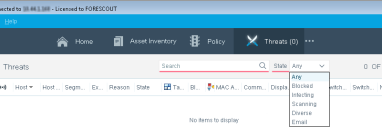
State filter: Filter the list to display endpoints that were resolved with a specific state, for example, Blocked or Scanning.
During periods of high activity, Forescout eyeControl stops displaying new endpoints scanning your network in order to give higher priority to the display of offensive endpoints. The threshold for switching to the High Activity mode is when 5000 malicious endpoints are handled simultaneously.
When this threshold is exceeded, new scanning endpoints are monitored but not displayed. If, however, the scanning endpoint performs a bite event, it is displayed in the Console. During high activity periods, the status bar in the Console reads High Activity Mode.
About the threat protection policy
Block worms using plugins
When working with plugins to block worms, you must create an associated policy rule to carry out the blocking action. Examples of these plugins are the Switch, Router and VPN Concentrator Plugins. Refer to the relevant plugin configuration guide for details.
You can use a policy rule to perform additional actions on the infected endpoint. For example, you can send email to the user at the infected endpoint, prevent the user from surfing the web, or check for vulnerabilities and deploy self-remediation patches.
Customize basic policy settings
Advanced policy tools let you customize how Forescout eyeControl identifies and handles scan and bite events, email worms, and more. For example, you can customize the period in which to monitor endpoints that use certain scan types and methods. NetBIOS scans may be monitored for a certain period of time while Port scans may be handled differently. You can also customize the block or monitor response according to the types of infection methods used. For example, you might block endpoints that carried out a NetBIOS infection attempt for four hours and monitor endpoints that carried out a Port infection attempt for one day. Options are also available to customize email notification status for various types of scan and bite events.
Advanced service attack options let you update the default response to service attacks, adjust the sensitivity level for identifying such attacks, and customize responses to various types of service attacks. You can also make mission critical services accessible to all endpoints or select specific ports that are accessible to specific endpoints.
Customize scan settings
Your system is installed with predefined scan values that determine:
- How to identify probing endpoints
- How to handle probing endpoints
These policy options let you customize these values for specific scan types and scan methods.
Customize bite settings
Your system is installed with predefined bite values. These parameters determine how Forescout eyeControl responds to infected endpoints.
The advanced policy options let you customize bite parameters. You can define different handling methods for various types of bite events. For example, a Login bite may be blocked for two hours, while a Port bite may be monitored only or blocked for two days. In addition, certain bite types may be handled by blocking the endpoint that performed the bite type in the service it attempted to infect, rather than blocking the endpoint from the entire network.
You can also customize the block or monitor response according to the type of mark used by the endpoint, and according to the machine that the endpoint attempted to connect to (virtual or real).
Bite type details
This section details the possible bite types.
Port Bite
| Real/Virtual Host - Mark Used | Details |
|---|---|
|
Trojan port |
Detected when an endpoint tries to connect to a port used by Trojan horse software. |
|
Known port |
Detected when an endpoint tries to connect to a known service, for example, FTP or telnet. |
|
Other port |
Detected when an endpoint tries to connect to ports not belonging to Trojan or known ports. |
HTTP Bite
| Real/Virtual Host - Mark Used | Details |
|---|---|
|
Virtual Port 80 |
Detected when an endpoint refers an IP address URL to a Virtual HTTP service. |
NetBIOS Bite
| Real/Virtual Host - Mark Used | Details |
|---|---|
|
Hostname |
Detected when an endpoint uses a Hostname mark during a NetBIOS session. |
|
Share mark |
Detected when an endpoint uses a Share name mark during a NetBIOS session. |
Finger Bite
| Real/Virtual Host - Mark Used | Details |
|---|---|
|
Hostname |
Detected when an endpoint uses a Hostname mark during a finger forward session. |
|
User Mark |
Detected when an endpoint uses a User mark during a finger session. |
Login Bite
| Real/Virtual Host - Mark Used | Details |
|---|---|
|
User Mark |
Detected when an endpoint tries to log in to a service using a user name mark. |
Work with manually added endpoints
Manual endpoints are endpoints that you manually add to your system by entering an IP address and a state for that address into the system. If the endpoint sends a packet to your network, the system handles it according to the specified state.
The endpoint does not have to meet the scan criterion or use a system mark in order for the system to respond to it. You can later update the values defined for the endpoint or instruct the system to respond to it as it would any other endpoint. You can also manually set an endpoint state or duration for endpoints detected by the system - probing or offensive.
In addition to manually adding an endpoint to the system, you can change the state of an endpoint that was automatically detected by the system. Use this feature if you want to handle a particular endpoint in a different manner than defined in the Current Policy.
 minute read