Add a New Deployment
Add a new deployment in the Customer Support Portal for each deployment in your organization managed by a separate Enterprise Manager or Standalone Appliance. Allocate endpoint capacity to deployments for purchased Licensed Products. Each deployment must contain allocated endpoint capacity for the Forescout eyeSight License. Other products must have an allocation that is less than or equal to eyeSight.
Since all purchased endpoint capacity is initially allocated to the Default Deployment, you must first reduce the allocation of the default deployment before you can allocate capacity to a new deployment. See the allocation use case examples in Allocate Endpoint Capacity Across Multiple Deployments for more information.
To add a new deployment:
- Navigate to the Forescout Customer Support Portal and select Licenses.
- Navigate to the Deployments section.
- Select Add Deployment.
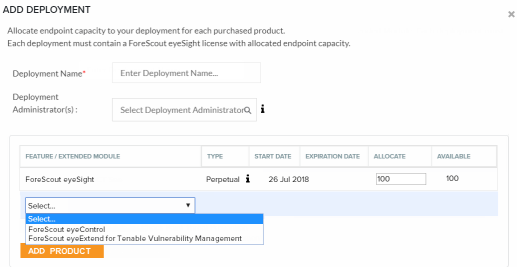
- Enter a deployment name.
- Assign one or more users as deployment administrators. These administrators can view deployment information and manage licenses in the Customer Support Portal. See Administrator Roles for more information. You can choose administrators from a list of all registered Customer Support Portal users in your organization. If you want to assign someone who is not yet a registered user, fill in a request on the Forescout website: https://www.forescout.com/support/customer-registration/
- Select Add Product and add Forescout eyeSight.
- Allocate the required amount of endpoint capacity to the deployment, based on the amount available. A tooltip in the Type column indicates the Entitlement ID for each product.

- Repeat steps ‎6 and ‎7 for each product you want to add to the deployment. Expired products will not appear in this list.
If you have purchased the Forescout EyeExtend Module, all available EyeExtend integration plugins are listed in the Add Product drop-down. Select the individual eyeExtend integration plugins you want to include in the deployment. - Select Save.
 minute read