Offline License Update
To update the license file, you will need to create a license request file in the , upload the request file to the Forescout Customer Support Portal, download the license file to your machine, and then upload the license file via the Console. If you do not upload the updated license within 14 days, the license will become invalid.
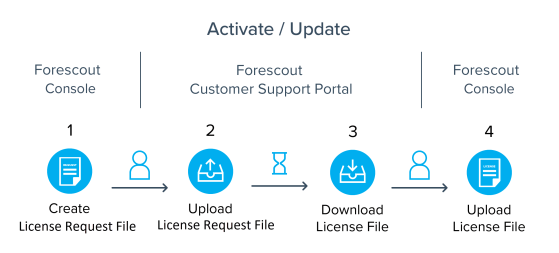
- Log in to the Enterprise Manager via the .
-
From the Tools menu, select .
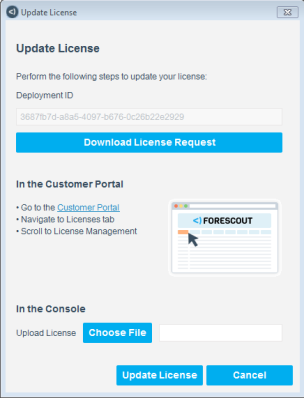
- In the Update License dialog box, select Download License Request and then select OK. If you do not upload the updated license within 14 days, the license will become invalid.
- Select a file name and location to save the update request and select Save.
- Go to the Forescout Customer Support Portal and navigate to the Licenses tab.
- In the License Management section, upload the request file that you downloaded in step 5 and then download the license file. See Upload License Requests and Download License Files for more information.
- Return to the Update License dialog box in the Console by navigating to Options > Licenses and selecting Update.
- In the Upload License field, select Choose file to find the new license file and then select Update License. A dialog box opens indicating that the license was updated successfully.
- Select Close.
 minute read