Upload License Requests and Download License Files
This topic describes upload/download activities which you must perform if you either activated, updated, or deactivated a license from the Console in an offline manner.
License activities in the Console are performed offline if you have not completed the Customer Verification process during Console login OR if your Enterprise Manager is not connected to the internet when you perform the activity. See Offline License Activation, Offline License Update and Offline License Deactivation for more information.
To activate, update or deactivate a license, or to Switch from Per-Appliance to Flexx Licensing, upload the license request file created in the Console to the Forescout Customer Support Portal.
When activating or updating a license file, or when switching to Flexx Licensing, if the upload is successful, the new license file becomes available for download. To complete the activity, upload the license file in the Console.
For more information about performing these activities in the Console, see Managing Flexx Licenses in the Console. For more information about switching to Flexx licensing mode, see Switch from Per-Appliance to Flexx Licensing.
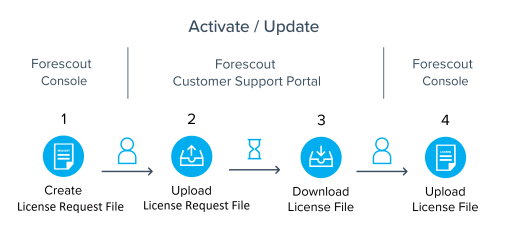
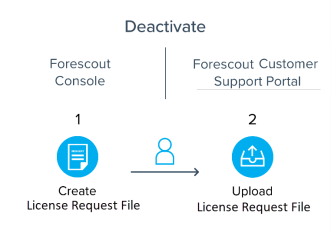
To upload requests and download license files:
- Navigate to the Forescout Customer Support Portal and select Licenses.
- Select License Management.
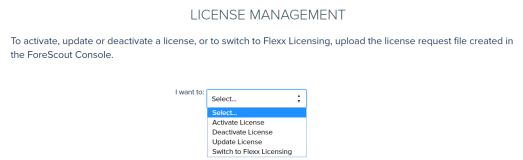
- Select the activity you want to perform and follow the on-screen instructions.
If you are activating or updating the license, or switching to Flexx licensing, and the upload succeeded, the download file will be available. After you successfully upload the request file, the latest license file will be available for future use next to the relevant deployment entry.
Note: For license activation: After you upload the license request file in the Customer Support Portal, the generated license file will be locked to the machine you downloaded the request from. If you try to activate a license on another machine using an already locked Deployment ID, activation will fail. You must first Deactivate the License File. See License Locking for more information.
To access the license file in a deployment where files cannot be taken out of the internal network:
- Open the license request file and copy its contents to an email.
- Send the license request content to your Forescout representative who will generate and send back a license file using the request you sent.
 minute read