View failover information in the Forescout Console
View endpoint, switch device, WLAN device and Appliance information related to failover in the Forescout Console.
View Forescout eyeSight endpoint failover information
Several interface elements in the Forescout Console Detections pane support the Failover feature.
View recipient information for Forescout eyeSight appliances handling endpoints
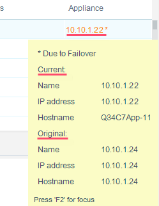
During a failover scenario, the Appliance column in the Detections pane displays the Appliance name in orange text and with an asterisk (e.g. 10.10.1.22*) for handled endpoints that are currently handled by a recipient Appliance due to failover.
An Appliance column tooltip is displayed for handled endpoints that are currently failed over to a recipient Appliance, containing information about the following Appliances:
- Current. Current Appliance (recipient) handling the endpoint, after failover.
-
Original. Original Appliance that handled the endpoint, prior to failover.
Filter Forescout eyeSight endpoint failover information
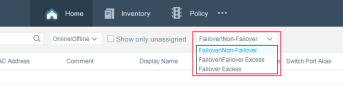
If a failover occurs in your deployment, you can filter the view of endpoints at the Detections pane, based on the following:
- Failover\Non-Failover. All endpoints, including both those handled by their originally assigned Appliance and those handled by a failover recipient Appliance.
- Failover\Failover Excess. All endpoints handled by a failover recipient Appliance, including endpoints that exceeded the capacity of the failover recipient Appliance and that are not fully handled by the Appliance.
-
Failover Excess. Endpoints that exceeded the capacity of the failover recipient Appliance and that are not fully handled by the Appliance. See Handling Endpoints that Exceed Capacity for more information.
View Forescout eyeSight Switch device failover information
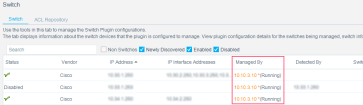
During a failover scenario, the Managed By column in the Switch pane displays the Appliance name in orange text and with an asterisk (e.g. 10.10.1.22*) for managed switch devices that are currently failed over to a recipient Appliance due to failover. The current status of the Appliance is also displayed.
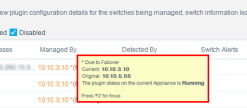
A Managed By column tooltip is displayed for managed switch devices that are currently failed over to a recipient Appliance, containing the following information:
- Current. Current managing Appliance, after failover.
- Original. Original managing Appliance, prior to failover.
-
Plugin status. The plugin status on the current Appliance is {plugin status}. Possible statuses are Running, Not Running, and Initializing.
View Forescout eyeSight WLAN device failover information
During a failover scenario, the Wireless pane displays the following information in the Managed By column for managed WLAN devices that are currently failed over to a recipient Appliance:
- {current managing Appliance, after failover} * ({current managing Appliance status})
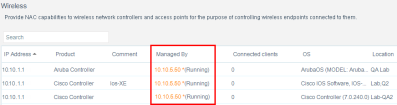
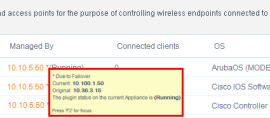
A Managed By column tooltip is displayed for managed WLAN devices that are currently failed over to a recipient Appliance, containing the following information:
- Current. Current managing Appliance, after failover.
- Original. Original managing Appliance, prior to failover.
-
Plugin status. The plugin status on the current Appliance is {plugin status}. Possible statuses are Running, Not Running, and Initializing.
View Forescout eyeSight appliance failover information
Appliance failover details can be viewed in the CounterACT Devices pane.
Forescout eyeSight appliance and failover cluster warning icons
The following icons appear in the CounterACT Devices pane in certain circumstances:
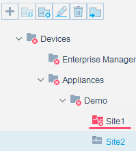
-
 Appears in the Devices folder list when a failover cluster contains one or more failed Appliances.
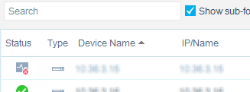
-
 Appears in the Status column of the CounterACT Devices table when the given Appliance has failed.
Forescout eyeSight appliance health information
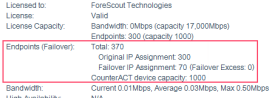
The Status section of the CounterACT Devices pane, containing Appliance health details, includes an entry related to failover. The entry, Endpoints (Failover), contains the following information:
- Total number of endpoints handled by the Appliance:
- Endpoints that are part of the original IP assignment of the Appliance.
- Endpoints that are now handled by the recipient Appliance due to a failover assignment from another Appliance.
- Number of Failover Excess endpoints that have exceeded device capacity and are not fully handled by any device.
- Device capacity. See Handling Endpoints that Exceed Capacity.
This information is only displayed if failover is enabled for the Appliance and an Appliance failure occurs. See Configure Failover for more information.
Forescout eyeSight Failover Scope column
View the failover clusters that the selected Appliance will fail over to, including the failover cluster that the selected Appliance belongs to. This information appears in the CounterACT Devices pane, Failover Scope column. This column appears when a failover cluster is selected. It also appears when a regular Appliance folder containing a failover cluster as a sub-folder is selected if the Show sub-folders option is selected.

If the selected Appliance is in a failover cluster, an icon  appears if failover is disabled. If the selected Appliance is not in a failover cluster, the status No Failover is displayed.
 minute read