Upgrade the Enterprise Manager
Before attempting to upgrade, see Pre-Upgrade Verifier, which describes the enhanced pre-upgrade verification features available in the current platform version for your Enterprise Manager and Appliance upgrades.
To upgrade the Enterprise Manager software:- Download the upgrade file and save it to a location on your computer.
- Select , and if necessary, select CounterACT Devices. The installed devices and their current versions are displayed.
- Select the Enterprise Manager, and then select Upgrade.
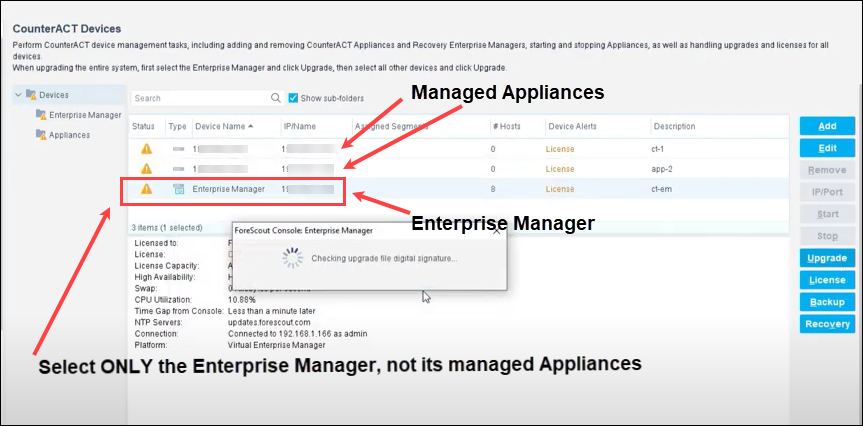 Note: Select ONLY the Enterprise Manager, not its managed Appliances. Upgrades do not propagate automatically from an Enterprise Manager to its managed Appliances. Later on, you can upgrade the managed Appliances. See Upgrade One or More Appliances.
 - Locate the upgrade file you saved on your computer (using the Browse button), and select OK. After a check of the digital signature of the file is performed, the Forescout Upgrade screen appears.
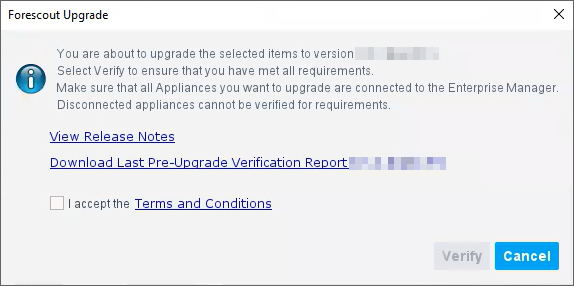 Note: If this is NOT the first time you are attempting to install this specific upgrade package, you can view the report from the previous attempt by clicking on the Download.... link provided. The report is named
PreUpgradeVerifierLastReport.txt(by default), and you can save it in a folder of your choice. - Read the terms and conditions, and then select I accept the Terms and Conditions. It is also recommended to read the Release Notes.
- Select Verify. The pre-upgrade verification process is initiated to ensure that the environmental and software requirements are met before you upgrade.
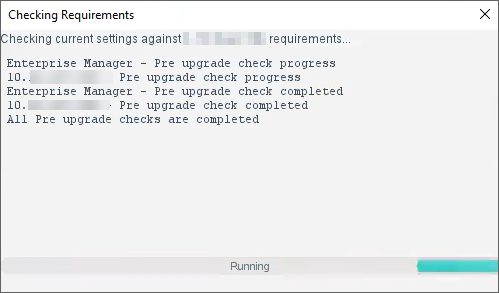 Note: The upgrade check also verifies attached Appliances. Later on, when you upgrade an Appliance managed by an already-upgraded Enterprise Manager to the new version, the Verify button will not appear when you prepare to upgrade, and the Upgrade button will immediately be available in the CounterACT Upgrade screen.
 - When the pre-upgrade verification process completes, the Pre-Upgrade Verification screen appears
if the pre-upgrade verification was successful (as shown below), you can optionally download the generated Pre-Upgrade Verification Report by clicking on the Download... link provided in the screen. The report is named
PreUpgradeVerifierCurrentReport.txt(by default), and you can save it in a folder of your choice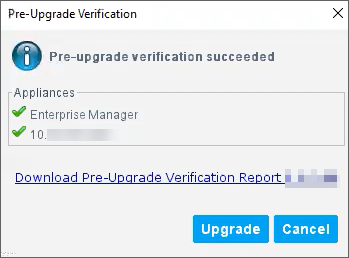 If the pre-upgrade verification was not successful (as shown below), the Upgrade button is disabled, and you can view the error report in the Console screen, which shows issues that need to be resolved before upgrading. You can optionally download this report by clicking on the Download... link provided. The report is named
PreUpgradeVerifierCurrentReport.txt(by default), and you can save it in a folder of your choice.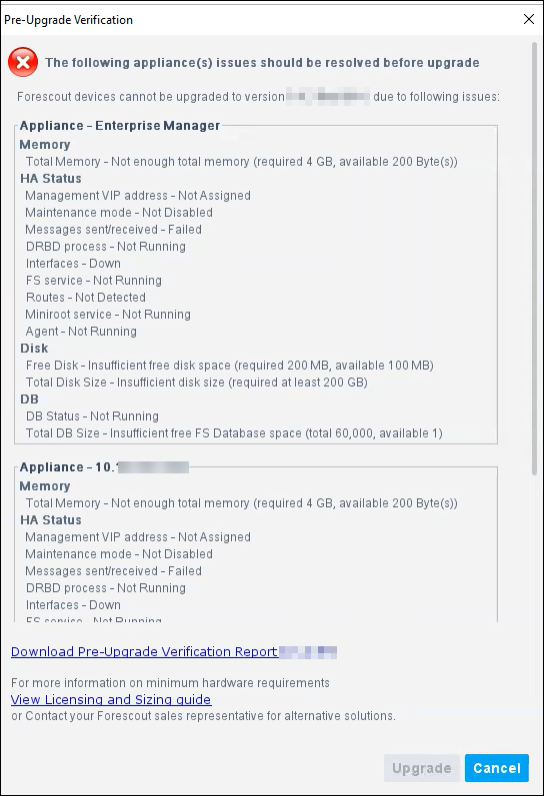 Note: See Before You Upgrade Forescout eyeSight, which includes a table of Pre-Upgrade Verifier result scenarios with details of what to do in each case.
 - When you are ready to proceed with the upgrade, select Upgrade . Once you confirm, the upgrade process proceeds to completion and cannot be interrupted or canceled.
- When the upgrade is completed successfully, select Close. If the upgrade is not successful, contact your Forescout representative and do not continue with more upgrades.
The Forescout Upgrade dialog box shows the status of the upgrade process and displays any error messages for the process.
Note: When the upgrade of the Enterprise Manager is complete, note that any managed Appliances will display a Version mismatch alert.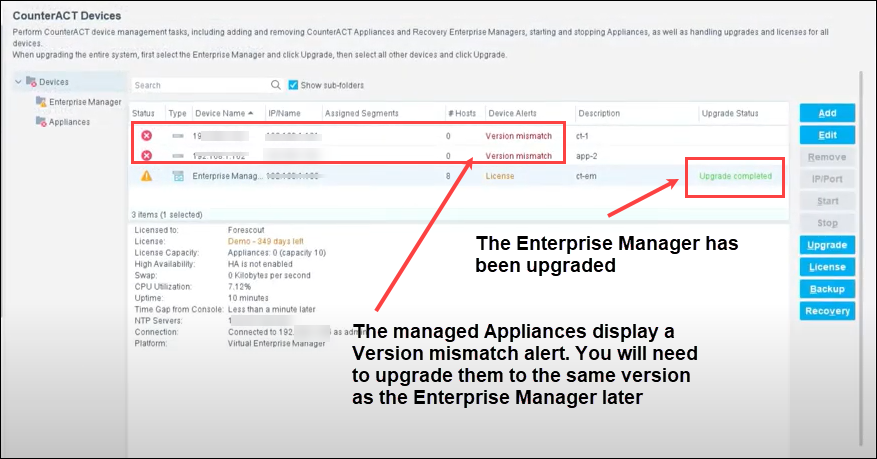
- After the upgrade is complete, download the Console and install it.
Note: If the upgrade of the second node and the synchronization are not shown in the log, you can verify the status via icons on the Console status bar:
Icon
Description

Indicates the status of the High Availability Appliances connected to the Enterprise Manager.

Indicates the status of the Enterprise Manager High Availability pair.

Indicates that High Availability is down on the Appliance.

Indicates that High Availability is down on the Enterprise Manager.
 minute read