Workbench
Clicking Workbench from the main menu displays the Workbench view, where you can track and manage from a list of all Cases associated with your account.
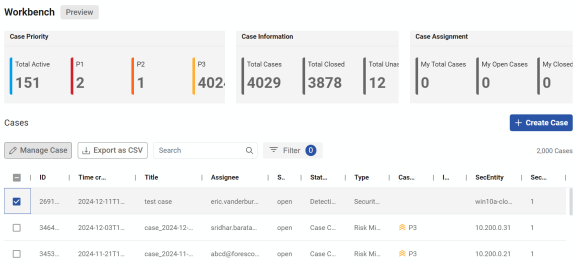
The widgets at the top of the Workbench view provide summary statistics covering Case Priority, Case Information, and your specific Case Assignments.
Clicking Filter opens a side window where you can specify Case characteristics to narrow the displayed list.
The Case list provides the following summary information about each Case, sorted by column:
- ID
- Time Created
- Title
- Assignee
- State: Open or Closed.
- Status: Indicates the current status of the Case. See this topic for a list of Case status types.
- Type: Identifies the Case type:
- Security Incident
- Health Incident
- Change Request
- Technical Support
- Risk Mitigation ( )
- Case Priority
- Impact
- SecEntity
- SecAlert
You can reorder the position of table columns in the case list by dragging and dropping the column headers.
To manage a case from the main Workbench view, select one case from the list and click Manage Case. This will load the Manage Case configuration window so you can adjust any of the fields that were configured when the Case was created.
Click Export as CSV to export information for selected cases.
Clicking a case on list the loads its Workbench Case Details.
To learn about creating Cases from the Workbench, click here.
To learn about creating Cases from the Cases view, click here.