Searching logs with Xplorer
The Xplorer logs view allows you to search ingested data for indicator, detection, enrichment, audit logs and case information.
Supported search types
The Xplorer logs view supports the following search types:
| Search Type | Description |
|---|---|
| Simple | Allows you to perform a quick search for most basic field information using Simple search syntax. |
| Natural Language | Allows you to perform searches of your data in natural language rather than KQL
queries by using AI. This feature is currently not available in Germany or the
UAE due to regional model limitations. This will be addressed in a future
release. To search using natural language, you
must first enable the AI account setting (Account Settings >
Features tab, Enable use of Forescout Generative
AI). |
| Builder | Enables auto-suggest functionality to assist with Query crafting. The feature selects from the most common functions, operators and fields that have been used in the past to craft queries, as well as limiting options to only valid syntax. |
| Advanced | Enables full Xplorer query flexibility using Advanced search syntax. |
General Xplorer Features
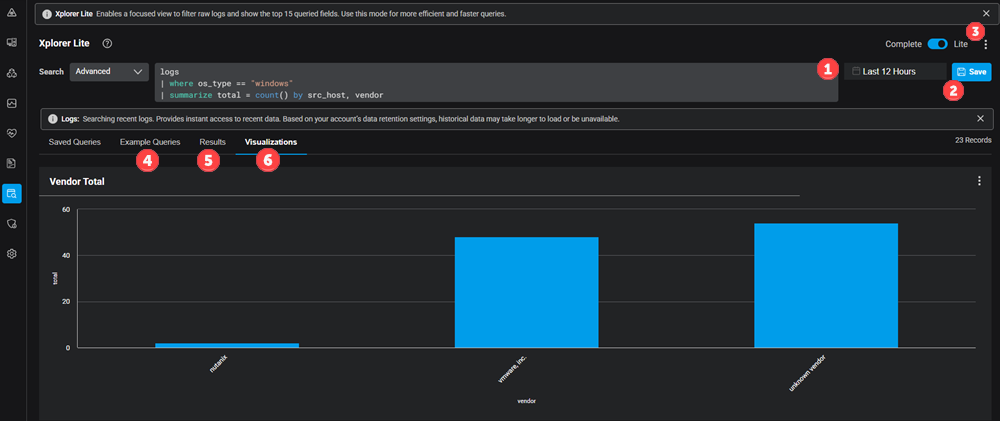
| Feature | Descritpion | |
|---|---|---|
| 1 | Time Range Filter |
Use the time range filter to specific a preset or custom time period within to focus query results. By default, the time range is within the last 12 hours. Additionally, the range filter shows you Hot and Cold days, as well as grayed-out days outside the retention window (at which point, the data will likely be unavailable). |
| 2 | Save Queries |
You can save your frequently used Xplorer queries for faster access to your most referenced data. To save a query, add any string into search query, in any mode and click Save. A query does not have to be valid or complete to have it saved. After a query is saved, you can name and categorize it as follows:
|
| 3 | Actions Menu | From the Actions menu, you can do several things:
|
| 4 | Example Queries | Out-of-the-box example queries that give you a feel for how searching in Xplorer works. |
| 5 | Results | A table view of your search results. You can drop down into individual line items for more information. |
| 6 | Visualizations | See your data in action using the Xplorer Visualizations. |
Using Xplorer History
saves the last 10 queries and displays them as a drop down for rapid reuse when you access the Search Query field.
Xplorer Query Building
Query Builder continues to use Simple Search syntax but provides additional help in the form of auto-complete so you can build your query without the need for significant coding experience.
eyeAlert's Primary Search Entities
Xplorer supports the following Primary Search entities:
| Entity | Description |
|---|---|
| data-source | All data log sources. |
| event_category | Category of the event. |
| event_description | Description of the event. Anti-Malware uses the event name as the
description. |
| event_time | Timestamp of the event. |
| event_type | Type of the event, such as Firewall, IPS, Anti-Malware. |
| log_type | Type of log being returned. |
| mail_sender | The name of the mail sender. |
| policy_name | The name of the security policy in the product. |
| rule_name | The name of the rule that triggered the event, such as the IPS, Firewall, LI/IM rule. |
| src_host | Host name of the source machine. |
| src_ip4 | The source IP address of the packet at the time of the event. |
| src_mac | The MAC address of the source computer's network interface. |
| target_user_name | The target user to which the log pertains. |
| user_mail | The email address of the user to whom the log pertains. |
| user_name | The name of the user account that installed the software on the protected computer or the source user who made the connection. |