Workbench Case Details
Clicking a Case listed on the Workbench displays its detailed information, or Case Details View.
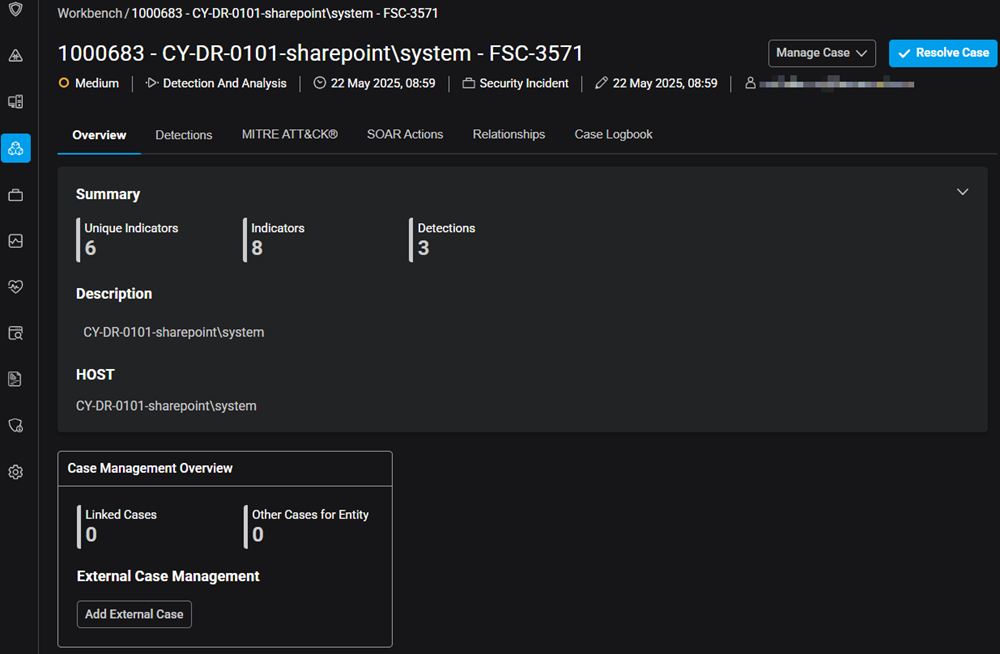
Click Manage Case to modify Case attributes and configuration, as well as manage labels associated with the case.
Click Resolve Case to display the Resolve Case window where you can finalize and close the Case once it has been addressed to your satisfaction.
The top of the Case Details screen shows the time that the case was created, the case type, the last time the case was updated, and the Case owner. The tabs provide case details by the following categories:
| Forescout Product | Tab | Description |
|---|---|---|
| eyeAlert | Overview | Provides a description and the status of the case investigation. |
| Detections | Lists the active detection rules that triggered notification of a Suspicious Entity. | |
| MITRE ATT&CK | Provides additional insight within the context of the MITRE ATT&CK framework. Users can remove and add MITRE techniques, and clicking on a technique links the user to the official MITRE ATT&CK website description for the technique. | |
| SOAR Actions | Lists the applicable SOAR Actions that have been triggered for the case. You can also add SOAR Actions to the case using this tab. | |
| Relationships | Lists any related cases. You can also link cases to one another using this tab. | |
| Case Logbook | Here you can add recommendations and review Activity Logs. | |
| eyeFocus | Overview | Provides a description and the status of the case investigation. |
| Assets | Lists the Assets to which the case applies. Clicking an Asset displays a general summary of the Asset, Classification information, and Device details. To display more detailed information, click Asset Details. | |
| Vulnerabilities | Lists the vulnerabilities registered against the Asset. | |
| Investigation | Provides information on the status of the Case investigation. | |
| Case Logbook | Here you can add recommendations and review the Case History. |
External case management
If you have an external ticketing platform, such as ServiceNow or Jira, integrated with Forescout Cloud, you can escalate and link cases in eyeAlert or eyeFocus directly to tickets in those external platforms.
For more information about setting up integrations with Forescout Cloud, see Case Management Integrations in the Forescout Cloud Administration Guide.
To escalate and link cases to external platforms:
- On the Overview tab of the Case Details page for your case, go to the Case Management Overview section.
- Click the Add External Case button.
- Select the Provider from the Case Management Provider drop-down menu.
- For linking the case, select one of the following:
- New Incident: To create a new ticket with the provider, click New Incident. The new ticket will be auto-populated using the case details.
- Link Existing Incident: To link to an existing ticket with the provider, click Link Existing Incident. You will then be prompted to provide the incident number, and then click the Check Mark icon to validate the link.
Once linked, the incident ticket and the case details are bidirectional, meaning that any updates or comments made in either Forescout Cloudor the external provider are automatically reflected in both systems.