User management
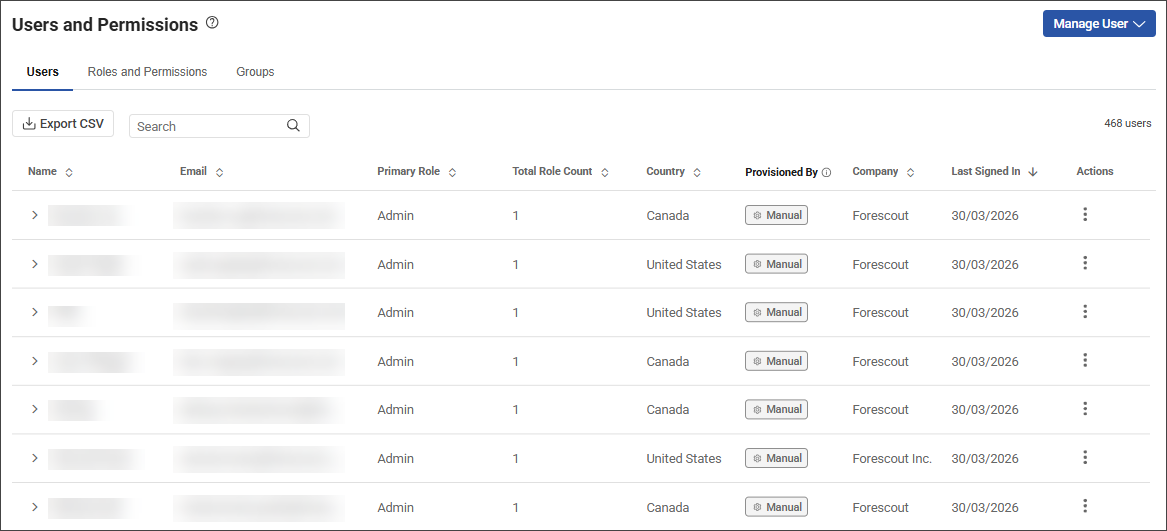
The Users and Permissions page under Administration allows you to manage existing users, add new users, and manage roles, permissions, and groups.
Note: You must have an Admin account role to add or remove users from your Forescout Cloud
tenant account.
Add users
To add a new user:
- Click Manage User and select Add User.
- Enter the email address of the new user.
- (Optional) If you are adding more than one user for the same role, click Add another user, and then provide any additional email addresses.
- Select a Role from the dropdown menu.
- Click Add Users.
Edit or delete users
To edit or delete an existing user:
- For the applicable user, click the menu icon in the Action column of the Users table.
- To edit the user's profile and notification settings, select Edit User Settings. See Modifying user settings and notification preferences for information about modifying user settings.
- To delete a user and disable the user's access to the account's Forescout Cloud resources, click Delete User.
You can also export user information in the Users tab to a CSV file by clicking Export CSV near the Search bar.
 minute read