Medical Device Utilization dashboard
The Medical Device Utilization dashboard provides a precise understanding of medical device usage patterns in their networks, helping teams identify underutilized, inactive, or high-demand devices more effectively.
Select Medical Device Utilization from the Dashboards menu to display the Medical Device Utilization Dashboard.
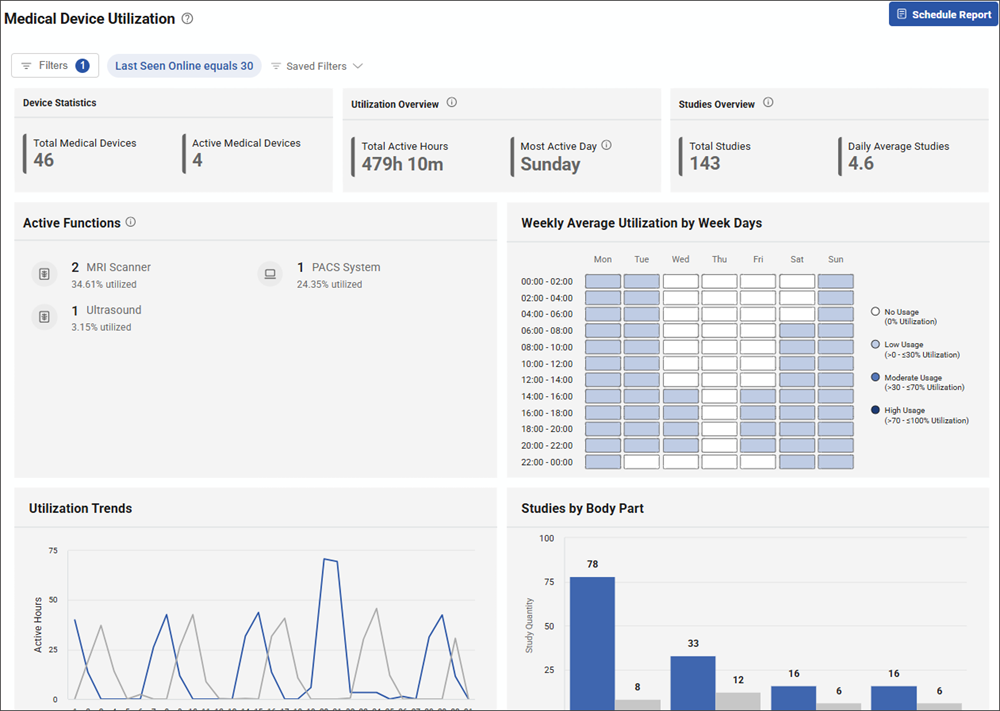
The Medical Device Utilization Dashboard provides a detailed view of medical device usage in your network, broken into the following entities:
- Filters button: Use the Filters button to refine displayed data to your preferences. For information on filters, see Filters in the Assets topic.
- Total Devices: Displays a total count of the Medical Devices in your network for the specified time range.
-
Active Devices: Displays a total count of Medical Devices currently active in your network.
- Total Active Hours: Displays the total active hours for Medical Device for the specified time range, and the increase or decrease percentage trend.
- Most Active Day: Specified the day when Medical Device Utilization is most active.
-
Total Studies: Displays the total number of studies conducted during the specified time range, and the increase or decrease percentage trend.
-
Daily Average Studies: Displays the daily average of Medical Device Utilization study hours.
- Active Functions: Displays the total hours of function use based on function.
- Weekly Average Utilization: Displays a color coded view of the intensity of Medical Device Utilization according to calendar time based on the filters you have specified. The legend beneath the widget shows the color codes for No Activity, Low Activity, Moderate Activity and Intense Activity.
- Utilization Trends: Displays the Medical Device utilization trend over time by Active Hours based on the filters you have specified.
-
Studies by Body Part: Displays the total studies conducted over the specified time range, and the previous period based on specified time range, by body part.
Clicking the widgets opens a drawer with additional details about the specific data shown, including asset information.
 minute read