Assets
Forescout eyeFocus provides a complete list of the inventory of assets in your network environment. You can use this page to search, filter, export, and manage your assets.
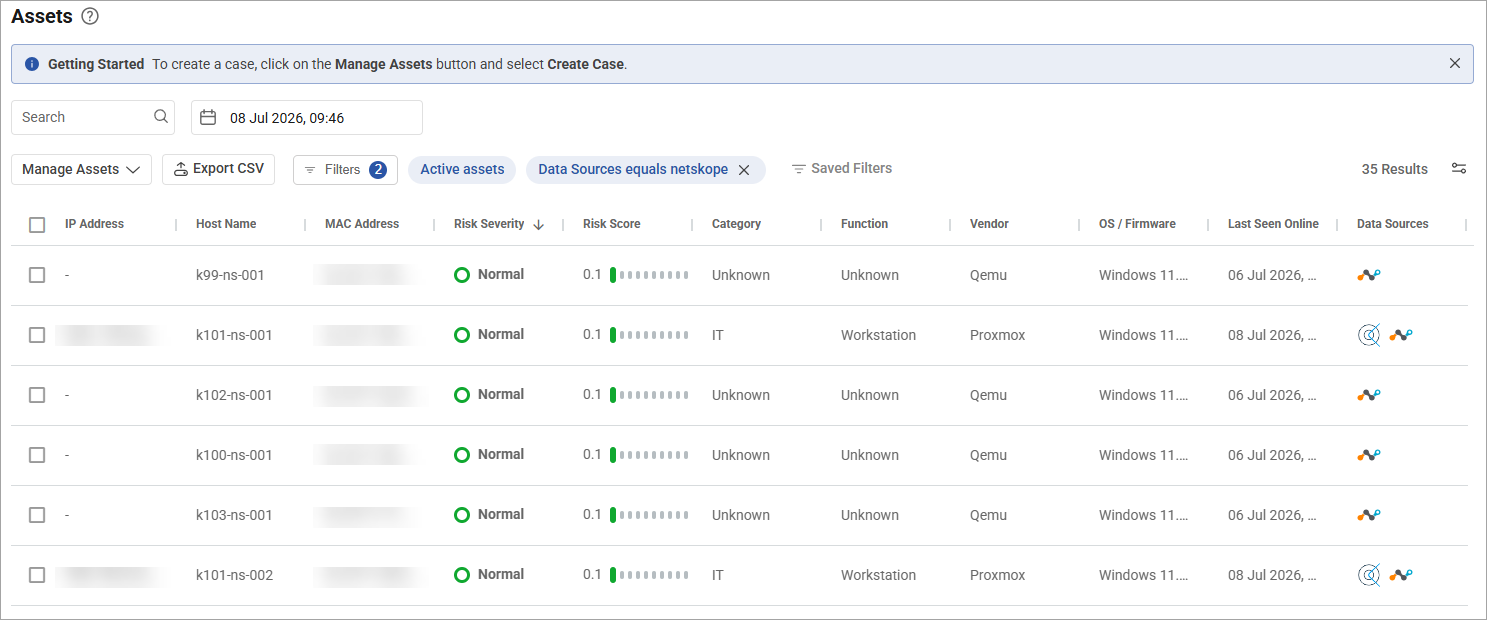
Search and filter assets
Use the following options to search, filter, and export your assets.
| Option | Description |
|---|---|
| Search |
Limits results to assets containing characters you entered into the field that match an asset characteristic, such as Host Name, IP Address, Mac Address, Vendor, or Category. When you select the field, a dropdown displays the most recent search strings. |
| Date filter (calendar icon) |
Lists network assets as they were at the precise time you specify. |
| Export CSV |
Exports the Assets table using a CSV format and downloads it to your device. You can either export the current columns visible on screen or every property associated with each asset. The scope of the exported content is defined by the Filters dropdown. |
| Filters |
Refines the list of assets by specific characteristics. Filters include the Active Assets and Observed Assets toggle. Active assets are unique assets observed at least once in the last 7 full calendar days, and observed assets are unique assets seen online at least once within a selected time window.
If necessary, you can save your filter for later by selecting the Save current filter so it can be reused later checkbox. |
| Customize Columns (slider icon) | Allows you to customize the table columns. You can search for a specific column name or scroll through the list and select one or more column options. To change the position and order of the columns, drag and drop them in the table view. |
Manage assets
You can manage assets by selecting one or more checkboxes next to the assets you want to manage and then clicking the Manage Assets button. Use the following options to manage various aspects of your assets.
| Option | Description |
|---|---|
| Edit Properties | Modify the key property definitions associated with one or more assets, including asset Owner, Category, Device Criticality, Function, Internet Exposure Detected, Model, PHI, Purdue Level, and Vendor. It can take up to 10 minutes for the changes to apply. Manually editing asset properties impacts the overall reporting of the asset's security posture. You can look for devices that have been edited by specific property using the Filters option and selecting the Edited Properties filter. To edit the properties of a specific asset, or to determine which asset attributes have already been modified from the default setting, see Editing and verifying specific asset properties in the Expanded asset view topic. |
| Manage Classification | Edit the asset classification to change attributes, such as function, vendor, and model. You can manually edit the fields or use system suggestions. Under System Suggestions, Forescout Cloud provides alternative classification recommendations. You can review and select a suggested classification, adjust the associated fields, and then apply it to the asset. When you click Apply, a confirmation dialog box displays the proposed field changes. Review the changes, and then click Apply again to confirm and update the asset classification. |
| Manage Labels | Add labels to one or more assets. First,
select an action and then choose one or more
labels to apply to the assets. Actions include:
|
| Print Asset Details | Generate a printer-friendly view of the selected asset's details for printing or saving. |
| Add SOAR Actions | Add security, orchestration, and response (SOAR) actions for one or more assets. For more information, see How to specify SOAR actions for assets. |
| Delete Assets | Authorized users can delete assets and their associated data and history from the asset inventory. |
 minute read