Account settings
Account settings provide configuration options for your Forescout Cloud account. They include license details, configurable product features, console display settings, identity provider setup, Forescout eyeAlert case workflow options, and System for Cross-Domain Identity Management (SCIM) provisioning parameters.
Use the following tables to understand and manage the settings that control how your account operates.
License Information
Use this tab to view the following information.
| Item | Description |
|---|---|
| Account Name | The name of your account. |
| Account Type | The check marks indicate the products your account has enabled. |
| License Info | License information for each product in your account. |
| Customer ID | The unique customer credential associated with your account. |
| Industry | Your company's business industry. |
| Retention Policy | The data retention policy assigned to your account. |
| Region | The region in which your company operates. |
Features
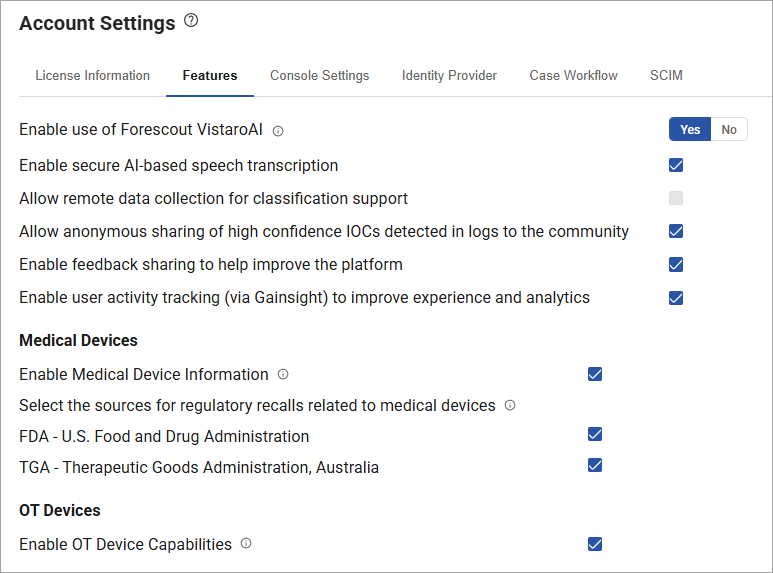
Use this tab to enable or disable the following options.
| Item | Description |
|---|---|
| Enable use of Forescout VistaroAI | When selected, displays the VistaroAI button when you drill down into an asset. When you click the button, you can view a generated risk summary, device and location details, and device mitigation options. Your personal and company data are protected using this option. |
| Enable secure AI-based speech transcription | When selected, allows you to speak natural-language queries directly into the Natural Language Search (NLS) interface. For more information, see Speech to text. |
| Allow remote data collection for classification support | When selected, allows the Forescout Cloud Support team to access to your logs to help you troubleshoot issues. |
|
Allow anonymous sharing of high-confidence IOCs detected in logs to the community |
When selected, eyeAlert anonymously contributes high‑confidence threat Indicators of Compromise (IOCs) derived from log analysis to the broader eyeAlert threat intelligence community. eyeAlert doesn't share raw log data, customer identifiers, or environment‑specific context. This collective intelligence helps improve threat detection across participating customers. |
| Enable feedback sharing to help improve the platform | When selected, allows Forescout Cloud to request feedback on AI-generated content and responses. Feedback requests are displayed as Thumbs up and Thumbs down buttons. |
| Enable user activity tracking (via Gainsight) to improve experience and analytics | When selected, allows Forescout Cloud to collect user activity and feature usage data through Gainsight to improve product analytics, usability, and adoption insights. |
| Enable Medical Device Information | When selected, allows access to medical features in Forescout Cloud, including the Medical Device Utilization dashboard and medical options for custom dashboards, reports, asset properties, and protected health information (PHI). |
| Select the sources for regulatory recalls related to medical devices | If you select Enable Medical Device Information, this option allows you to select
which sources Forescout Cloud uses for regulatory recalls related to medical
devices:
|
| Enable OT Device Capabilities | When selected, allows access to key operational technology (OT) capabilities, such as Purdue Levels and Module details. |
Console settings
Use this tab to upload a logo to display for your instance of Forescout Cloud. The file must be a PNG with a maximum width is 150 pixels and the maximum height is 30 pixels.
Identity provider
Use this tab to configure and manage a supported identity provider to manage account access. For detailed information about each supported provider, see Configuring identity providers.
Case workflow
Use this tab to specify a desired status progression for case workflows. For detailed information, see Specifying case workflows.
SCIM
Use this tab to enable and configure SCIM provisioning. For detailed information, see Configure SCIM provisioning.
 minute read