Configure the Linux Plugin
This topic describes how to configure the Linux Plugin.
Configure the plugin to:
- Define global settings for Remote Inspection and SecureConnector.
- Specify test parameters and test connectivity.
Configuration by Region or Appliance: By default, the settings you define are applied to all Appliances. If required, you can create separate configurations for each Appliance or for a group of Appliances in the same geographical region. See Configuration for an Appliance or Group of Appliances for details.
To configure the plugin:
- In the Forescout Console, select .

- In the Remote Inspection tab, define how endpoints are accessed using Remote Inspection.
Enable Remote Inspection
Select this option to turn on Remote Inspection for polling endpoints. Additional fields apply only if you use Remote Inspection in your environment.
Turn off this option if you do not manage Linux endpoints with Remote Inspection to avoid unnecessary SSH traffic.
See Manage Linux Endpoints Using Remote Inspection.UserSpecify the administrator user account used to establish an SSH connection with endpoints. This user account must be defined on each Linux endpoint.Generate new public key for remote SSH accessSelect this option and select Apply to change the public key. The plugin changes the public key of the Enterprise manager and synchronizes all Appliances with the new key. You must distribute the new key to endpoints. See Distribute the Public Key for details. Consult your PKI/network security team to determine how frequently this key should be regenerated.CounterACT SSH public keySelect View to see the public key that is used for the SSH connection to endpoints. This key must be distributed to endpoints. See Distribute the Public Key for details.Prompt PatternEnter a pattern and select Apply to define how the system identifies the command prompt.
Only one pattern is active at a time. When you apply a new pattern, it overrides the default expression (
[\$#>%]). This setting applies globally.Remote inspection relies on matching the command prompt. If the pattern does not match the endpoint prompt, commands may not run after connection.
For Linux and UNIX endpoints using Kerberos or Active Directory password authentication, use the following pattern to improve prompt detection across different shell environments:
^\s*(?:[\$#>%]|\S.*[\$This pattern supports both standalone prompts (such as
$or#) and standard shell prompts that include a username, hostname, or file path (for example,user@host:~$). - Select the SecureConnector tab to define how SecureConnector works on endpoints.
The following settings configure SecureConnector password protection on endpoints:
Enable SecureConnector Password ProtectionWhen this option is selected, endpoint users must enter the password you specify here to exit SecureConnector on their endpoints. See Stopping SecureConnector on the Endpoint.SecureConnector Password Retype SecureConnector PasswordEnter the identical string in both fields to define the password that allows users to exit SecureConnector.Require password for dissolvable deploymentWhen this option is selected and SecureConnector runs as a dissolvable application, it is password protected. A password is required to exit SecureConnector without logging out of the endpoint.CounterACT server verifies SecureConnector client certificate chainWhen this option is enabled, SecureConnector clients on endpoints present a certificate when they connect to Forescout devices. The Forescout device validates the certificate chain. When you select this option, additional settings are required. To support certificate-based authentication of clients, endpoints managed by SecureConnector must have a signed client certificate and trust chain. Your PKI may define several certificates that can be used by SecureConnector, for example, certificates defined by geographical location or endpoint roles and permissions. Use the Certificates pane of the Console to import the trust chain(s).Check SecureConnector client certificate revocation statusCheck that the client certificate has not been revoked. From the drop-down menu, select how the client certificate revocation status is determined:- Using CRL: Check if the certificate is in the Certificate Revocation List (CRL) of the issuing Certificate Authority.
- Using OCSP: Send an Online Certificate Status Protocol (OCSP) request for the certificate revocation status.
Additional CDPs for CRLEnter a comma-separated list of CRL distribution points to be queried.Soft-fail OCSP requestsWhen no response is received from the OCSP Responder, the certificate is considered valid. By default, hard-fail is applied.Additional SitesUse this table to specify CounterACT devices that SecureConnector connects to when it cannot connect to the managing Appliance of the endpoint. SecureConnector first tries to connect to the Enterprise Manager that manages the Appliance, and then to the CounterACT devices listed here. To populate this table, see Defining Additional Sites.Specify a local Appliance interface for SecureConnector communicationEach Appliance's installer uses a named local interface for SecureConnector communication. Refer to the Working with Overlapping IP Addresses How-to Guide before enabling this option.Maximum Linux SecureConnector endpointsSelect the number of SecureConnector endpoints for your appliance to manage. The managed SecureConnector endpoints' default value is 5000 per appliance. The max value is 15000 managed SecureConnector endpoints per appliance.Local Appliance interface nameEnter the text label of a local interface on the Appliance. SecureConnector contacts the Appliance through this interface. - Select the Advanced tab.
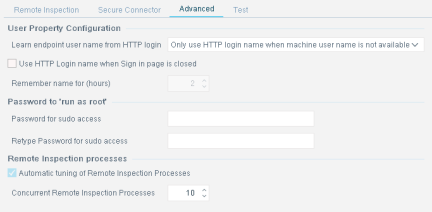
- In the User Property section, configure the following options:
Learn endpoint user name from HTTP loginSelect the method used for learning endpoint user names. This information is used to evaluate the User host property.Use HTTP Login name when the Sign In page is closedWhen this option is selected, the User host property retains the username of the most recent HTTP login session, even after the session is closed - unless a new user login occurs.Remember name for (hours)Specify the length of time (in hours) that the plugin retains the HTTP login name when the sign in page is closed. This time is calculated from the last successful login.
- In the Password to 'run as root' section, configure the following option:
Password for sudo accessThe plugin uses the sudo mode when the Run script as root user on endpoint option is enabled for the Run Script on Linux action or the Linux Expected Script Result host property. On endpoints where sudo mode is not password protected, this field is ignored. To use this feature, configure Linux endpoints in your environment to require a fixed sudo password for the user specified in the Remote Inspection configuration tab. For example, you can specify the root password in this field, and add the following line to the /etc/sudoers file:
Defaults rootpwOn endpoints running variants of Centos Linux, disable the following line in the sudoers file:Defaults requiretty - In the Remote Inspection processes section, configure the following option:
Automatic tuning of Remote Inspection ProcessesYou can tune the number of Remote Inspection and SecureConnector processes that run concurrently on each Appliance to resolve endpoint properties. You can use automatic tuning or customize tuning.
- To enable automatic tuning, select Automatic Tuning of Remote Inspection Processes. For each Appliance to which this setting applies, the maximum number of concurrent Remote Inspection and SecureConnector processes is determined dynamically as memory usage changes.
- To customize tuning (for advanced use only), clear the Automatic Tuning of Remote Inspection Processes checkbox. In the Concurrent Remote Inspection Processes field, set the maximum number of processes which communicate with endpoints managed by Remote Inspection that can be active at one time.
Configuring a higher maximum value allows more concurrent endpoint connections, but consumes more Appliance resources. Tune these settings carefully. If Appliance performance is impacted, reduce these values.
- Select the Test tab.
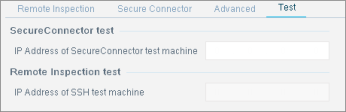
- Enter an IP address (either IPv4 or IPv6) that defines Linux endpoints used to test the plugin's ability to connect to endpoints. Verify that the following steps were completed on the test endpoint for Remote Inspection:
- The Remote Inspection user defined during plugin configuration exists.
- The public key used by Forescout was installed.
- Select Apply to save settings. Ensure That the Component is Running.
 minute read