Assets view
The Assets view, part of the eyeSight, is a web-based search, filter and discovery tool that lets you leverage extensive network and device information collected and correlated by Forescout products.
Assets view information is valuable to various groups across your organization, including:
- Security teams: Use device or policy information to quickly locate risky assets.
- IT departments: Use an IP address or other device information to locate and contact users when maintenance is required at the device.
- Help Desk/SOC: Use device information to handle security incidents in real time.
By using the Assets view, crisis management and subsequent remediation time is shortened.
Use this view to display a tabulated list of all the devices that Forescout eyeSight detects, subject to any selected device filters. The Assets view provides several device filter methods, which you can apply separately, or in tandem. You can filter the Assets view or drill down from a widget into Assets view to list only the devices relevant to a specific area of interest, for example, devices corresponding to a certain policy / sub-rule. You can view information about any device on any segment for which you have permissions, which is defined as part of your user scope.
In addition, you can save your own customized Assets view, and you can export any filtered list of devices to a CSV file.
Supported browsers
For a list of Forescout eyeSight supported browsers, see the Web Browser page of the Forescout Compatibility Portal.
Assets view permissions
Forescout eyeSight Web Client users who work with Assets view functionality must be assigned the appropriate OOTB Dashboards view permissions. See Access to Console Tools - On-premises Permissions for details about Console user permissions.
Access the Assets View
Access the Assets view via the Dashboards view of the Forescout eyeSight Web Client. See Logging In to Forescout Web Portals for more information.
Assets view layout
The Assets view layout may differ according to the product you have purchased.
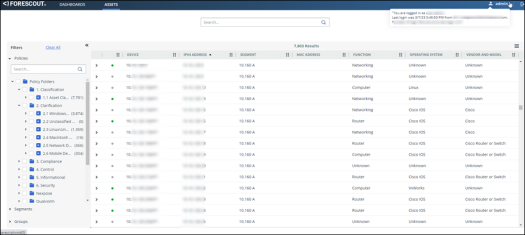
The Assets view displays columns with information about selected devices. The available columns depend on the product you have purchased.

The page is initially sorted according to IP Address/DNS names of the devices.
Click  in the column header to sort a column, or move the column in the table. You can also drag and drop columns to reorder the table.
Forescout eyeSight Assets view search and filter
The Assets view page can display up to 1000 devices. If you cannot find the device, use the Search field at the top of the page to refine your search.
The Filters pane on the left contains the Assets view filter families (Policies, Segments and Groups), as well as filters added as a result of Drill Down into a Widget.
For information about the filters in the Filter pane, see Filter Display of the Assets.
The order of the items in the filters is according to (descending) count. If two items have the same count, they are listed alphabetically.
Filter display of the Forescout eyeSight Assets
Relevant filters appear in the left pane of the Assets view.
For the Policy / Segment / Group families of filters, the relationship between the inclusive filters is based on OR logic. For example, if you select three sub-rules (sub- rule A, sub-rule B and sub-rule C) of a Policy, then the search will be for sub-rule A OR sub-rule B OR sub-rule C. If you select items from more than one family of filters, for example, from Policy and Segment, then the search will be for Policy AND Segment.
One or more colored rectangular tags at the top of the page help you identify which devices are currently filtered and displayed. For example,  for a UPS device group.
Forescout eyeSight Assets view policy / sub-rule filters
You can drill down to view only the devices that match a configured policy or sub- rule, to focus on specific devices of interest.
To open the Policies tree, select Policies in the Filters pane. Select check boxes to isolate specific policies / sub-rules / devices. Use the Search field to locate a specific device.
In the sample below, Assets view is filtered to display only devices that match the Peer-to-peer compliance sub-rule.
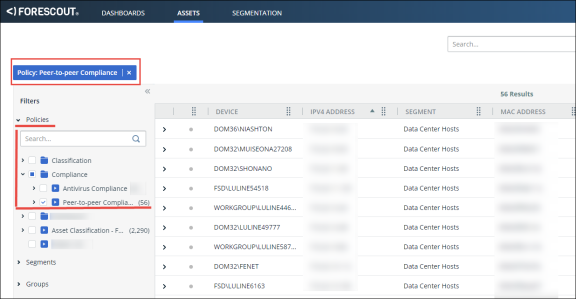
You can select / deselect filter checkboxes to switch between different policies / sub-rules / devices.
The policy Status icon 
 in the Policies navigation item indicates whether the Forescout eyeSight detection mechanism is paused or running. When paused, new detection events are ignored.
Forescout eyeSight Assets view segment filters
The Internal Network comprises network Segments or IP ranges that define the network in the Forescout eyeSight. Depending on your user permissions, you will have access to a subset of these segments. For more information about segments, see Initial Setup Wizard - Internal Network.
You can drill down to view only the devices that match one of your authorized segments, to focus on specific devices of interest.
To open the Segments tree, select Segments in the Filters pane. Select check boxes to isolate specific segments / devices. Use the Search field to locate a specific device.
In the sample below, the Assets view is filtered to display all the devices in the first sub segment A1.
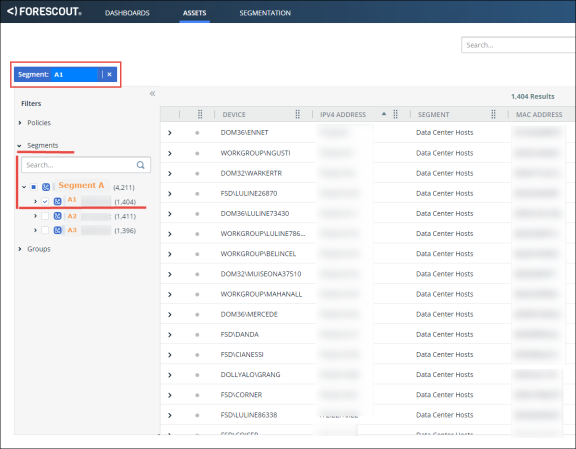
You can select / deselect filter check boxes to switch between the different segments / devices.
Forescout eyeSight Assets view group filters
A Group is a collection of devices with something in common, such as groups that run Windows OS or network guests. A device can belong to any number of groups.
You can drill down to view only the devices that belong to a specific Group.
To open the Groups tree, select Groups in the Filters pane. Select check boxes to isolate specific groups / devices. Use the Search field to locate a specific device.
In the sample below, Assets view is filtered to display only the devices that belong to the IoT Devices group, and Linux / Unix Group.
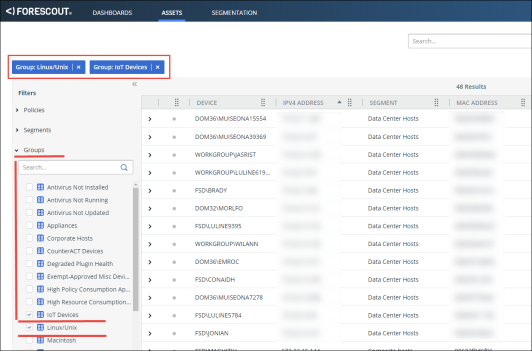
You can select / deselect filter tree check boxes to switch between the different device groups.
 minute read