Drill down into a Forescout eyeSight widget
From the Dashboards view, you can drill-down into a widget to access tabular information about the devices corresponding to the widget.
For information about widgets, see Out-of-the-Box Dashboards, and Add a Custom Widget.
When you drill down into a widget by clicking on a specific area within the widget, tabulated information about all corresponding devices is displayed in the Assets view. For more information about the Assets view, see Assets View.
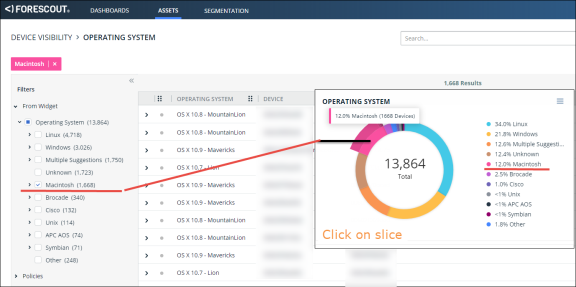
In a donut / sunburst widget, you can click on a specific slice or segment to view information about the assets (devices) that match the device aggregation corresponding to that specific slice or segment.
The sample Assets view below shows a device list for Forescout Vendor and Model devices, accessed by clicking the Forescout slice in the ring of a sunburst widget. The Filters pane>From Widget tree on the left contains the information displayed in the table.
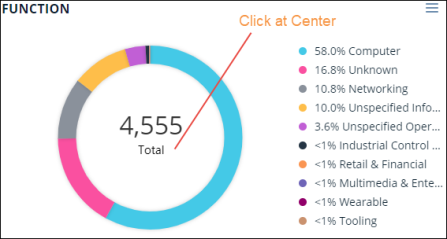
For donut / sunburst widgets only, you can select the center of the widget to view a list of all devices (total of all aggregations) that correspond to the widget.
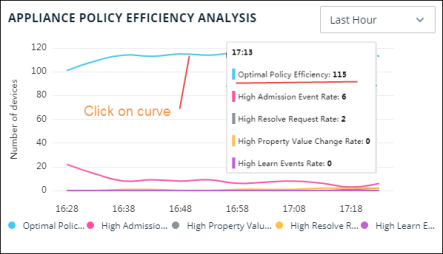
In a Trend widget, you can view the progression through time of several trends.
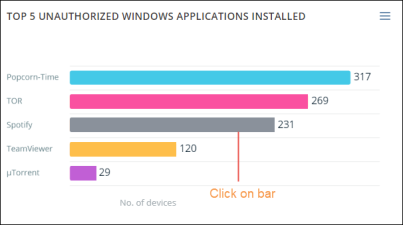
In a Bar Chart widget, you can click on a specific bar to view tabulated information about the devices that correspond to the bar.
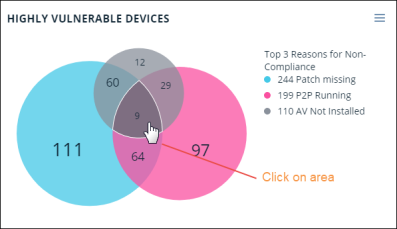
In an Intersecting areas widget, you can click on a specific area to view tabulated information about the set of devices that correspond to the intersecting area.
Clicking on an area displays devices that match all highlighted sub-rules. In the example below, clicking on the outermost blue circle will display all 244 devices that match the Patch missing sub-rule, and not only the 111 devices that do not match other sub-rules.
 minute read