Manage your virtual firewall policy
Virtual Firewall protection lets you create network security zones, giving you greater control over network traffic. Specifically, by defining a Virtual Firewall policy you can:
- Create network zones or segments that you want to close off entirely as a result of new threats or newly detected vulnerabilities.
- Create network zones or segments that you want to close off to specific sources.
- Prevent the transmission of unwanted protocols within your network or between specific network segments, for example, if you know that RPC traffic should not be transmitted between various departments in your organization.
- Designate business critical services that should always remain open.
The Virtual Firewall gives you all the benefits of an inline firewall, without being located inline. This means there are no issues of latency. In addition, you can export a list of allow and blocking rules to a CSV file, and you can view a list of the block events detected as a result of the blocking rules that you defined.
Virtual Firewall rules are centrally managed. Rules cannot be added, edited, or removed from individual Consoles that are part of your enterprise.
View Virtual Firewall rules
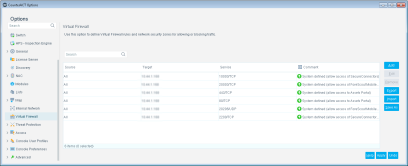
The Virtual Firewall pane displays rules generated from the following locations:
- Rules defined directly from the Virtual Firewall box, as detailed in this section.
- Endpoints detected as a result of a policy Virtual Firewall action.
- System-defined rules: These are rules that support basic Forescout features, for example, Authentication servers defined at the initial Console setup or Assets Portal access.
- Virtual Firewall rules manually defined from the Console, Detections pane.
Rules that appear in the Virtual Firewall pane that were created via the policy, Authentication Servers rule or manually from the Home view, Detections pane, cannot be edited or removed directly from the pane. These rules can only be modified from the feature where they were created.
Information in the Virtual Firewall pane is automatically updated for:
- Policy items if:
- The rule is updated and no longer includes the Virtual Firewall action.
- The IP address range or condition is changed and no longer includes the endpoints previously defined.
- Authentication Servers, if you remove, edit or add the server. See Defining Authentication Servers.
- Manual Virtual Firewall blocking, defined in the Home view, Detections pane, if you release the endpoint from this location.
To access the Virtual Firewall pane, select , and then select Virtual Firewall.
Virtual firewall policy priorities
Rules created directly via the Virtual Firewall pane take precedence over Virtual Firewall rules created via the policy.
The following hierarchies, from highest to lowest, are applied when an endpoint is detected as a result of different policies:
- Virtual Firewall - Allow Rule
- Threat Protection Policy - Threat Protection Blocked (source, port) and Virtual Firewall - Block Rule
- Group Definition - Authentication Servers (allow access)
- Policy - Virtual Firewall Block
View block events
Use the Events log to generate a report of block events. See View Block Events for more information.
 minute read