Primary classification template
Classification is an objective assessment of what a device is, from a functionality, operating system, manufacturer, and model point of view. eyeSight uses all the data discovered about each device to intelligently figure out what the device is.
The Primary Classification policy template, a feature of the Device Classification Engine, uses a vast array of information provided by various eyeSight components to determine the function, operating system, vendor, and model of each endpoint. The policy template then uses this classification information as conditions for sub-rules to broadly classify the endpoints.
Classification Enabled by Default
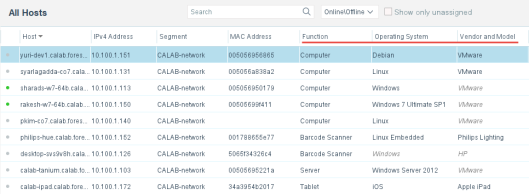
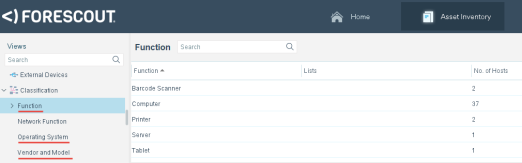
Forescout eyeSight automatically discovers classification properties: Function, Operating System, and Vendor and Model, accessed through , prior to configuring or running the Primary Classification policy template. See Working with Asset Inventory Detections for more information.
Data for classification properties is added to endpoints in the All Hosts pane.
Classification properties are added to the Classification folder of the Asset Inventory.
Replacing Asset Classification Policies
Upgraded versions of Forescout might include legacy Asset Classification policies that provide limited information about endpoints. To take advantage of more precise classification profiles, it is recommended to create and run Primary Classification policies.
The Primary Classification policy provides more comprehensive classification in your environment than legacy Asset Classification policies. To use it as your primary classification policy, ensure that the Add to Group actions are enabled in the Primary Classification policy, and use the Policy Manager to stop your Asset Classification policies.
Template classification groups
Policies created based on the Primary Classification template can create Forescout groups for various device categories, and automatically place each endpoint in the appropriate device group.
eyeSight devices are placed in their own groups.
If a device does not meet the criteria for any group or if eyeSight cannot evaluate the endpoint, it is placed in an Unclassified group. The operator may then choose to manually classify the device. See Use an Action to Assign a Classification.
Replacing Asset Classification Policies
Upgraded versions of Forescout might include legacy Asset Classification policies that provide limited information about endpoints. To take advantage of more precise classification profiles, it is recommended to create and run Primary Classification policies.
The Primary Classification policy provides more comprehensive classification in your environment than legacy Asset Classification policies. To use it as your primary classification policy, ensure that the Add to Group actions are enabled in the Primary Classification policy, and use the Policy Manager to stop your Asset Classification policies.
Replacing Asset Classification Policies
Upgraded versions of Forescout might include legacy Asset Classification policies that provide limited information about endpoints. To take advantage of more precise classification profiles, it is recommended to create and run Primary Classification policies.
The Primary Classification policy provides more comprehensive classification in your environment than legacy Asset Classification policies. To use it as your primary classification policy, ensure that the Add to Group actions are enabled in the Primary Classification policy, and use the Policy Manager to stop your Asset Classification policies.
Groups created by this policy are used when running policies created by other templates. Organizing your endpoints into groups makes it easier to create and manage other policies and track policy results. These groups appear in the Groups tree in the Console Home tab, Filters pane. When you select a group, associated endpoints appear in the Console, Detections pane.
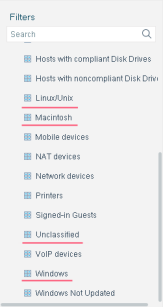
In addition, a sub-rule is created for each group type. You can view each policy's sub-rules under Policies in the Console Home tab, Views pane.
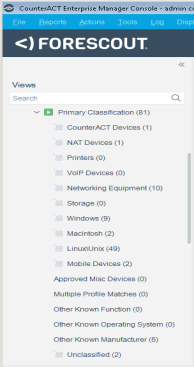
When a Primary Classification policy is run, the following endpoint classification properties are resolved:
- Function
- Operating System
- Vendor and Model
- Suggested Function - Indicates all the Function property values that matched this endpoint's profile if there were multiple matches
- Suggested Operating System - Indicates all the Operating System property values that matched this endpoint's profile if there were multiple matches
- Function Classified By - Indicates if the Function property value was determined by the Device Classification Engine or was set by an action
- Operating System Classification Update - Indicates if the Operating System property value was determined by the Device Classification Engine or was set by an action
Create a primary classification policy
This topic describes how to use the Primary Classification template to create a policy.
Before you create the policy:
- Consider which endpoints you want to inspect. The policy does not handle endpoints outside of the Internal Network.
- Ensure that a Primary Classification policy using the Add to Group actions is run
before any other policy.
To create a policy, select Add from the Policy Manager, and expand the Classification folder. Then select Primary Classification and complete the policy creation wizard.
Classification Policy Scope
Classification policies use both passive and active methods to classify endpoints. Active methods include probing the endpoint to check for a small range of open ports, running Nmap against the endpoint, and attempting to connect using WMI, SMB and/or RRP (depending on your HPS Inspection Engine configuration). To fully benefit from classification, it is recommended to run a classification policy on your entire network. However, if there are endpoints in your network that are known to be sensitive to network probing, it is recommended to exclude these endpoints when creating Primary Classification policies. For details about excluding sensitive endpoints, see Restricting Endpoint Inspection.
Replacing Asset Classification Policies
Upgraded versions of Forescout might include legacy Asset Classification policies that provide limited information about endpoints. To take advantage of more precise classification profiles, it is recommended to create and run Primary Classification policies.
The Primary Classification policy provides more comprehensive classification in your environment than legacy Asset Classification policies. To use it as your primary classification policy, ensure that the Add to Group actions are enabled in the Primary Classification policy, and use the Policy Manager to stop your Asset Classification policies.
Replacing Asset Classification Policies
Upgraded versions of Forescout might include legacy Asset Classification policies that provide limited information about endpoints. To take advantage of more precise classification profiles, it is recommended to create and run Primary Classification policies.
The Primary Classification policy provides more comprehensive classification in your environment than legacy Asset Classification policies. To use it as your primary classification policy, ensure that the Add to Group actions are enabled in the Primary Classification policy, and use the Policy Manager to stop your Asset Classification policies.
Replacing Asset Classification Policies
Upgraded versions of Forescout might include legacy Asset Classification policies that provide limited information about endpoints. To take advantage of more precise classification profiles, it is recommended to create and run Primary Classification policies.
The Primary Classification policy provides more comprehensive classification in your environment than legacy Asset Classification policies. To use it as your primary classification policy, ensure that the Add to Group actions are enabled in the Primary Classification policy, and use the Policy Manager to stop your Asset Classification policies.
How an endpoint was classified
To view information about how the Primary Classification template and the Device Classification Engine classified an endpoint, select the Show troubleshooting messages icon in the Profile tab of the Details pane.
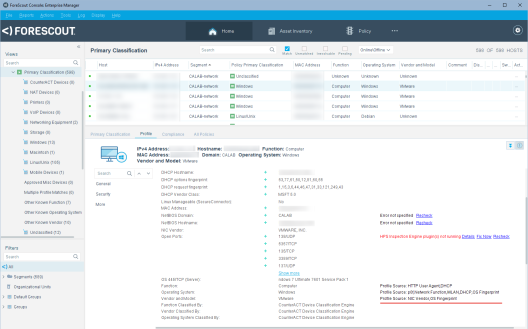
The Profile Sources are displayed to the right of the Function, Operating System, and Vendor and Model fields. This is the list of labels of the host properties in the matched fingerprints for that endpoint.eIf all or some of the host properties and the corresponding values of an endpoint match the condition of a fingerprint defined by the Device Profile Library, the fingerprint matches for that endpoint. There can be multiple matched fingerprints for an endpoint.All the labels of the host properties defined in the matched fingerprints are displayed, including those properties that were not used in the matching process.
Use an action to assign a classification
You can use the Classify actions to override an endpoint classification property set by a Primary Classification policy. Changing a property value may cause the endpoint to match a different policy sub-rule when your classification policy is run again. If the Add to Group actions are enabled in your classification policy, the endpoint is added to the appropriate group.
It is useful to manually assign a classification in the following situations:
- The classification resolved by eyeSight is not correct or eyeSight was not able to resolve a classification.
- You are able to refine the device's classification. For example, eyeSight resolved the device Function property as a Healthcare, but you know it's actually an X-Ray device.
- The endpoint was excluded from the range of endpoints to be classified due to its sensitivity to probing
You can use the Cancel Actions action to easily revert your manual classification assignments to those set by your classification policy.
After a Set Function Classification, Set OS Classification, or Set Vendor and Model Classification action is used to change a property value, the new value causes the endpoint to match a different sub-rule in the Primary Classification policy. If the Add to Group policy actions are enabled, the endpoint is added to the appropriate group.
To use Actions to classify devices, do one of the following:
- To manually classify one or more endpoints, select the endpoints that you want to classify from the Console, Detections pane and right-click.
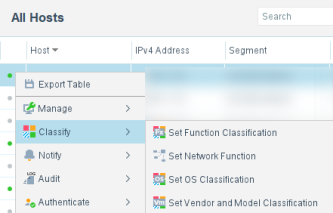
- To reclassify endpoints using a policy, set the policy conditions to detect the endpoints that you want to reclassify, and navigate to the Actions tree from the Policy Actions dialog box.
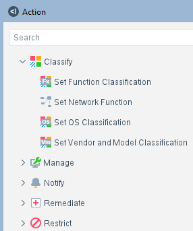
- Expand the Classify folder, and select the classification property to be set:
- Set Function Classification
- Set Network Function
- Set OS Classification
- Set Vendor and Model Classification
From an endpoint:
From a policy:
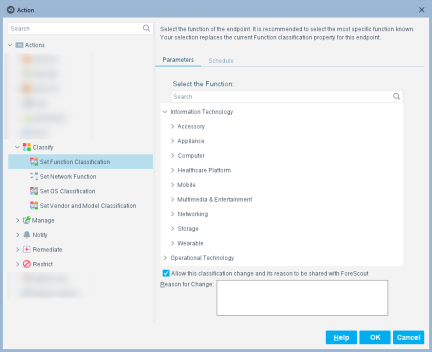
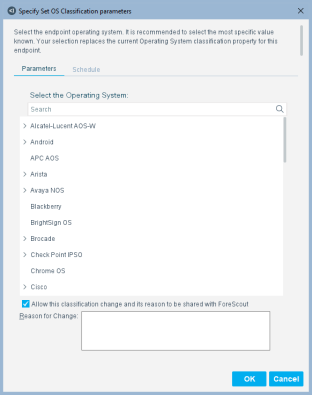
- Select the appropriate property value.
- If you agree to provide the Forescout Research Program with information about the change, select the checkbox, and enter:
- The reason why the selected classification is appropriate for this endpoint
- The ideal classification for this endpoint, if it is not in the classification list
Note: Your changes are shared with The Forescout Research Program if you did not opt out of the program.Your feedback is sent to Forescout to help provide better classification services.
Fine-tune the classification mechanism
Several methods are used for retrieving classification information, for example, Nmap tools, domain credentials, information resolved on devices managed by SecureConnector, or switches configured to work with the .
Nmap tools are used if other mechanisms are unable to resolve the endpoint classification.
You can fine-tune the Nmap classification.
To fine-tune Nmap classification, select . Select the Classification tab and update Nmap settings as required. Refer to the HPS Inspection Engine Configuration Guide for more details.
 minute read