About the Operational Technology Plugin
As Information Technology (IT) and Operational Technology (OT) networks converge, a new range of challenging operational cyber risks emerges.
The Operational Technology (OT) plugin extends Forescout visibility and control to include OT / IT networks and industrial environments. Passive network monitoring and protocol analysis components combine with the Forescout Platform to enable device discovery, classification, and assessment for the full spectrum of IT and OT devices.
The OT Plugin is a Forescout integration component that connects eyeInspect, eyeSight and eyeSegment, enabling bidirectional data exchange (using eyeInspect Data Enricher) between eyeInspect and eyeSight. It enriches OT asset visibility by sharing asset properties across both systems.
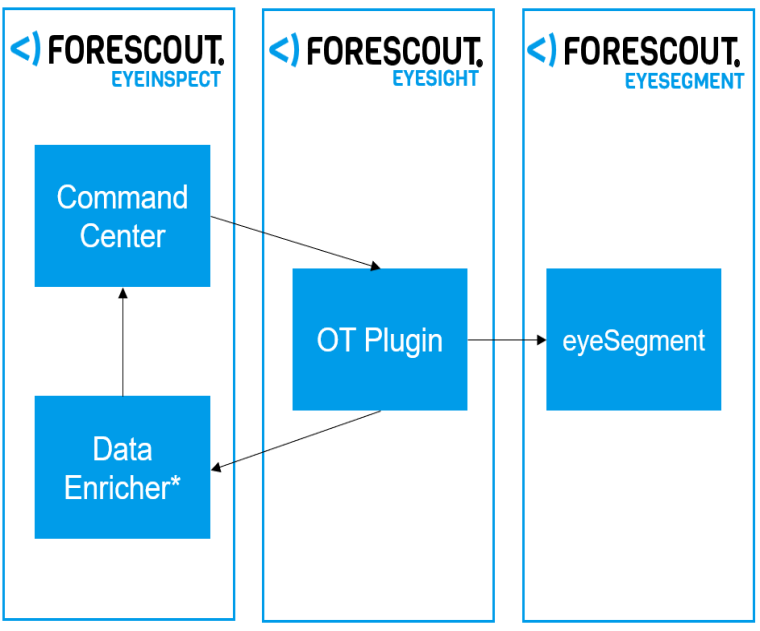
The Operational Technology plugin is optionally used in conjunction with the Passive Sensor plugin as part of the eyeSight - eyeInspect integration. See About the Passive Sensor Plugin and eyeSight-eyeInspect Integration Components.
For information about what's new in the latest release, see the Operational Technology Plugin Release Notes.
eyeSight-eyeInspect Integration Components
The eyeSight-eyeInspect integration comprises the following components:
| Component | Description |
|---|---|
|
(eyeInspect) Passive (Monitoring) Sensor |
Each Passive Sensor is connected to the ICS/SCADA (Industrial Control Systems/Supervisory Control and Data Acquisition) network via one or more SPAN/mirroring ports to passively audit the network traffic and detect malicious activities. The detection methods used by Passive Sensors are packaged in modules that can be selectively enabled. A dedicated monitoring interface sends events and logs from the Passive Sensor to the Command Center. |
|
(eyeInspect) Command Center |
Each Command Center collects and processes data reported by one or more Sensors, and supports a web interface for endpoint event management. |
|
(eyeSight) Operational Technology plugin |
The Operational Technology plugin connects to Command Center instances to integrate events and information collected from monitored endpoints. This information is made available for use in Forescout policies and by endpoint management tools. |
|
Forescout eyeSight Content Modules provide regularly updated information to enhance detection and handling of Operational Technology endpoints: |
The Operational Technology Vulnerability Database provides periodic updates of the vulnerabilities that Command Center can detect on endpoints, based on published CVEs and advisories. The Traffic Inspection Library adds protocol parsing capabilities to the Forescout platform. The library provides scripts that enhance traffic inspection by the Operational Technology module and associated eyeInspect components. The library is updated periodically to improve the breadth and precision of inspection. |
Supported Versions and Components
| eyeSight Version | Operational Technology Plugin Version | eyeInspect Data Enricher Version | eyeInspect Command Center Version |
|---|---|---|---|
| 9.1.6 | 3.2.1 | 1.11.0 | 5.9.x, 5.11 |
|
9.1.5 |
3.1.0 | 1.11.0 | 5.9.x |
| 9.1.3 | 3.1.0 |
1.5.0 |
5.5.x |
| 8.5.2, 8.5.4 | 3.1.0 | 1.5.0 | 5.5.x |
eyeSight License for eyeInspect and (full) eyeInspect License
Customers require eyeInspect licenses to work with the eyeSight-eyeInspect integration.
eyeSight Access to eyeInspect functionality depends on which type of license the customer uses.
There are two license levels for eyeInspect Command Centers:
- The eyeSight License for eyeInspect provides a reduced set of functionalities for the eyeInspect Command Center. Support is limited to asset inventory and vulnerabilities via the Operational Technology Plugin, and fully supports Passive Sensors through the Passive Sensor Plugin. The customer has access to the Sensors and Settings tabs on the Command Center UI, but cannot view any endpoint data via Dashboards, Events, and Network tabs, which are disabled.
All eyeSight customers are entitled to this license, and there is no additional licensing cost, provided that the customer has sufficient endpoint coverage for the new endpoints discovered by eyeInspect.
- The (full) eyeInspect License grants complete access to all eyeInspect
functionality and UI tabs, and supports Passive Sensors.
For more information, see the Forescout OT Hardware Guidelines.
eyeSight-eyeInspect Certificates
The eyeInspect default certificate is used as the unique certificate for Operational Technology plugin.
When configuring the Operational Technology plugin, or changing certificates for existing Command Center connections in the Operational Technology plugin, it is necessary to import eyeInspect certificates into eyeSight. This ensures communication is established between eyeInspect Command Center and the Operational Technology plugin. To do this, first export the eyeInspect certificates and then import them into eyeSight.
Export certificates from eyeInspect
-
Navigate to the eyeInspect Command Center on your web browser.
-
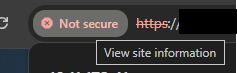
Go to the "view site information" section on the browser. Generally, this is located at the start of the URL. In the example below, you can see where this section is located on Google Chrome. If using a different browser, refer to your browser documentation for more details.
-
Select Certificate details to open the Certificate Viewer.
-
Select the Details tab.
-
Click Export.
-
While saving the certificate to your machine, select the file type as DER-encoded binary, single certificate.
Import eyeInspect Certificates into eyeSight
-
Login to Forescout Console
-
Navigate to Tools > Options > Certificates > Trusted Certificates
-
Click Add.
-
In the Trusted Certificate window, browse for the saved certificate on your machine and select it. Leave the Enable trusting this certificate checkbox enabled.
-
If you see the The selected certificate is not a root certificate. Continue? dialog, click Yes.
-
In the Trusted for Subsystems window, select All subsystems and click Next.
-
In the Trusted for Devices window, select All CounterACT devices and click Finish.
-
Click Apply to finish.
Implementation Options for Command Centers
You can deploy a Command Center in two ways:
- On a physical server, usually a 19” rack server or an embedded PC.
- As a virtual machine on a VMware ESXi hypervisor.
Deployment Scenarios
There are two deployment scenarios:
- For a new deployment, see New Deployment of eyeSight-eyeInspect Integration .
- For an upgrade of an existing deployment, before upgrading the Operational Technology plugin, existing Command Centers, and Passive Sensors, see Upgrade the eyeSight-eyeInspect Integration.
 minute read