Manage Forescout eyeSight email notifications
eyeSight generates alerts/notifications about an assortment of platform processing conditions, including:
- When specific endpoint events, email worm events and service attacks occur. Not applicable to policy detections.
- License expiration warning notices
- System operation alerts
eyeSight sends these alerts / notifications, via email, to the recipient(s) that you designate.
While setting up an Appliance, you configured the following information in the Mail pane of the Console's Initial Setup Wizard - Mail):
- In the Admin Email field, you defined email address(es). These email addresses are your organization's administrator email address(es) to receive the alerts / notifications that eyeSight generates and sends via email.
- (optional) In the Mail Relay field, you defined the mail relay server to which the Forescout SMTP mail server must send its alerts/notifications. The mail relay server then routes these alerts / notifications to your organization's administrator email address(es)
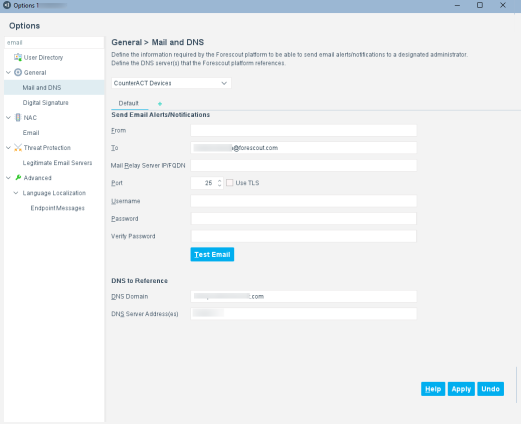
In the Console's Mail and DNS pane, you manage (update) the options that the Forescout SMTP mail server uses to send its email alerts / notifications, including using SMTP user name /password authentication with TLS (secure communication:
Options are available to configure the mail options differently for different Appliances in your enterprise and to view different configurations per Appliance. See Configure Features for an Appliance or Group of Appliances.
Note: Threat Protection policies can optionally limit the number of emails delivered to these addresses daily, and to define how many events are listed in each email.
To update the options used to send email alerts / notifications, select . Update any of the following fields:
From
(optional) In the From field, do any of the following:
Enter the Forescout [sender] email address
Clear the field of any entry to use the default, Forescout [sender] email address.
To
In the To field, modify the administrator email address(es) to receive the email alerts / notifications that Forescout eyeSight generates. This field must contain a minimum of one email address.
Separate multiple addresses using any of the following characters: semicolon (;), blank space or comma (,).
Mail Relay Server IP/FQDN
(optional) If your organization's network security policy requires the routing of incoming email through a mail relay server, enter that server's IP address [IPv4/IPv6] or FQDN.
Port
(optional) In the Port field, modify the mail relay server's port number to which the Forescout SMTP mail server sends its email alerts / notifications.
Default field values:
25 - when Use TLS is disabled
587 - when Use TLS is enabled
Use TLS
(optional) Enable/disable the Use TLS option.
If enabled (selected), the
eyeSight SMTP mail server uses TLS secure communication to send email alerts / notifications to the designated mail relay server.
If disabled (not selected), the
eyeSight SMTP mail server uses unsecured communication to send email alerts / notifications to the designated mail relay server.
Username
(optional) Enter the username that the
eyeSight uses to access the mail relay server.
Password
(optional) Enter the password that the
eyeSight uses to access the mail relay server.
DNS Domain
Enter either of the following:
- The domain name of the DNS that eyeSight
references
- localhost
DNS Server Address(es)
(optional) Enter the IP address [IPv4/IPv6] of each DNS server that
eyeSight references.
Use spaces to separate multiple entries.
Note: When you enable
Use TLS for the sending of email alerts/notifications, you must configure the certificate authority trust chain of the designated mail relay server (Subsystem Trusted for = Send Mail) so that the
eyeSight can authenticate this server. Use the Console certificate interface to configure the required, certificate authority trust chain. See
Configuring the Certificate Interface for information about working with the Console certificate interface.
 minute read